
FlowHealthLab information system
Overview
Summary
Redesigning the lab information system that takes a specimen from the receiving desk to a released result.
About the product and the challenge
The product
FlowHealth LIS is the internal web app of Flow Health Laboratories, a CLIA lab in Los Angeles. Every specimen goes through it: the order from a practice, the receiving desk, the analyzer batch, the Lab Director’s release and the report to the provider. In 2020–2021 COVID-19 testing multiplied the volume, and employers' “vaccinated or tested weekly” programs added a new job – reviewing records people upload themselves.
The challenge
The system worked if you already knew where to look. One job was often spread over three screens. An error showed up a screen after the mistake. Work meant for a batch went one row, one well, one test at a time. At 300+ specimens a day per person, each extra or unclear step adds up fast.
Results
Who uses it
01
Accessioners
Receive 300+ specimens a day at the receiving desk, a scanner in one hand
02
Lab technicians
Build analyzer batches, read result files, accept good runs
03
Lab Director & managers
Release results and see what is stuck in any order
04
Client Services
Answer practices and patients, merge duplicates, review clearance records
How I found out what to fix
01
Interviews and observation
I sat next to accessioners at the receiving desk and technicians in the lab, watched ordinary shifts and asked about every workaround. Sticky notes on monitors and paper lists by the scanner showed where the system wasn’t helping.
02
Survey
A short survey across roles asked what people do most often and what slows them down. The answers set the order of work: receiving came first, because every specimen passes through it.
03
Prototype tests
Each new flow went to the people who would use it, as a clickable prototype and on their own tasks. Whatever didn’t hold up was redrawn – clearance review went through three layouts this way.
04
Measurements after launch
After launch we timed the main tasks – receiving a specimen, loading a plate, reviewing a record – and compared them with the old screens. The time figures on this page come from these measurements.
What was broken
Check where people type, and name the row, well or field
Show status on the item; a counter opens its items
Decide once, apply to all the similar ones
Every problem gets a plain reason and one fix right there
How I approached it
Read 1,000+ legacy screens across three design files and four eras
Rebuilt each job as a flow and counted its actions, loops and dead ends
Mapped one order lifecycle and gave every stage one name on every screen
Built one review pattern and reused it wherever a person checks something
Redesigned in the order work happens: file, box, paper, tests, plate, orders, follow-up
How an order moves through the lab
Setup
Lab manager
Ordering
Practice
patient, practice, provider, tests and panels, ICD-10 diagnoses
Ordered
Collection
Collector
Receiving
Accessioner
each test needs its container type; one barcode per specimen
Received
Testing
Lab technician
COVID on a 384-well plate, other tests on analyzers or at a partner lab
Processing
the file comes back per well or per test; the technician accepts the batch
Preliminary
Release
Lab Director
the Lab Director signs, the report goes to the provider
Final
Reporting
Client Services
Order uploads
A clinic’s day in one file: every row has to become an order.
Read the case
Problem
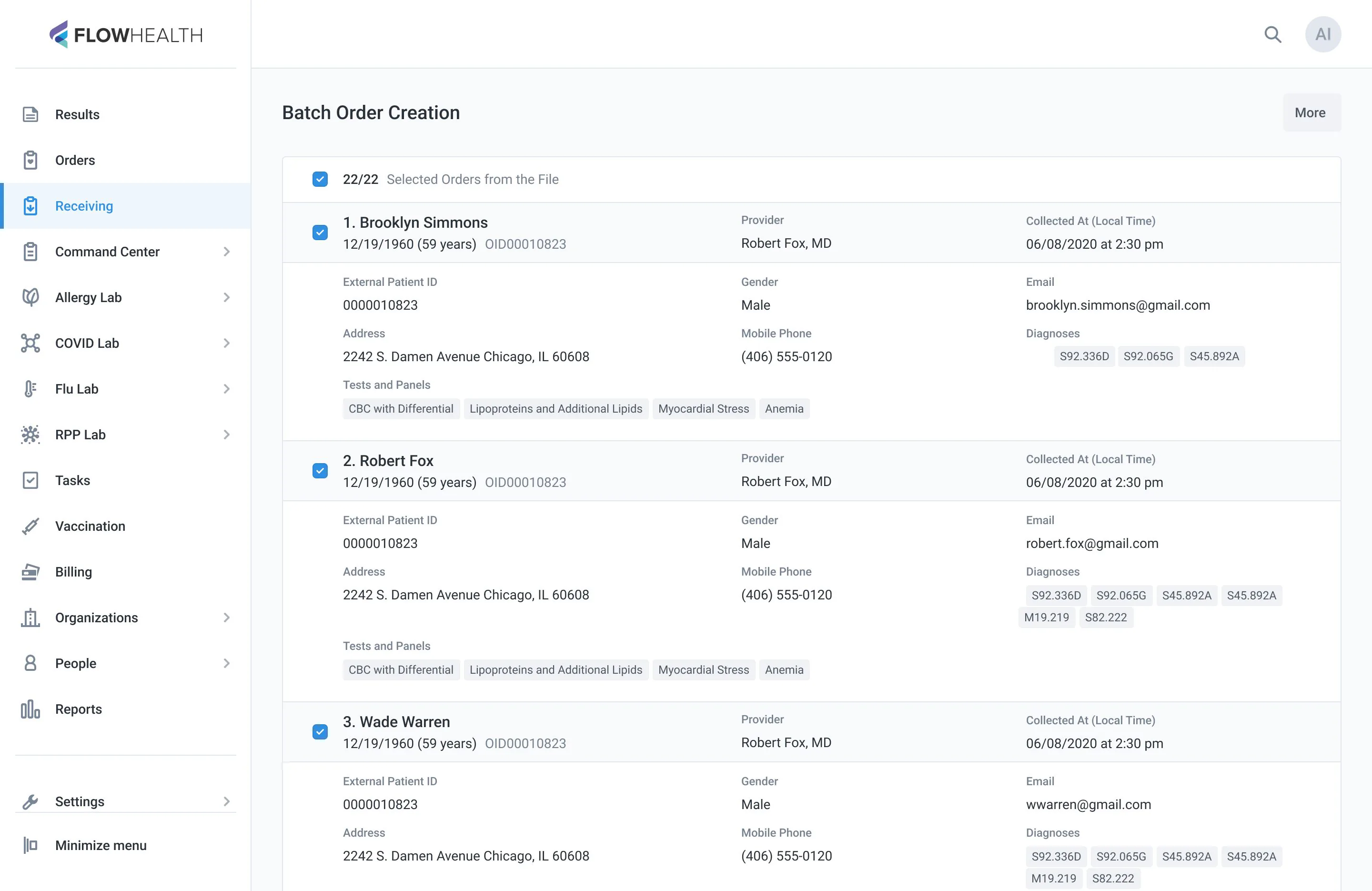
Clinics without an EHR integration send a day of orders as one CSV: their patients, the provider, ICD-10 diagnoses and the tests and panels to run. Every row has to become an order, and the patient has to be created first if the practice doesn’t have them yet. The old import showed each row as a tall card, a problem as an icon with a tooltip, and nothing about which patients were new.
What I saw
A flagged row could be fixed – it opened in edit mode and you typed the data in. The hard part was reviewing: finding the flagged rows among tall cards, opening them one by one and keeping track of what you had already checked. The import never said whether the patient already existed, so a birth date typed differently could create a second record of the same person, unnoticed.
What changed
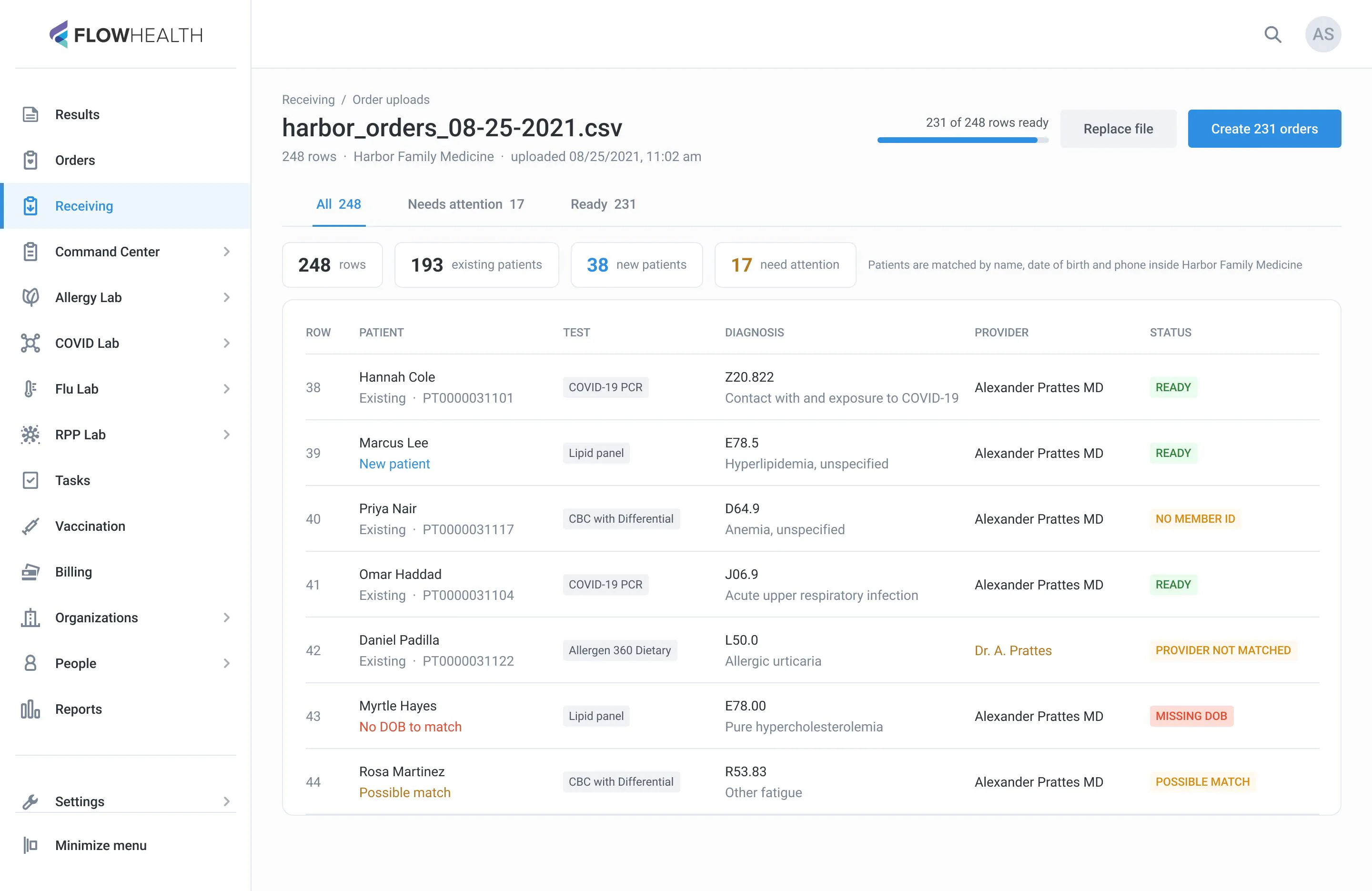
- A summary first: existing patients, new patients, and rows that need attention
- Every row shows its patient as existing, new or a possible match, and its diagnoses in words
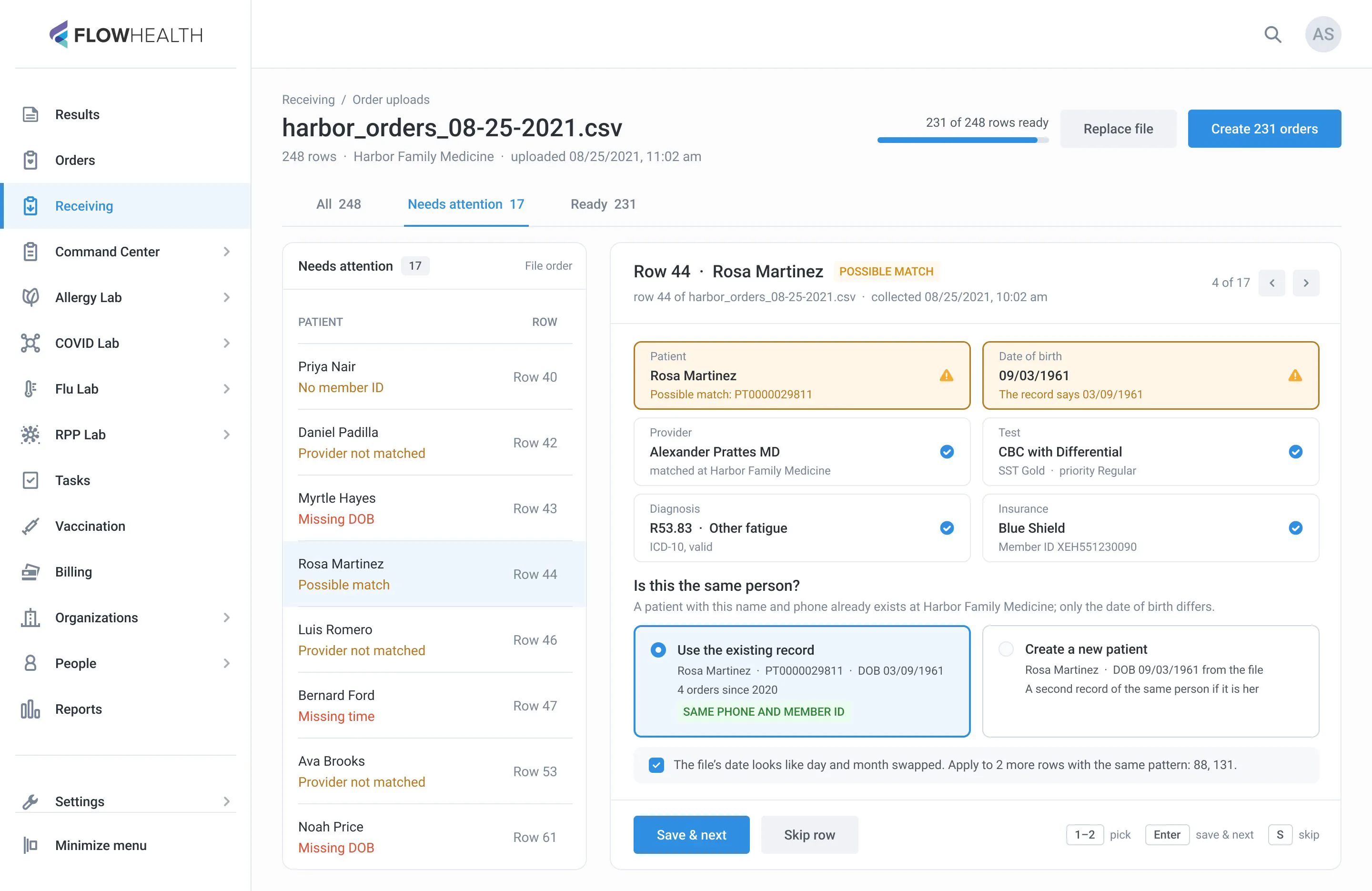
- A possible match asks before creating a second record of the same person
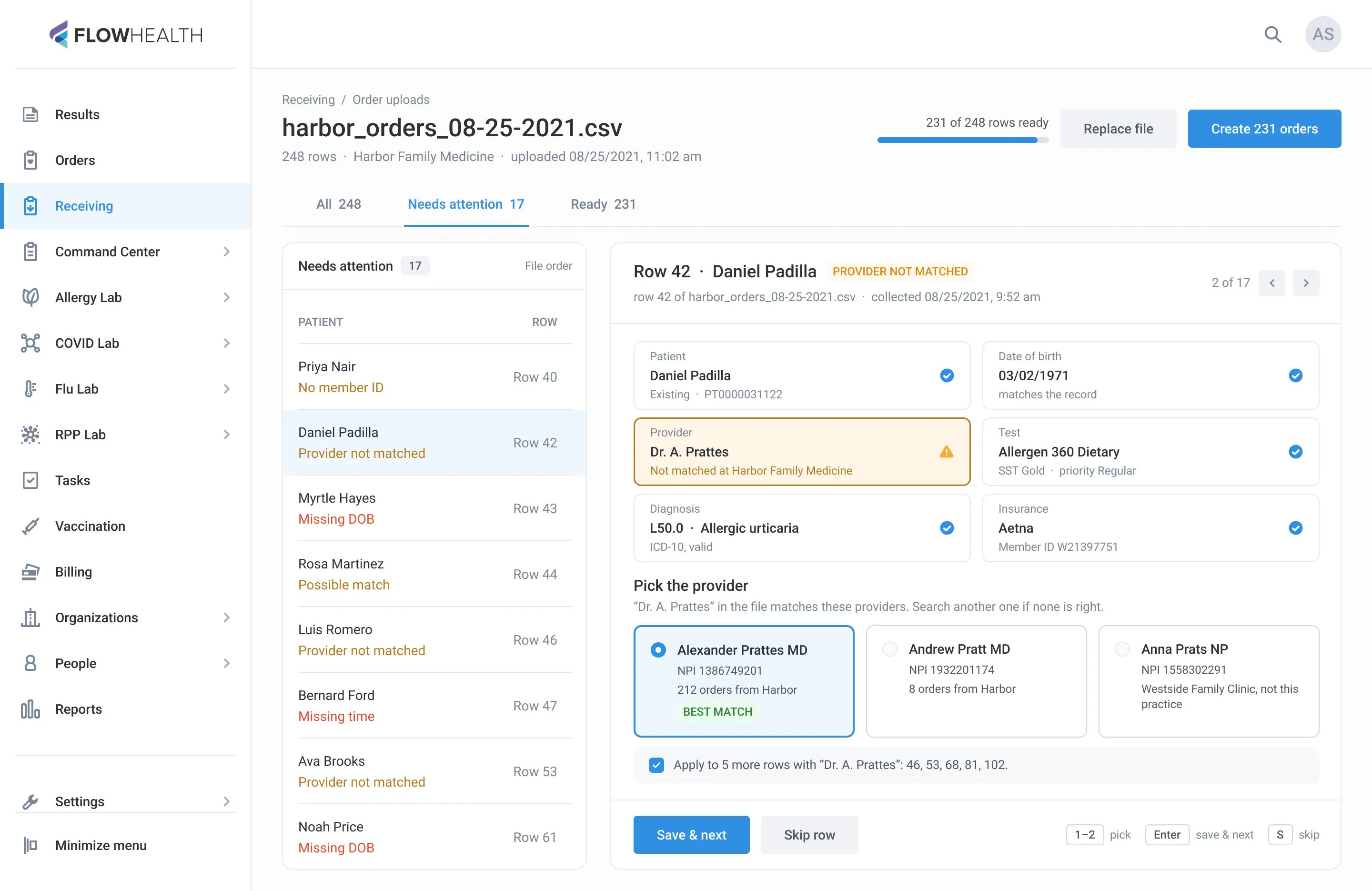
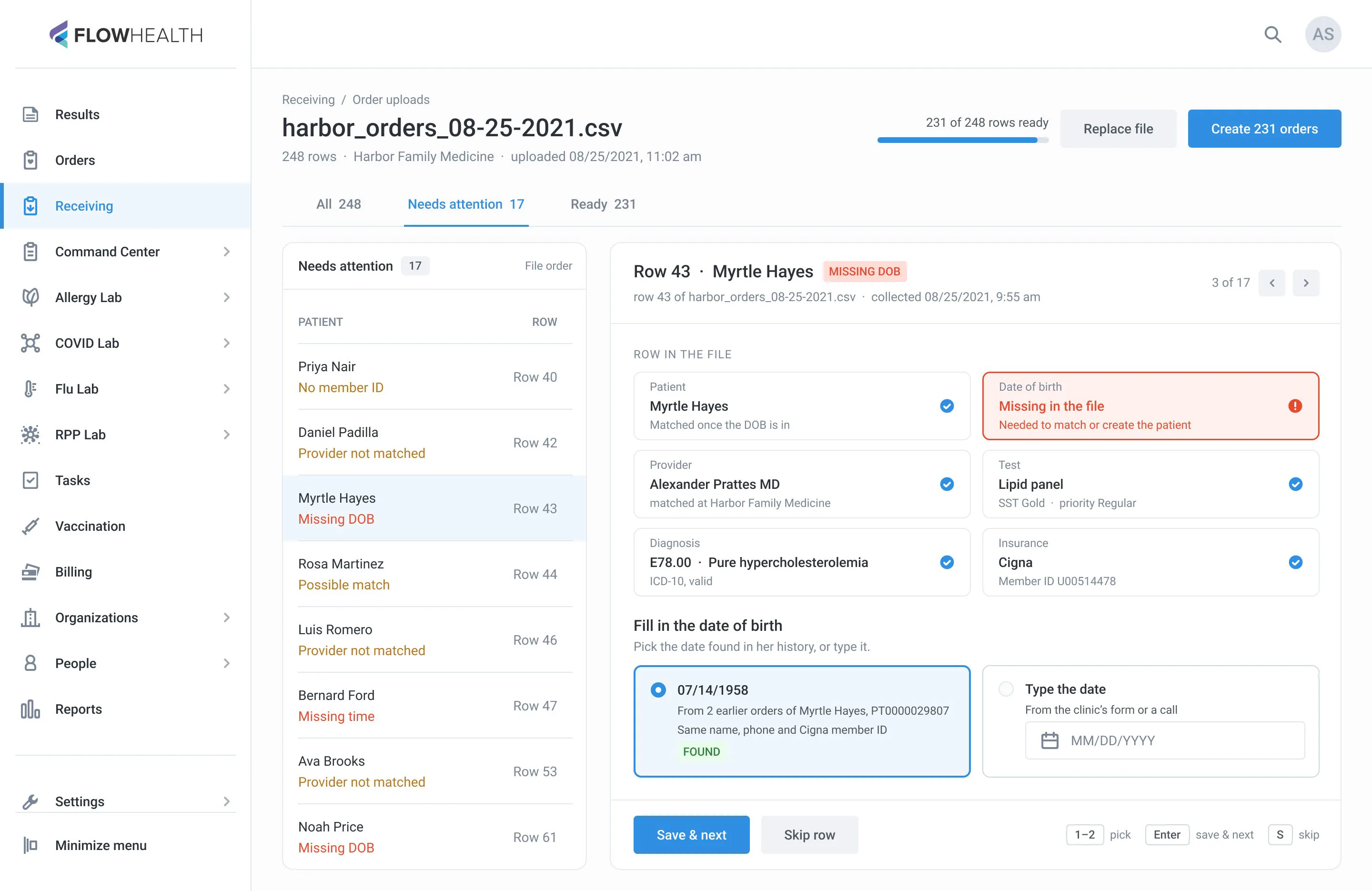
- The Needs attention queue fixes one row at a time: pick a match, a provider, or fill in what’s missing
- One click fixes every row with the same mistake
- Create the orders – they wait as Ordered until the box arrives
Three ways an order reaches Receiving
01
Order uploads
A clinic sends a file. The orders exist before the box arrives.
02
Electronic orders
The order is already here. Scan the tube and match it.
03
Paper requisitions
No order yet. Create it from the paper, received in the same step.
No order found at the scan in 02 → the tube goes to 03
Old path: ~5 clicks, the whole file read, each flagged row found and edited by hand
New path: ~1 action per flagged row
Before: the CSV import (2020). 22 rows as 22 cards; a problem was an icon and a tooltip, each row was fixed in its own edit mode, and a partial failure ended in “Review” with nowhere to go.
 123
123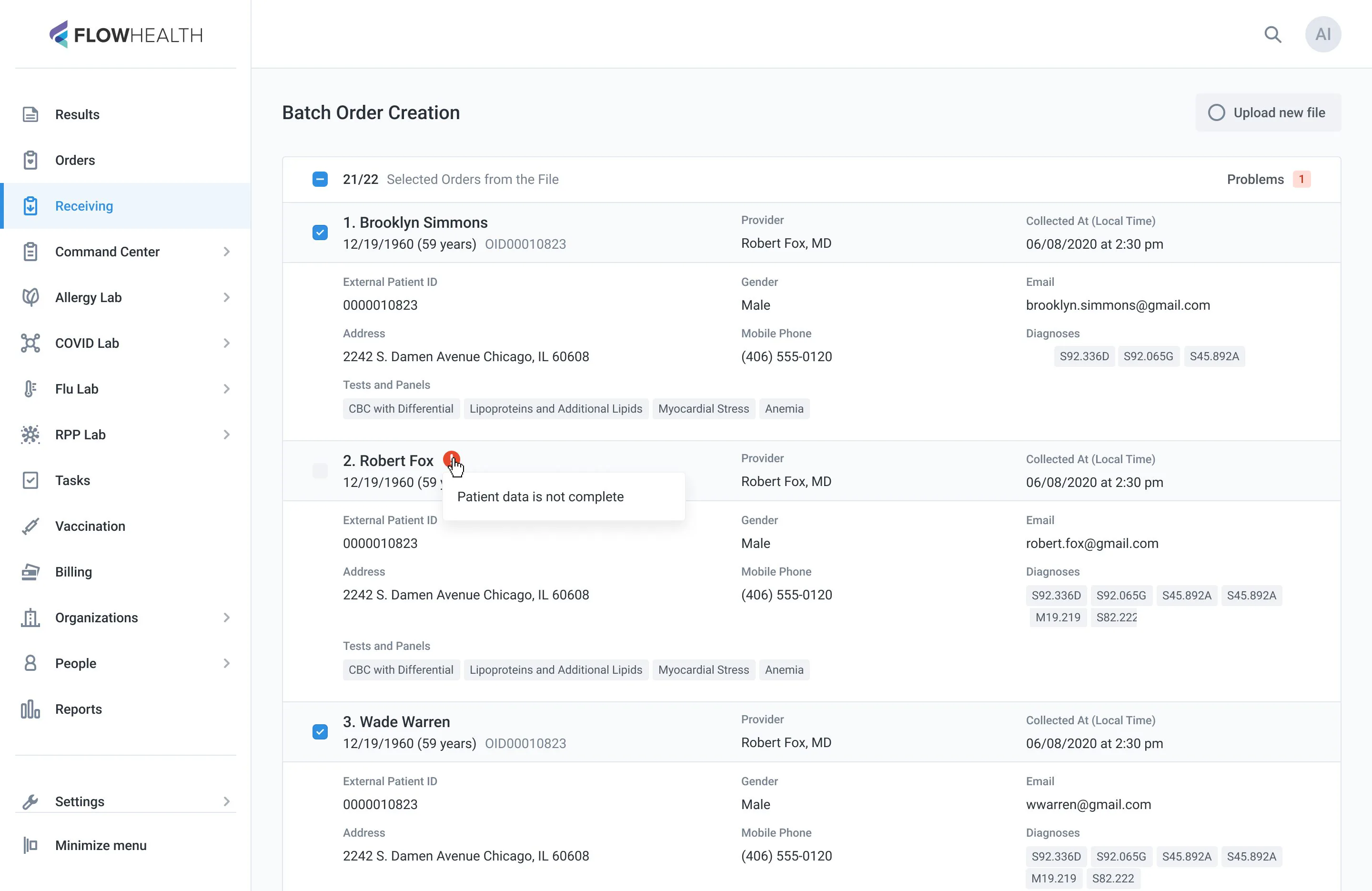 12
12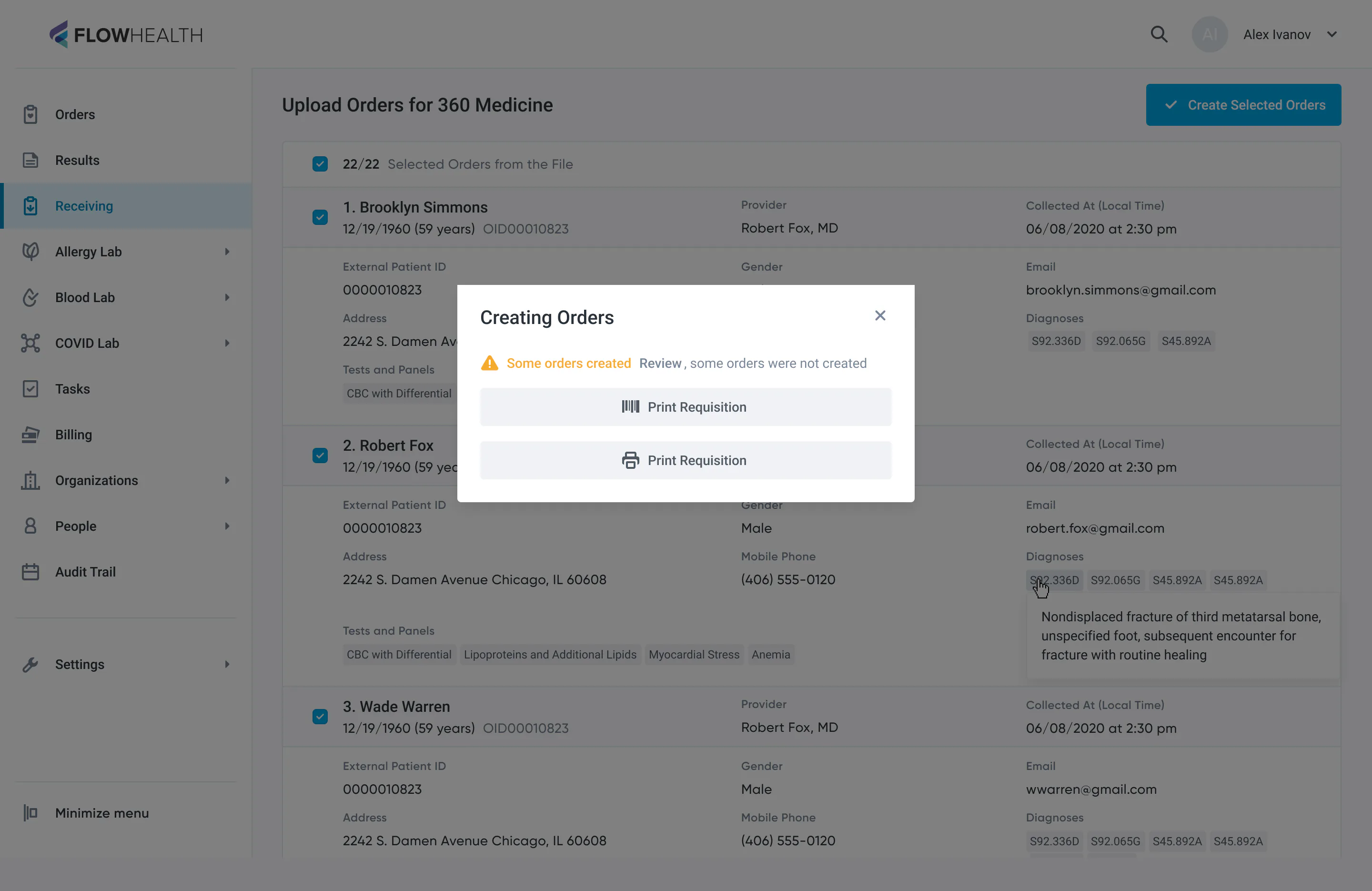 1
1- 122 rows become 22 tall cards to read one by one
- 2Nothing says whether this patient is new or already in the practice
- 3Diagnoses are bare ICD-10 codes
- 1“Patient data is not complete” sits in a tooltip and doesn’t say what is missing
- 2Each row is fixed in its own edit mode, one at a time
- 1Some orders were not created – which ones? “Review” leads nowhere
After: a summary, every row with its patient status, and a queue where you confirm a patient, pick a provider or fill in what’s missing.
Electronic orders
The order is already here – the work is in the tubes that don’t match.
Read the case
Problem
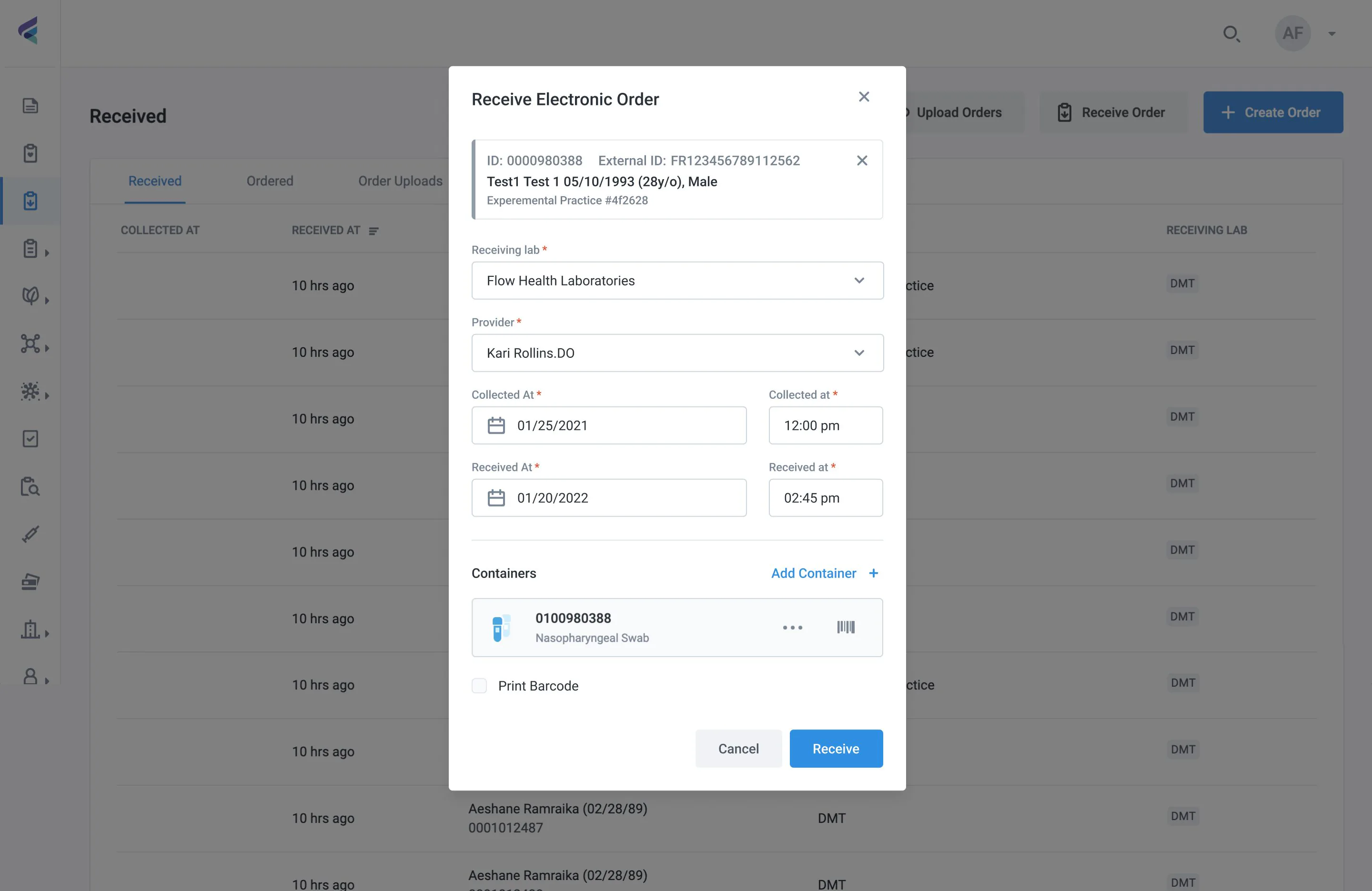
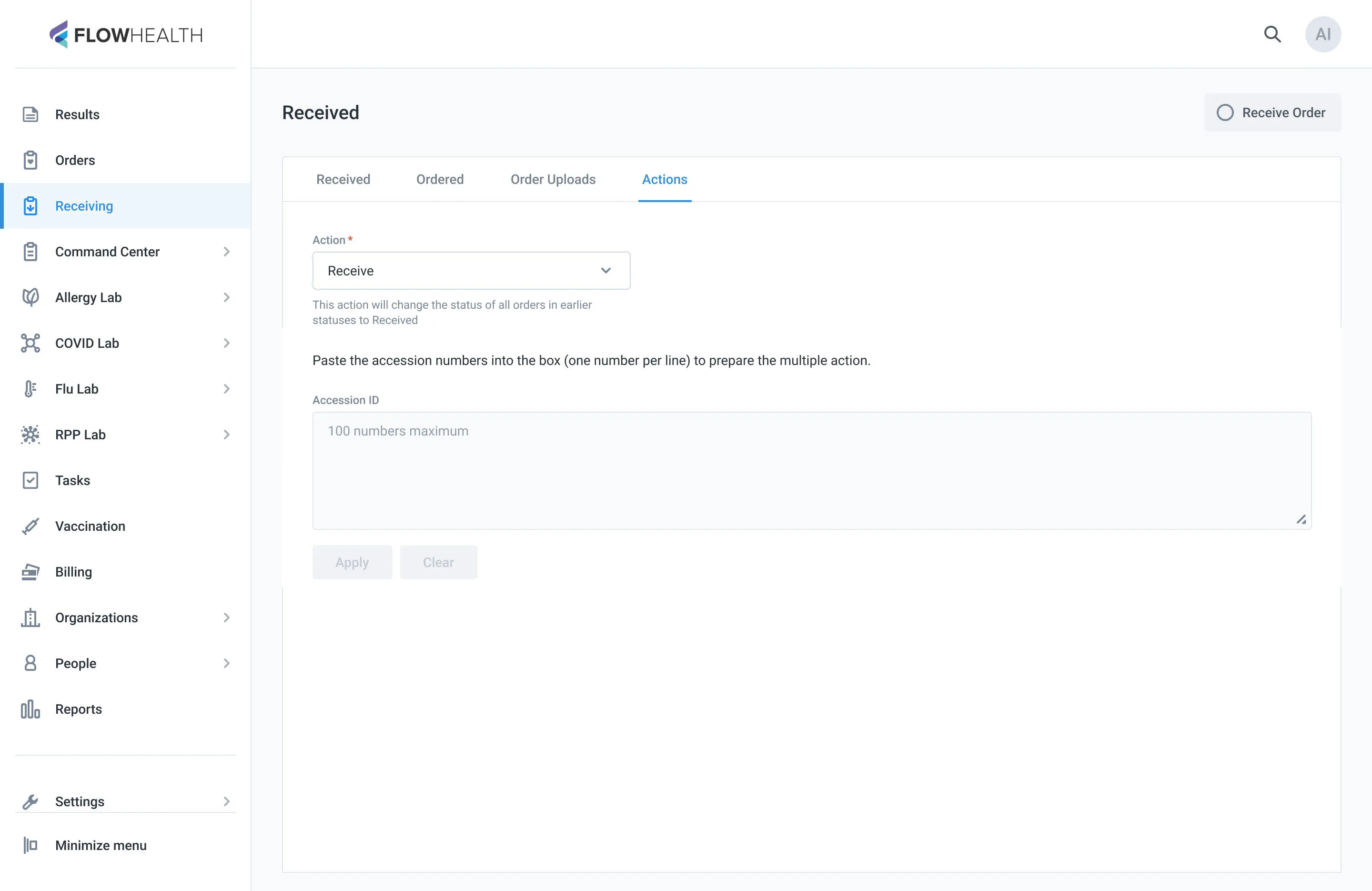
Most orders arrive electronically before the box does. The accessioner scans each tube, and the system fills in what it already knows, like the received time. The work is in the exceptions: a missing date of birth, a name that doesn’t match the label, a tube with no order. The old screens handled them in one generic form that never said what exactly was missing or which option to pick.
What I saw
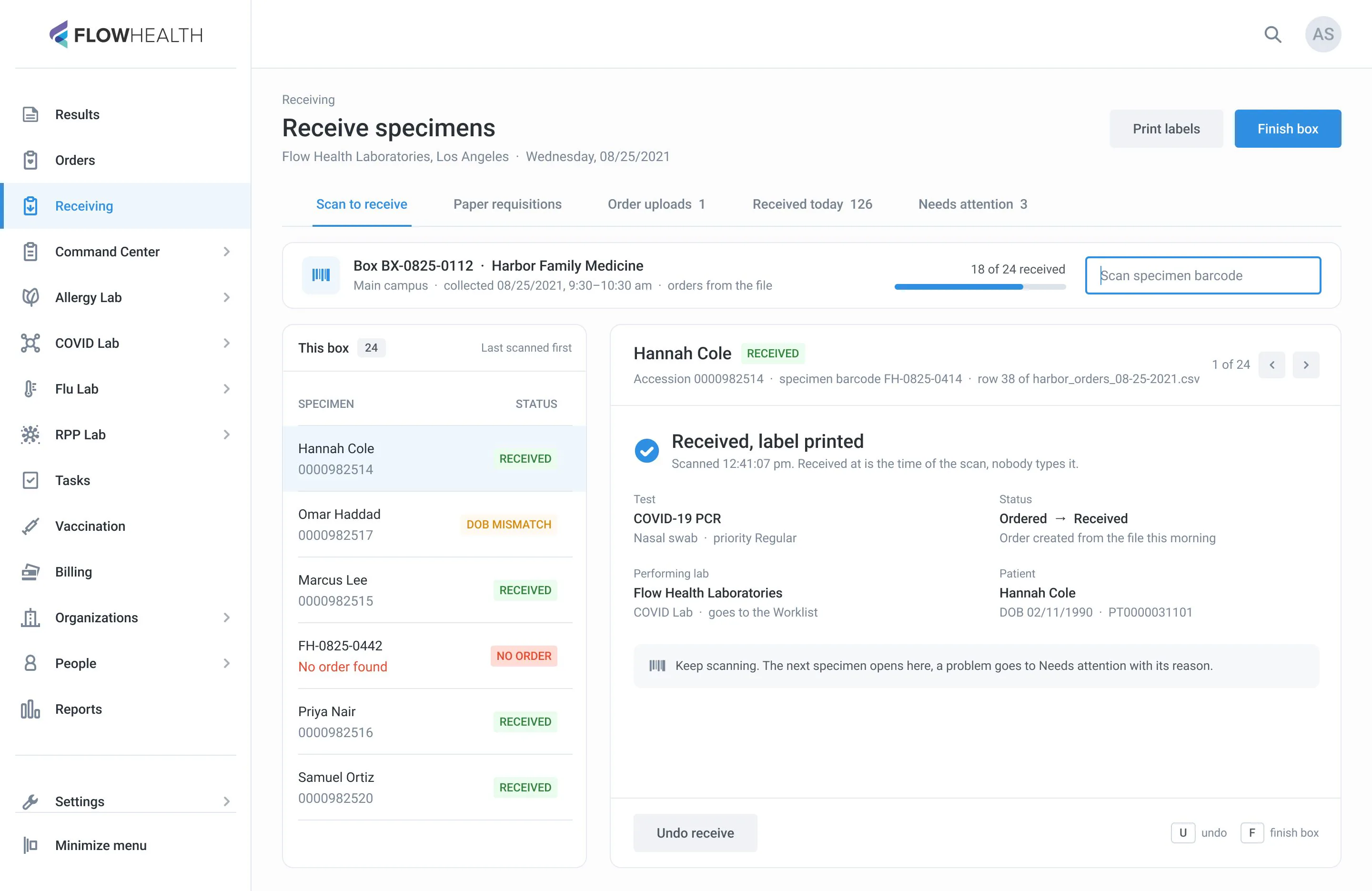
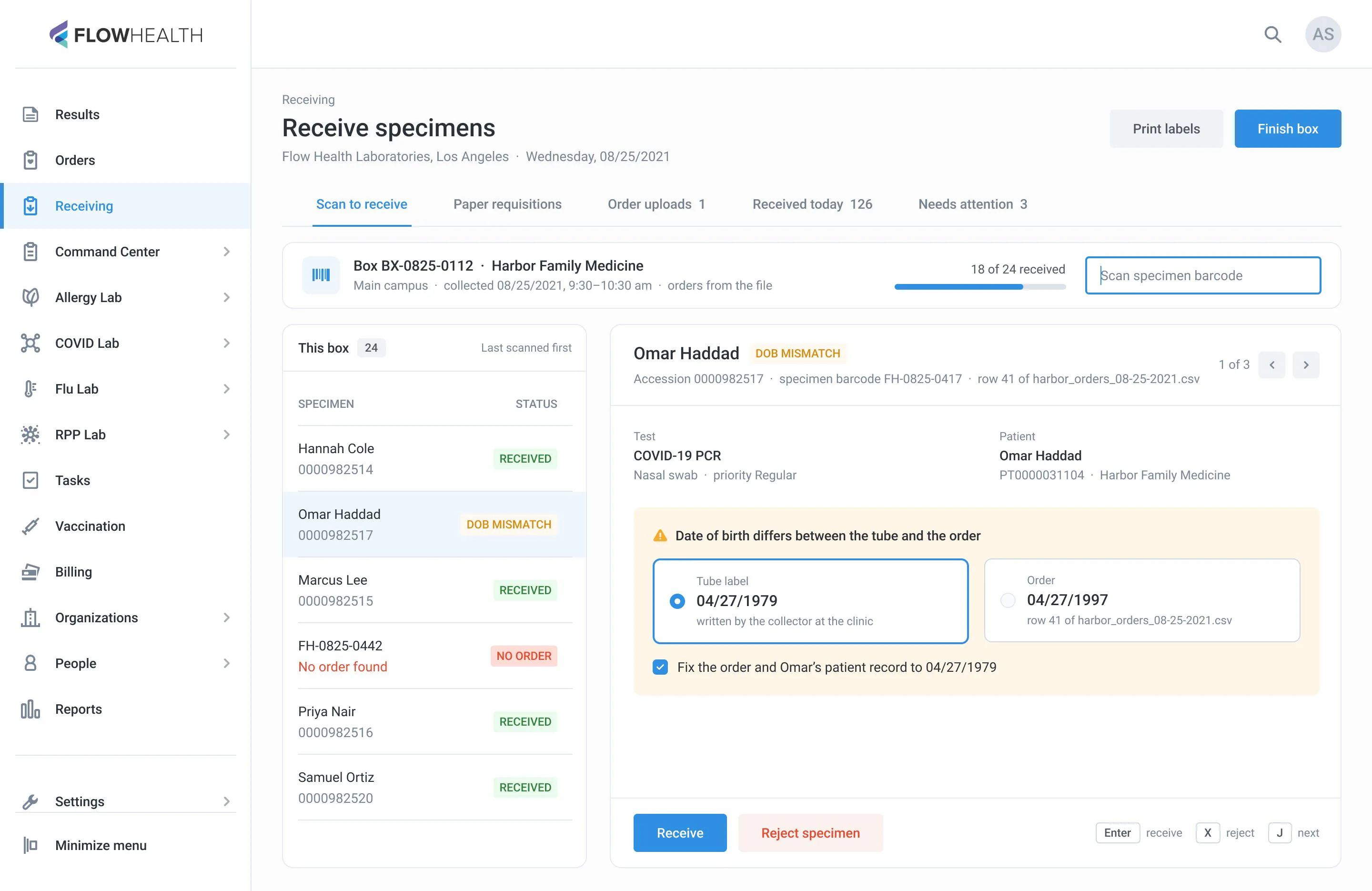
Most tubes pass with a single scan. The time goes into the few that don’t, and the accessioner had to work out on their own what was wrong. The screen should name the problem and offer the likely fix: the missing field with a suggested value, two conflicting values side by side, the order that probably matches.
What changed
- A clean tube stays one scan: the order moves from Ordered to Received
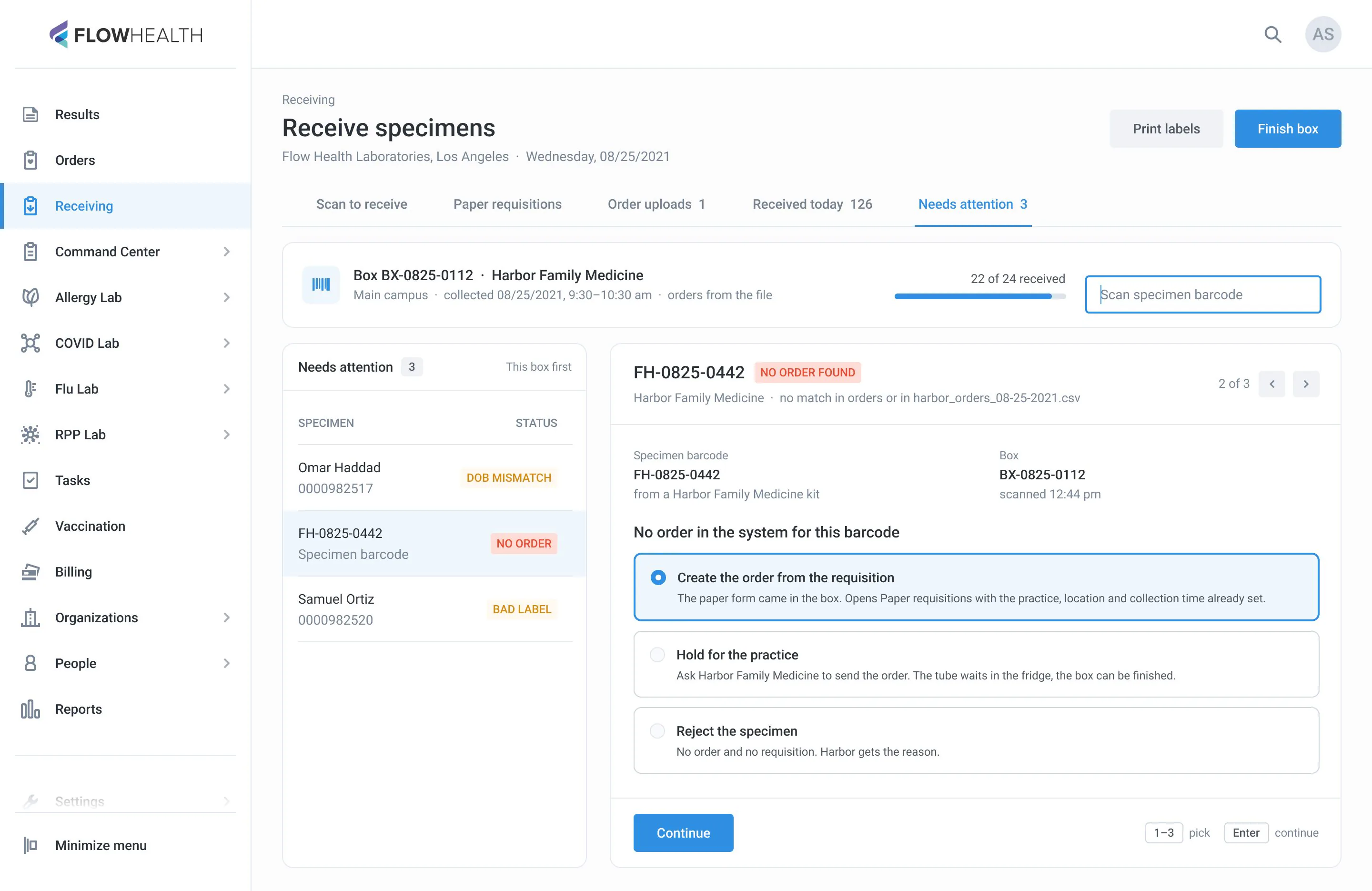
- A problem opens as a record that names it: missing date of birth, name mismatch, no order
- A missing date of birth comes suggested from earlier orders or the requisition
- A mismatch shows both values side by side: pick the tube label or the order
- No order found offers three ways out: create from the requisition, hold, or reject
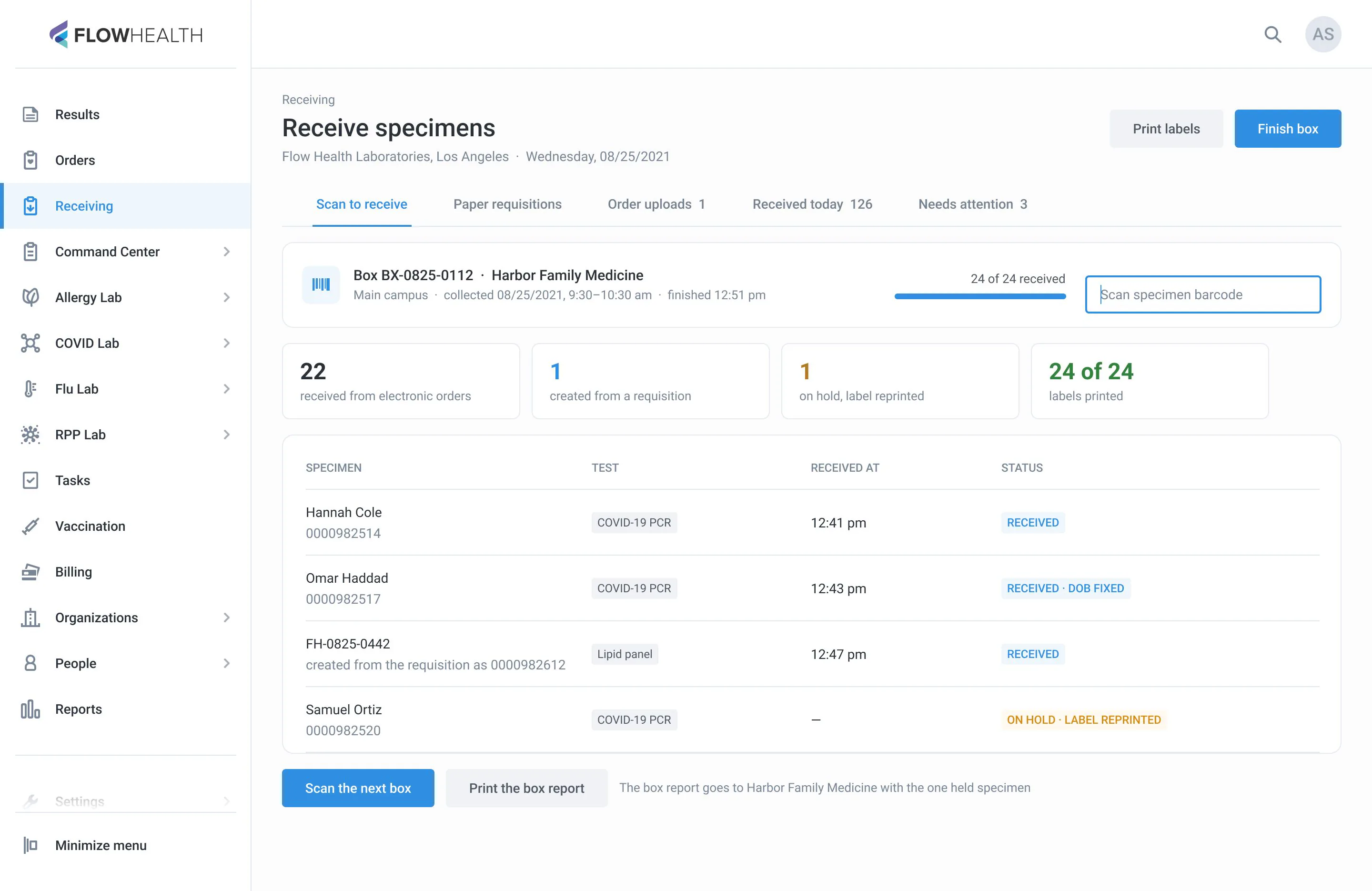
- Finish box: a report of what was received, fixed and held
Old path: ~8 actions per problem tube, and you find the problem yourself
New path: ~2 actions per problem tube; a clean tube is one scan
Before: the Receive Electronic Order modal and the Receiving › Actions tab (2021) – a generic form that didn’t say what was missing.
After: a clean tube is one scan; a problem opens as a record that names it and suggests the fix, and the box closes with a report.
Paper requisitions
No order yet – create it from the paper.
Read the case
Problem
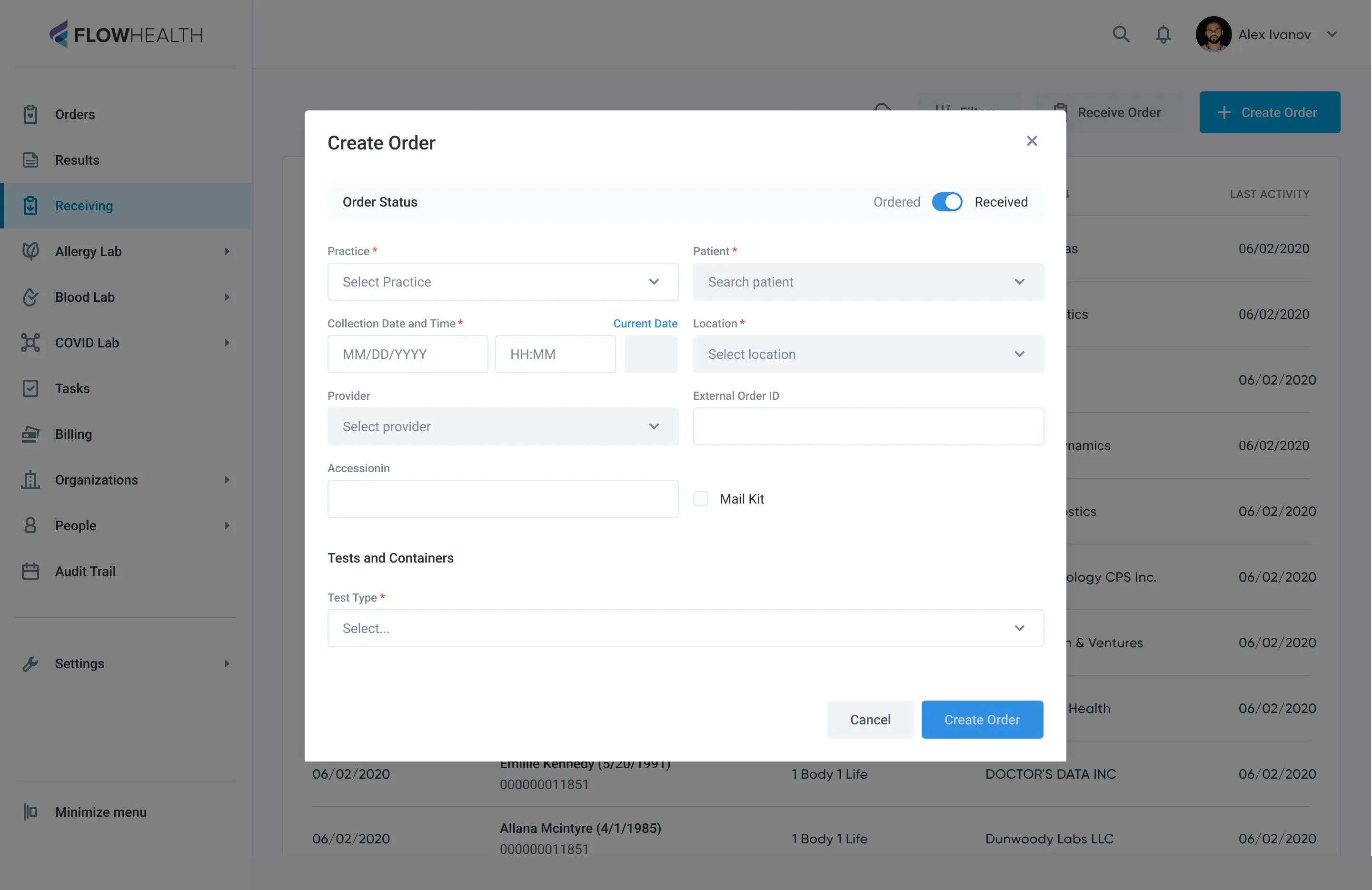
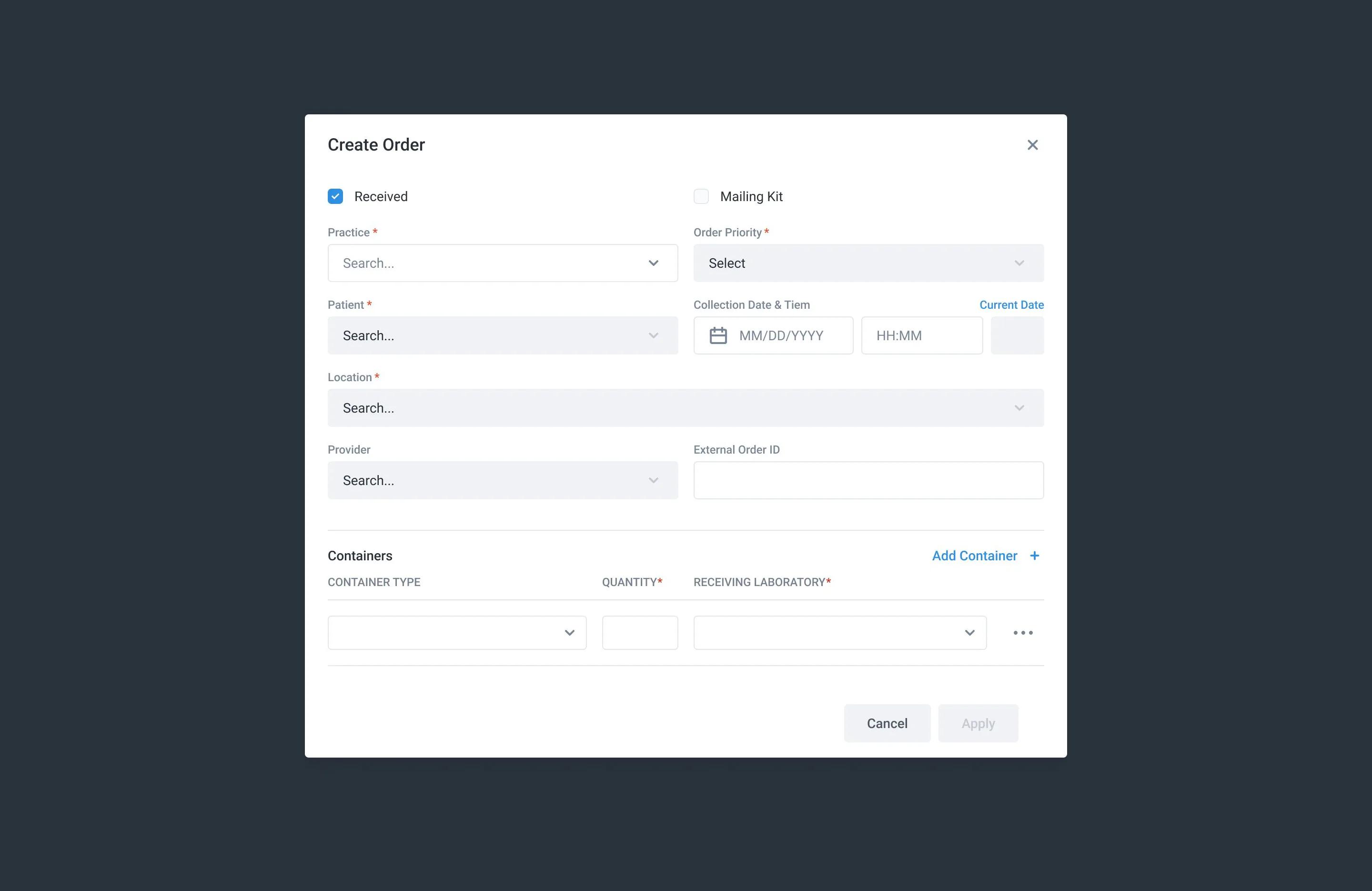
Some specimens still arrive with a paper requisition and no order in the system. The accessioner built the order from scratch in the Create Order modal, retyping the practice, location, collection time and provider for every tube, though the whole box came from one clinic at one time.
What I saw
Nothing about the box changes between tubes. Two iterations of the modal, 2020 and 2021, kept adding fields, but the retyping stayed. The fix was to set the box once and create the order already Received – the specimen is in hand, there is no Ordered step to wait for.
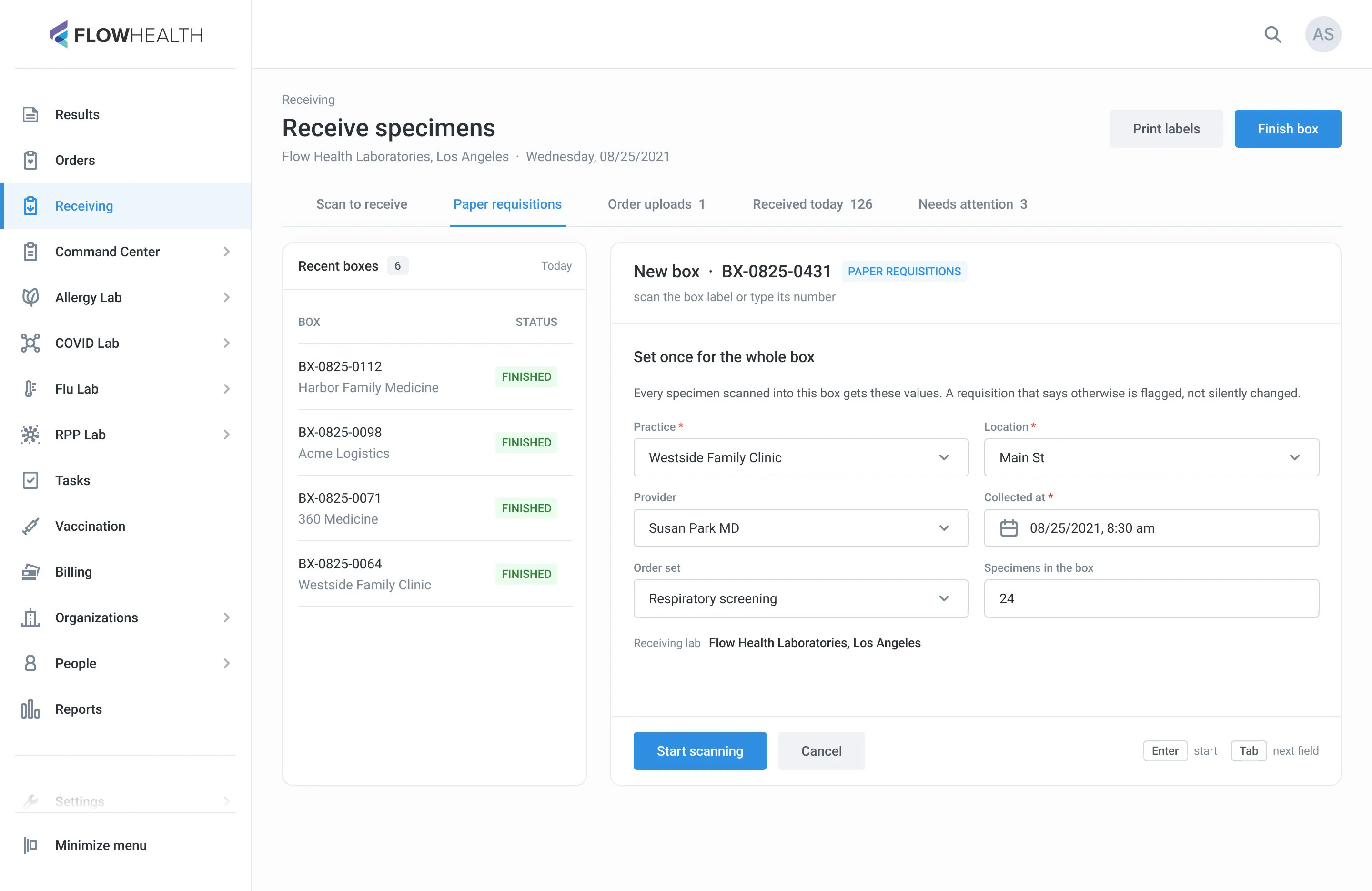
What changed
- A new box: practice, location, provider and collection time set once
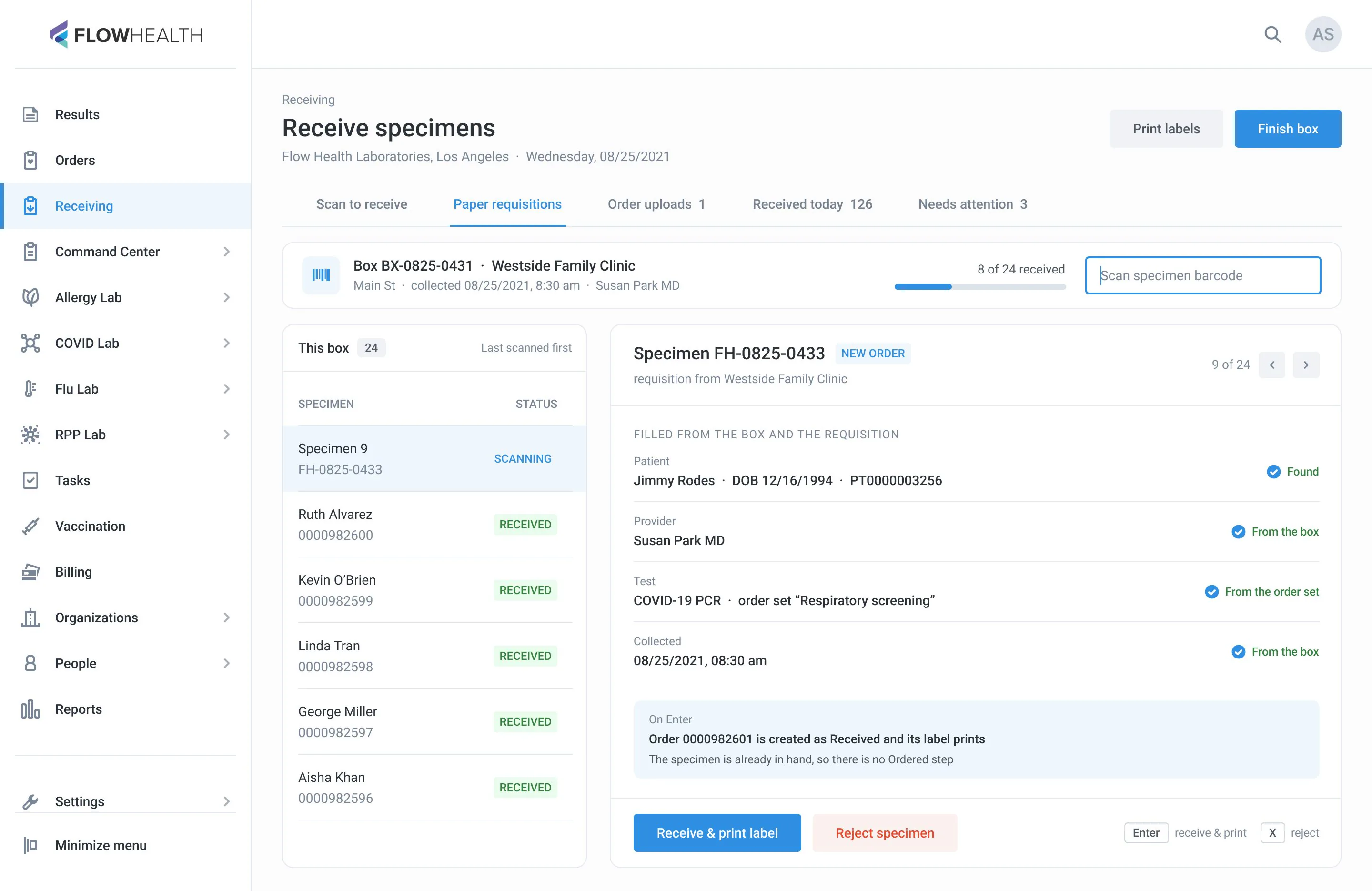
- Scan the specimen barcode, the patient comes from the requisition
- The test comes from the practice’s order set
- Enter creates the order as Received and prints the label
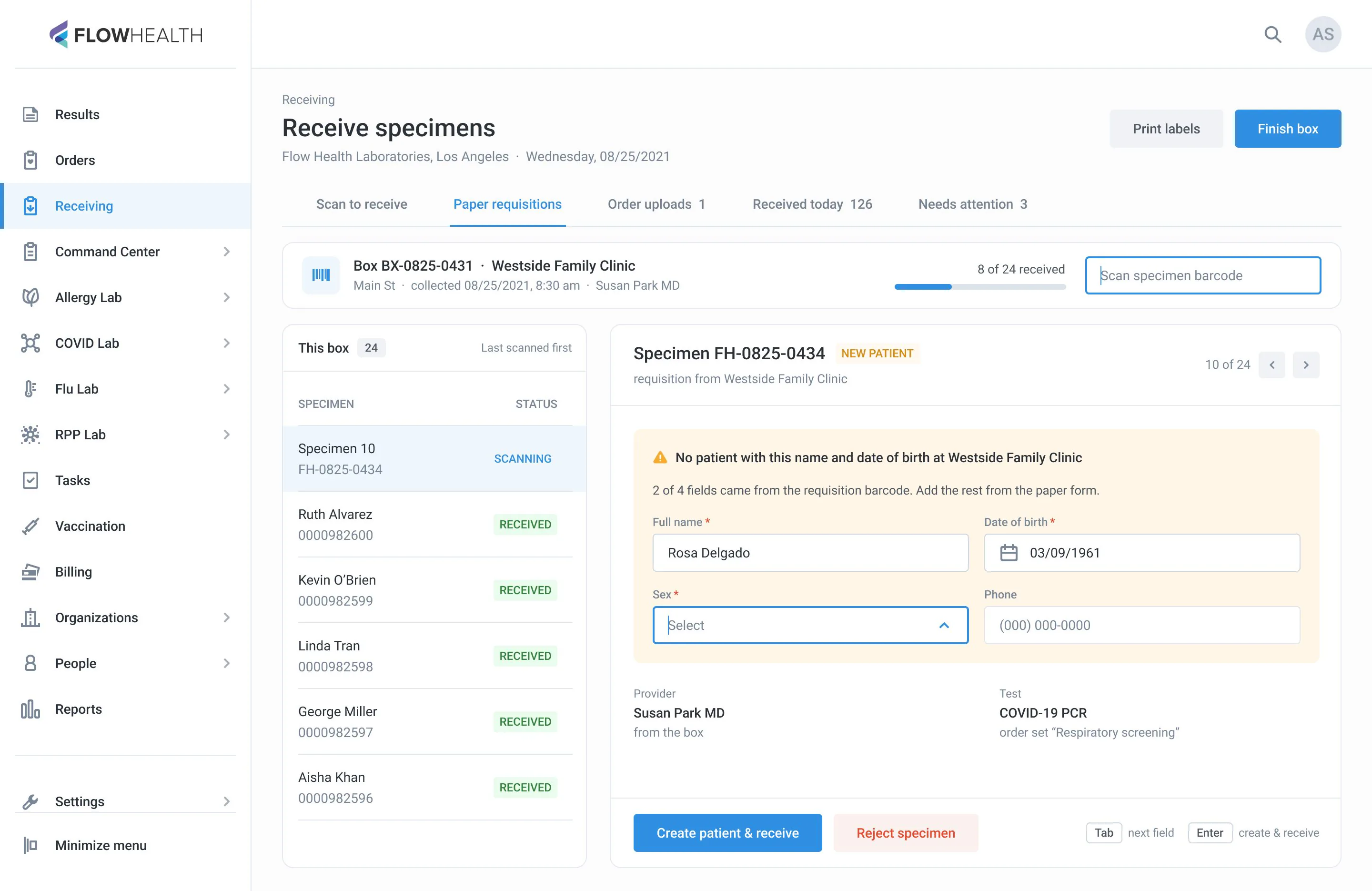
- Only a new patient asks for input: 4 fields, 2 filled from the requisition barcode
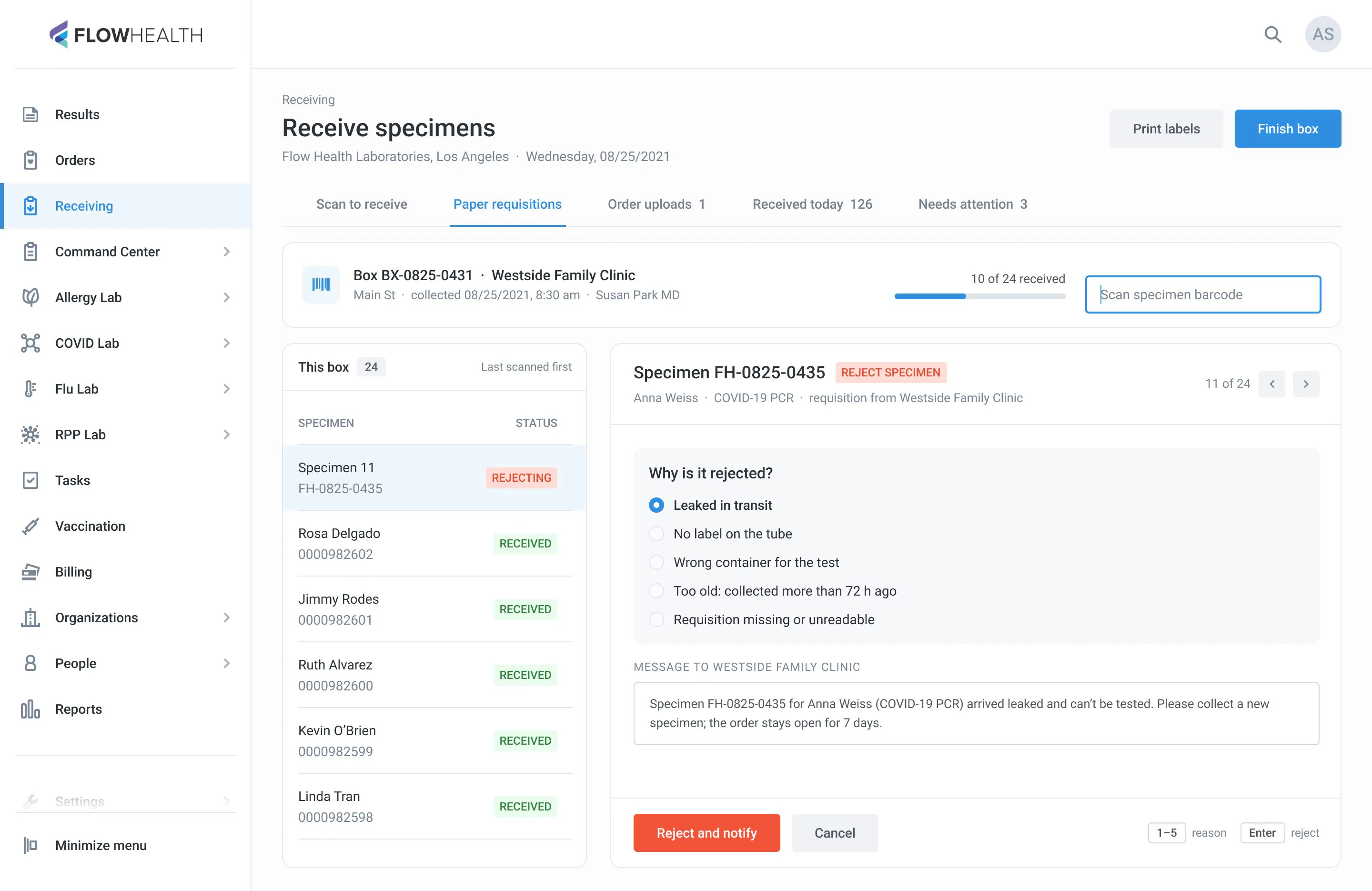
- Reject with a reason; the practice gets a ready message
Old path: 10–12 actions per specimen, the same box fields retyped every time
New path: 3 actions per specimen
Before: the same Create Order modal in two iterations, 2020 and 2021.
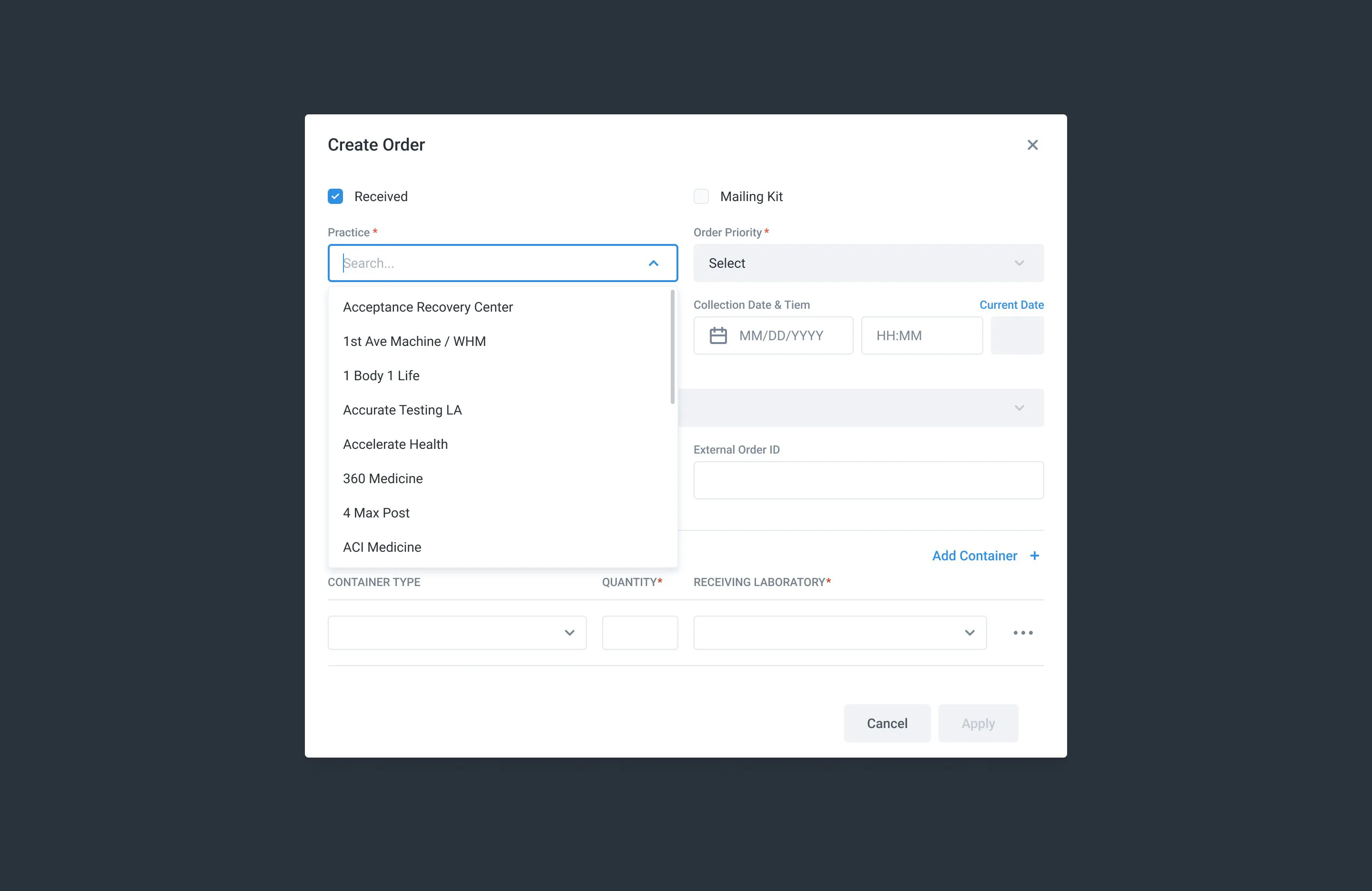
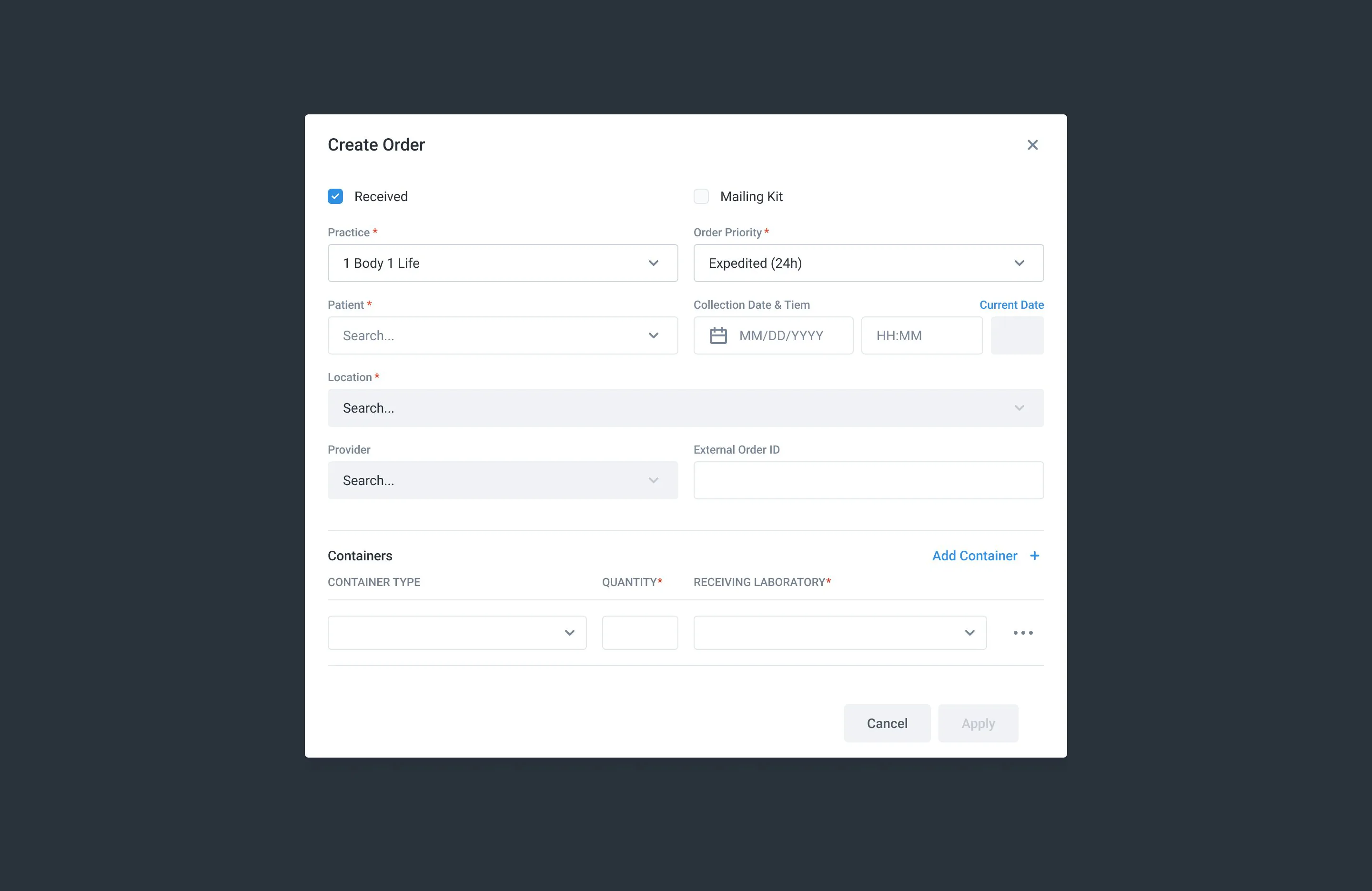
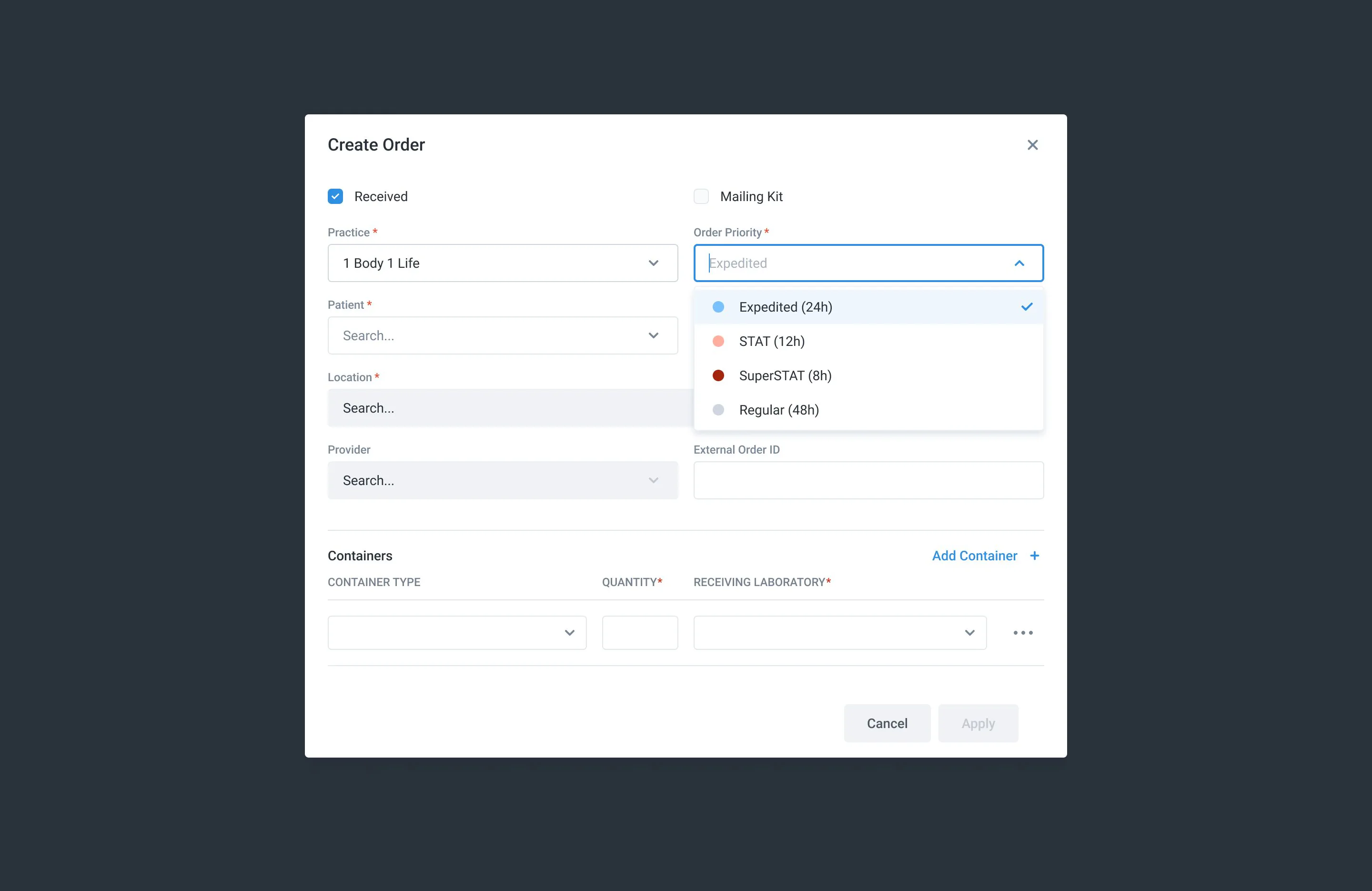
After: the box is set up once, each specimen is one screen, a new patient is the only exception, and rejecting one sends the practice a ready message.
Tests & specimens
Tests land in the right specimens; the lab picks the analyzer.
Read the case
Problem
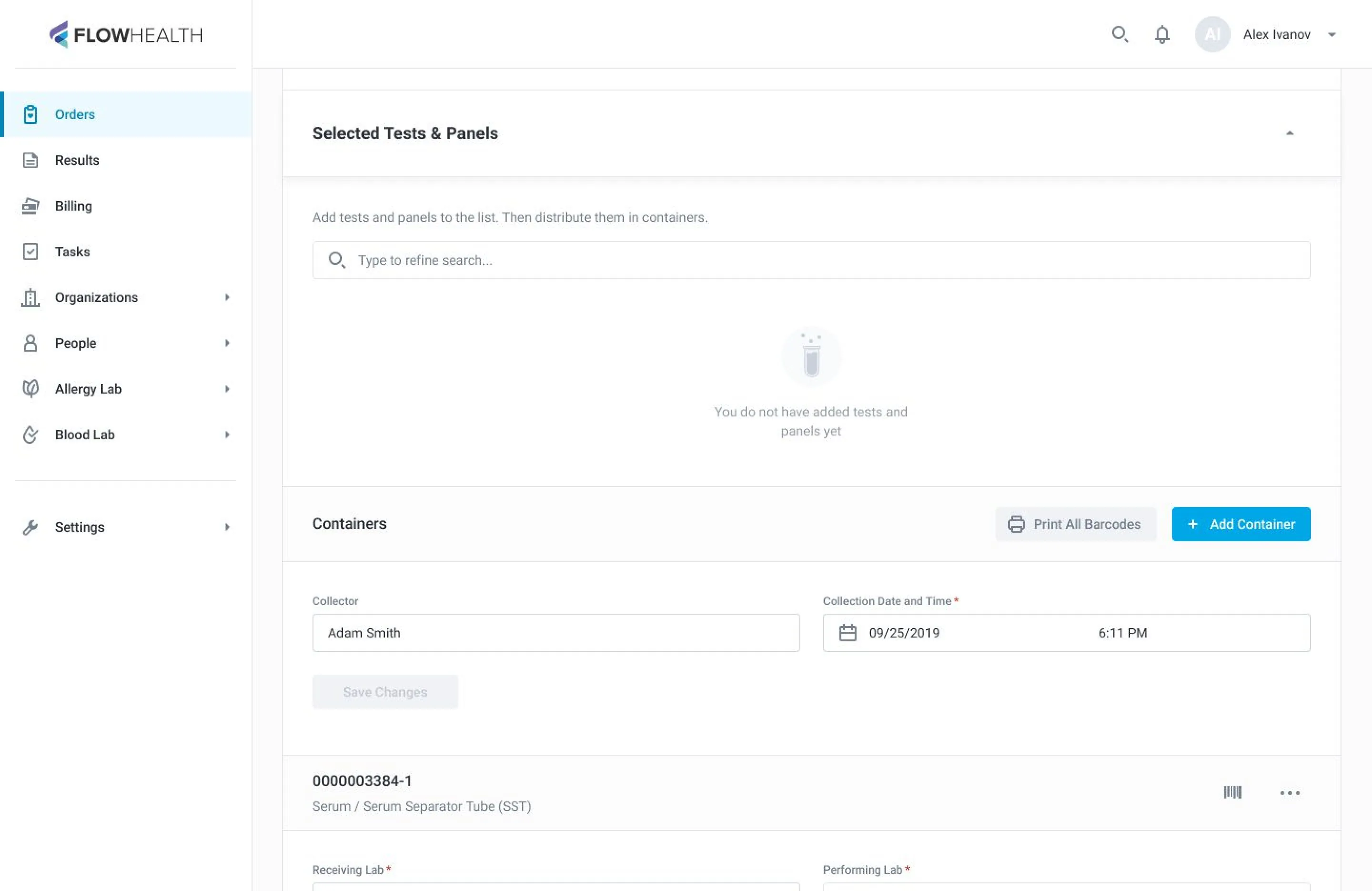
An order carries tests and panels, and one allergy panel alone lists 40+ allergens. Each test needs a specific container and a place to run. In 2019 the order page left it all to a person: “Add tests and panels to the list. Then distribute them in containers.” Inside each container, you built a run yourself: picked an analyzer and moved tests into it one by one.
What I saw
One decision lived in three lists that didn’t talk to each other: loose test chips, containers with their own lab pickers, and runs with a bare “0/16 Tests in the Runs” counter. Nothing showed which test was placed, so you compared the pool of chips against the runs by eye. The 2020 redesign moved runs to the Results tab and let diagnoses pick panels, but the three lists stayed. Most of this was never a choice: a test’s container type and the lab’s analyzers already decide it.
What changed
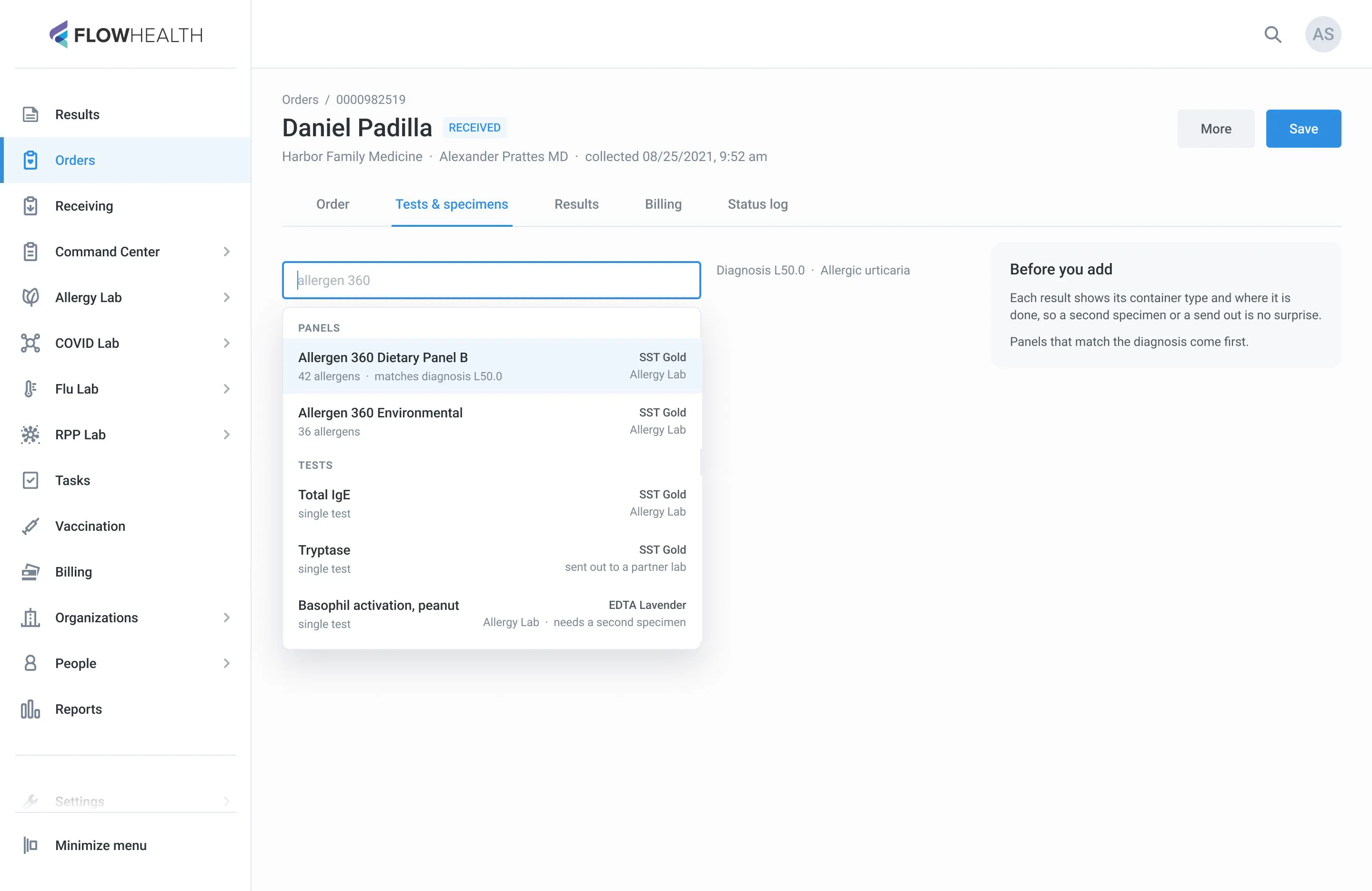
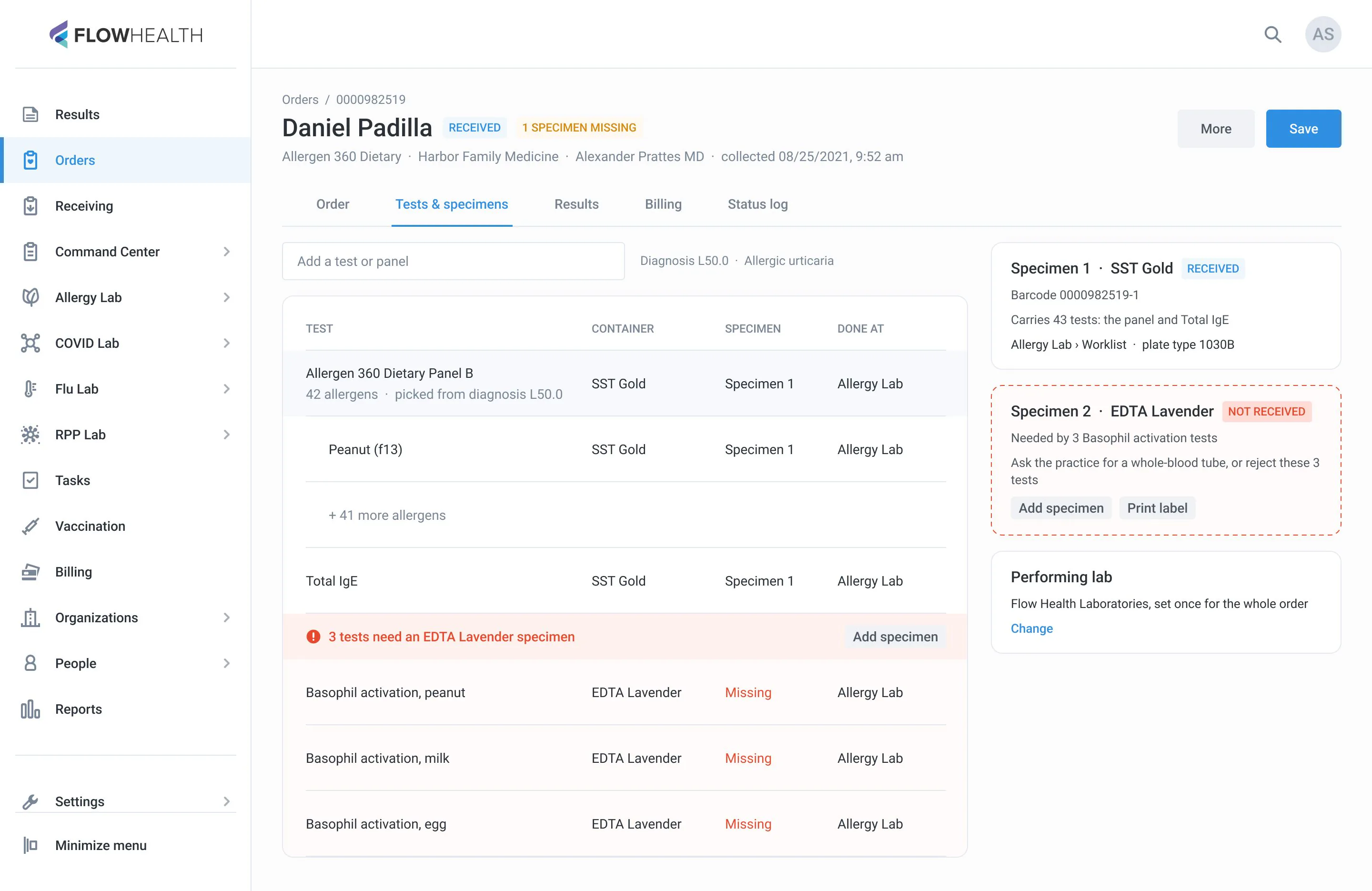
- Search shows panels first, with the container type and the lab for every result
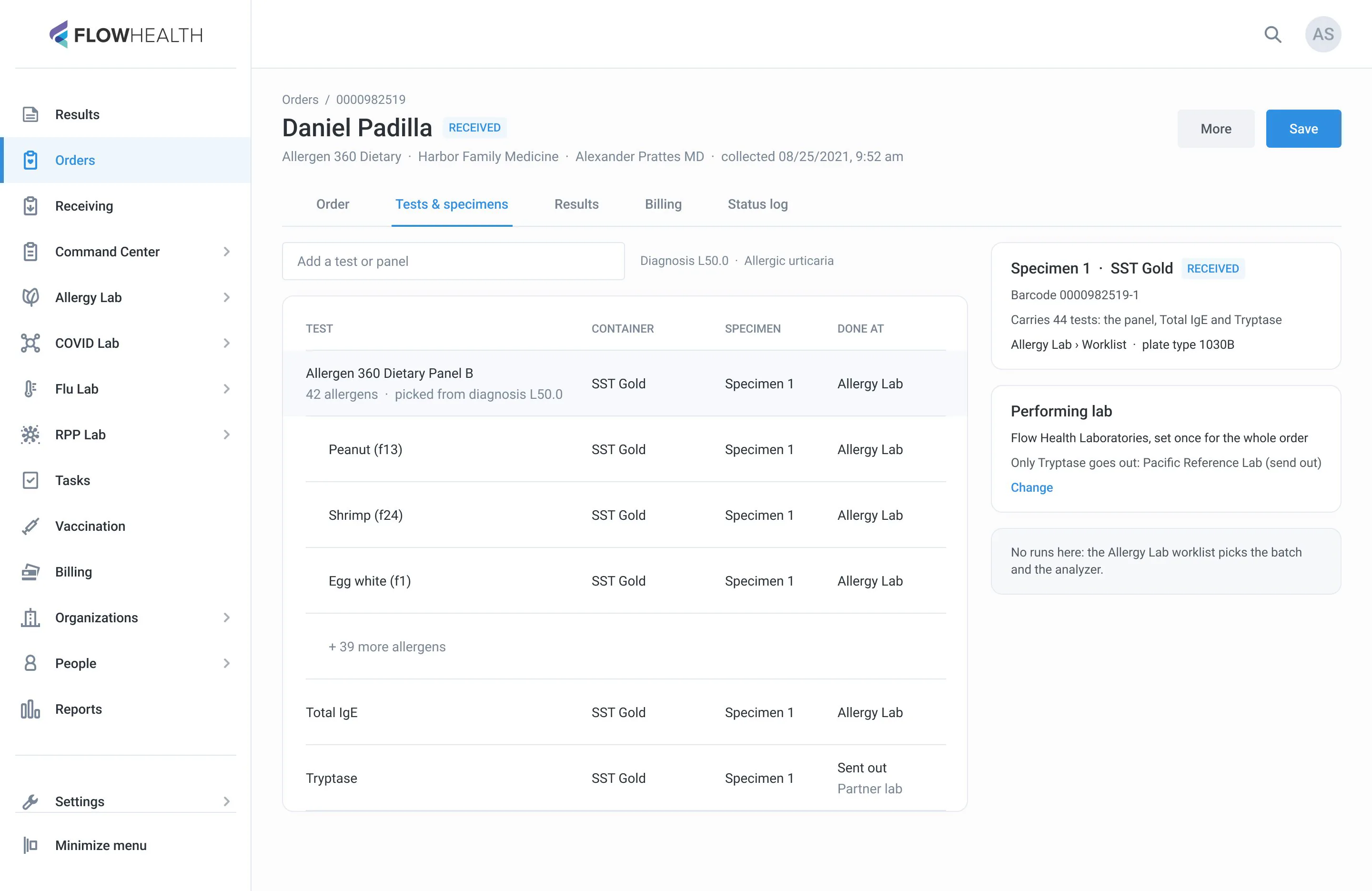
- Each test goes into a specimen of its container type automatically
- Every specimen card shows what it carries and where it is done
- The performing lab is set once per order; only a send out overrides it
- A gap shows where it happens: “3 tests need an EDTA Lavender specimen – Add specimen”
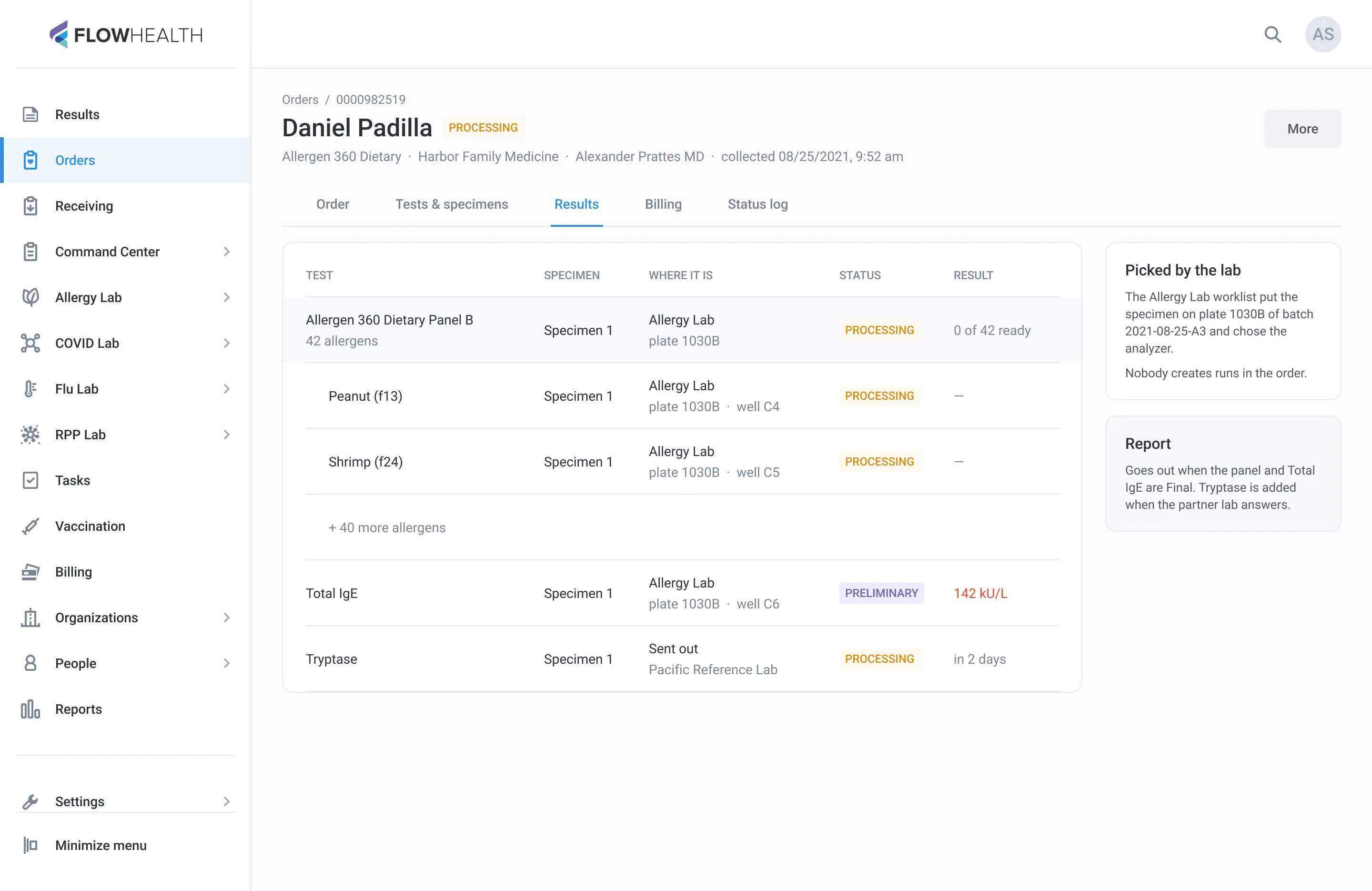
- No runs in the order: the lab section picks the batch and the analyzer, the Results tab shows where each test is
Old path: ~55 actions per order, more with large allergy panels
New path: ~4 actions per order
Before: the order page in 2019 and its 2020 redesign. A pool of loose chips, containers with their own lab pickers, runs with a bare counter.
 12
12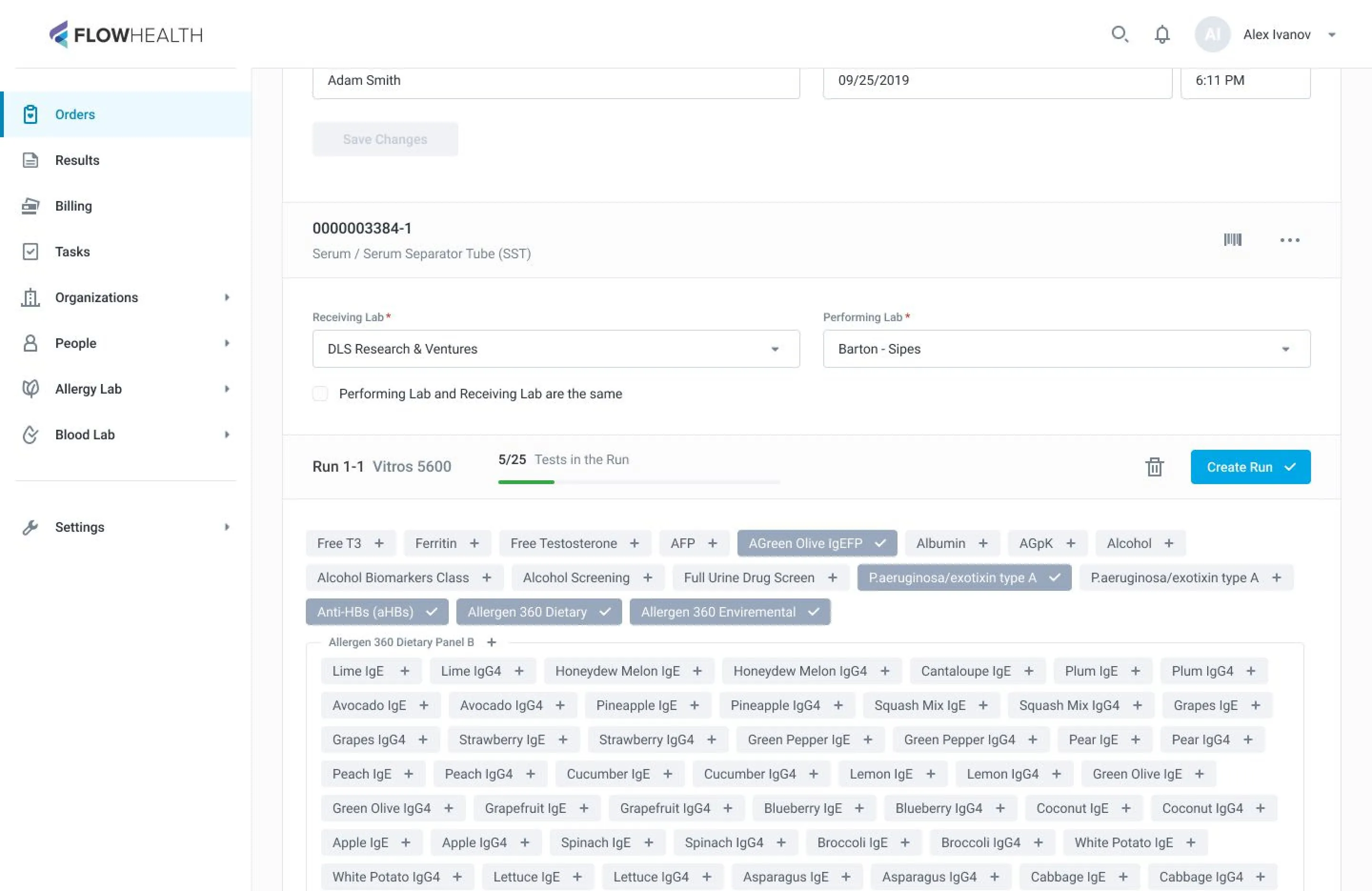 1
1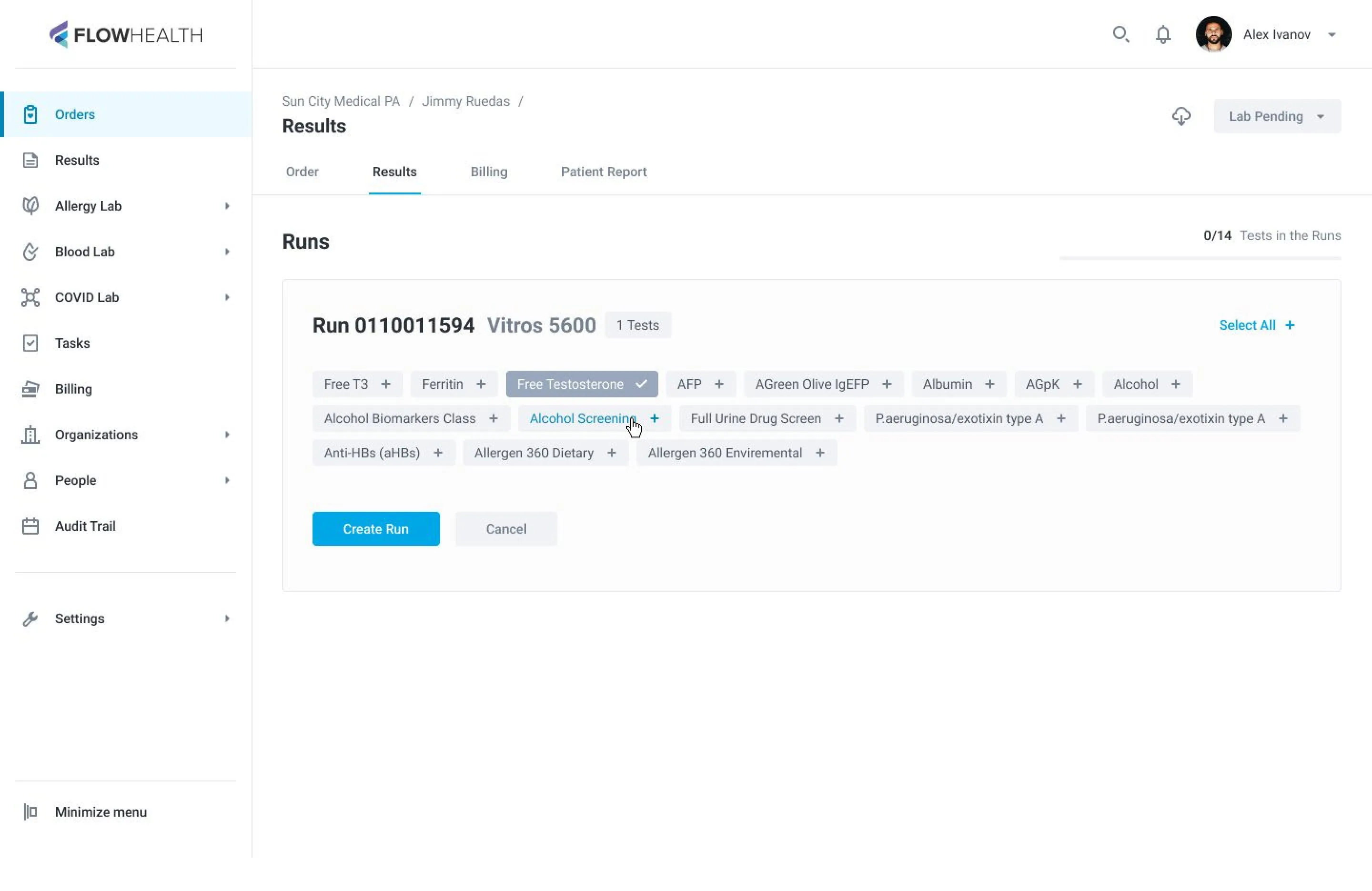 1
1- 1The whole job is left to a person: add tests, then distribute them
- 2Labs are picked again for every container
- 1A bare “Tests in the Run” counter; the chips don’t show what is placed
- 1The 2020 redesign moved runs to Results; the three lists stayed
After: search shows each test’s container and lab before you add it, tests land in specimens by themselves, a gap shows where it happens, and Results says where each test is.
COVID batches
Load a 384-well plate and get each result back to the right patient.
Read the case
Problem
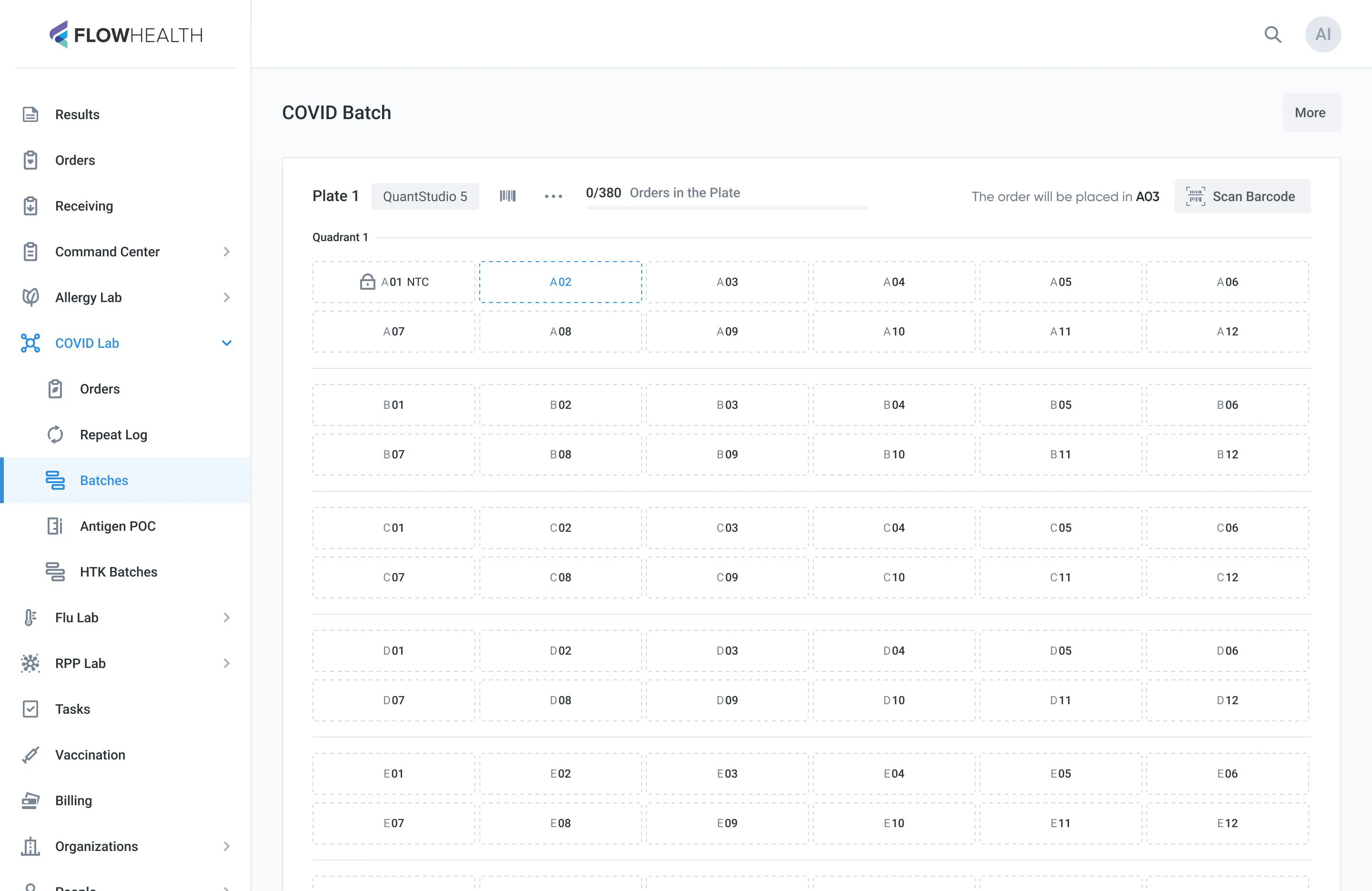
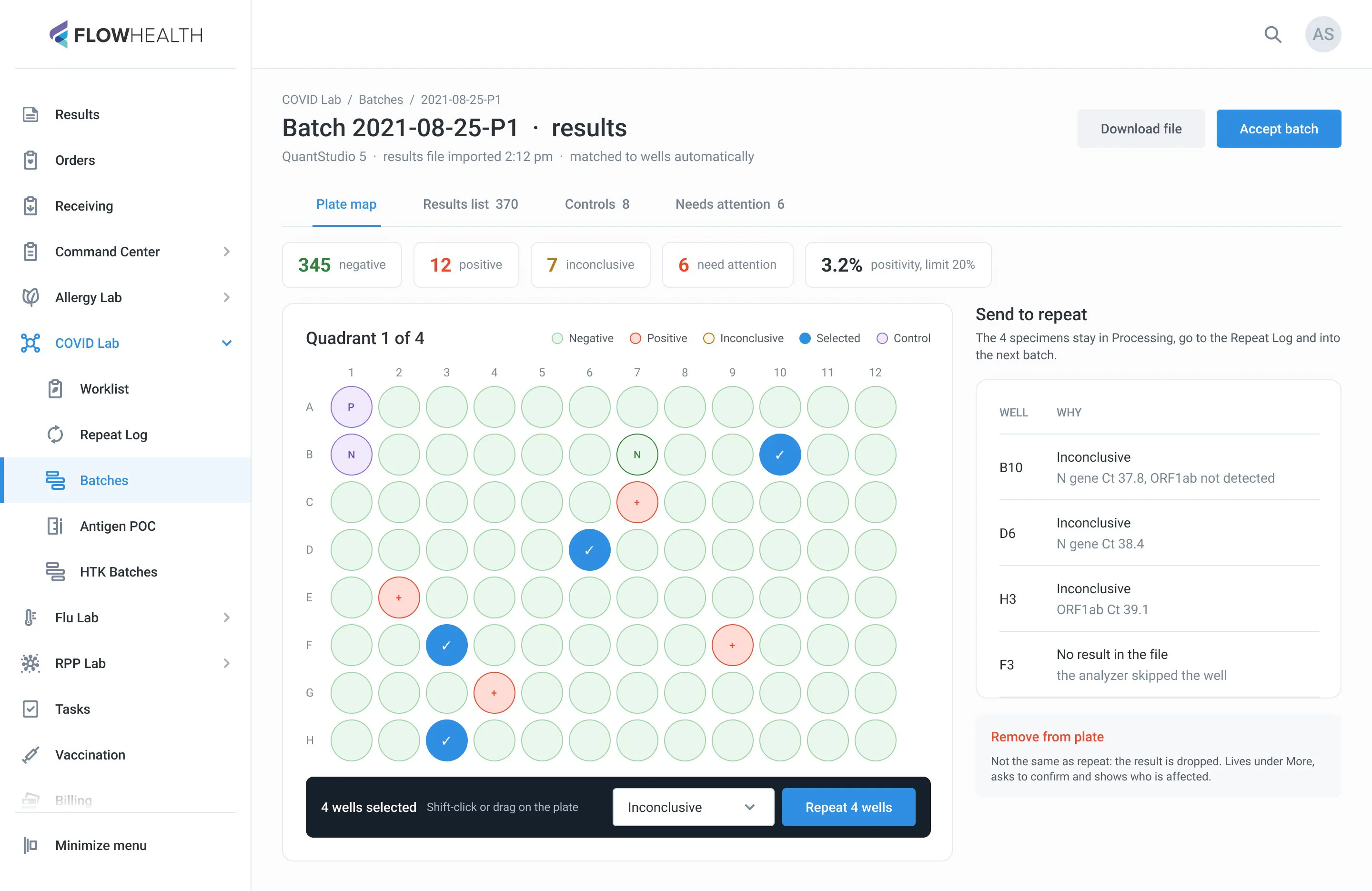
A COVID-19 PCR batch fills one 384-well plate: 4 quadrants of 96 wells, 94 specimens and 2 controls in each. The technician takes received tubes from the worklist and loads each one into its well, with the negative and positive controls in fixed places. The plate map goes to the analyzer with the plate, and the result file comes back well by well. One tube in the wrong well means a wrong result for two patients.
What I saw
The system already picked the next well. It just said so in one line of text, “The order will be placed in D09”, next to a bare counter, with no plate to look at. A second, manual way to fill a well sat right next to the automatic one. When something went wrong, the result file came back with “Well %WELLID%” instead of a tube. Repeats went one well at a time, and a partial release was a line of names with a Copy button.
What changed
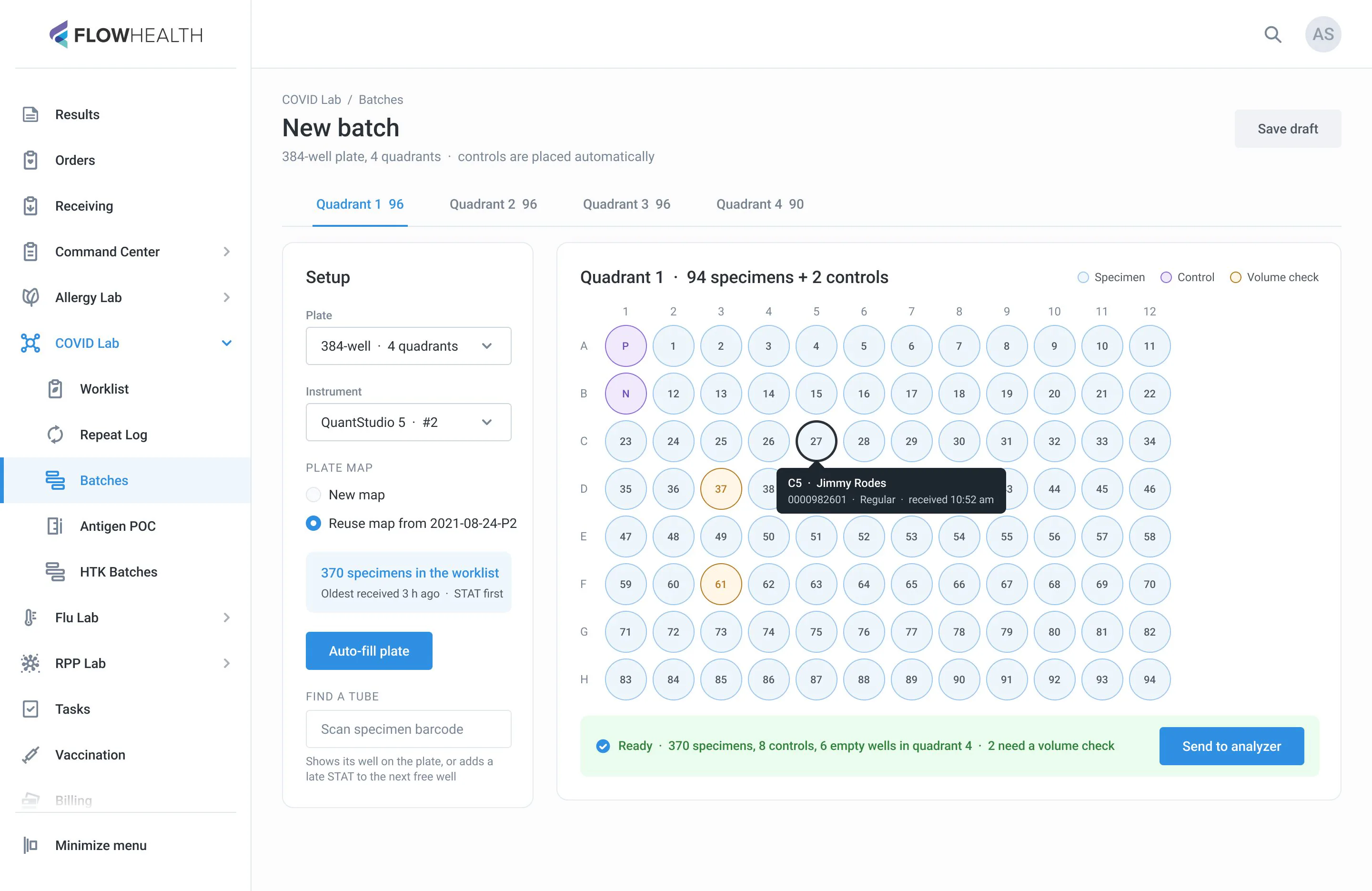
- Quadrant tabs on one plate, controls placed automatically
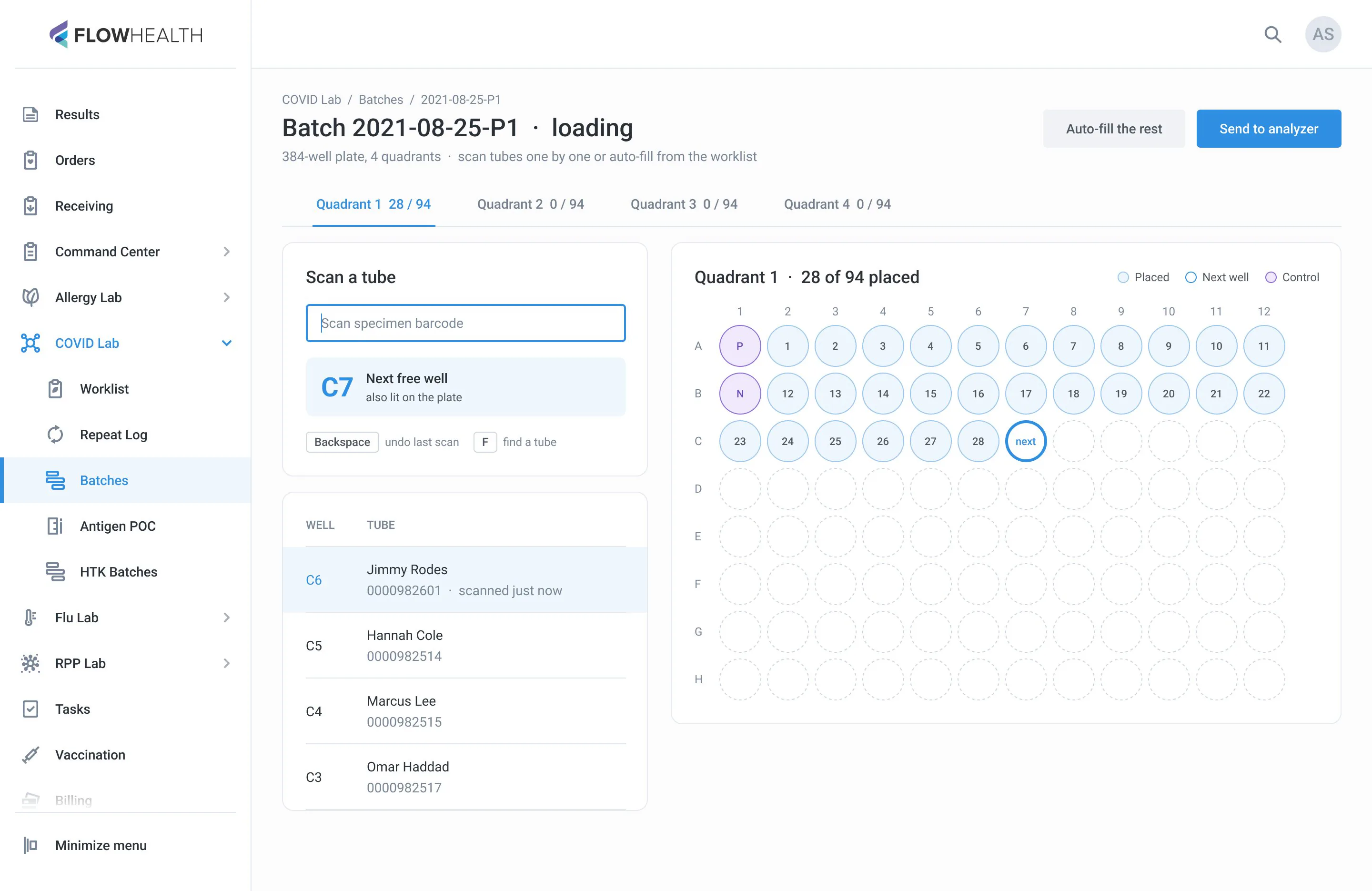
- Auto-fill from the worklist, or scan: the tube lands in the next free well, lit on the plate
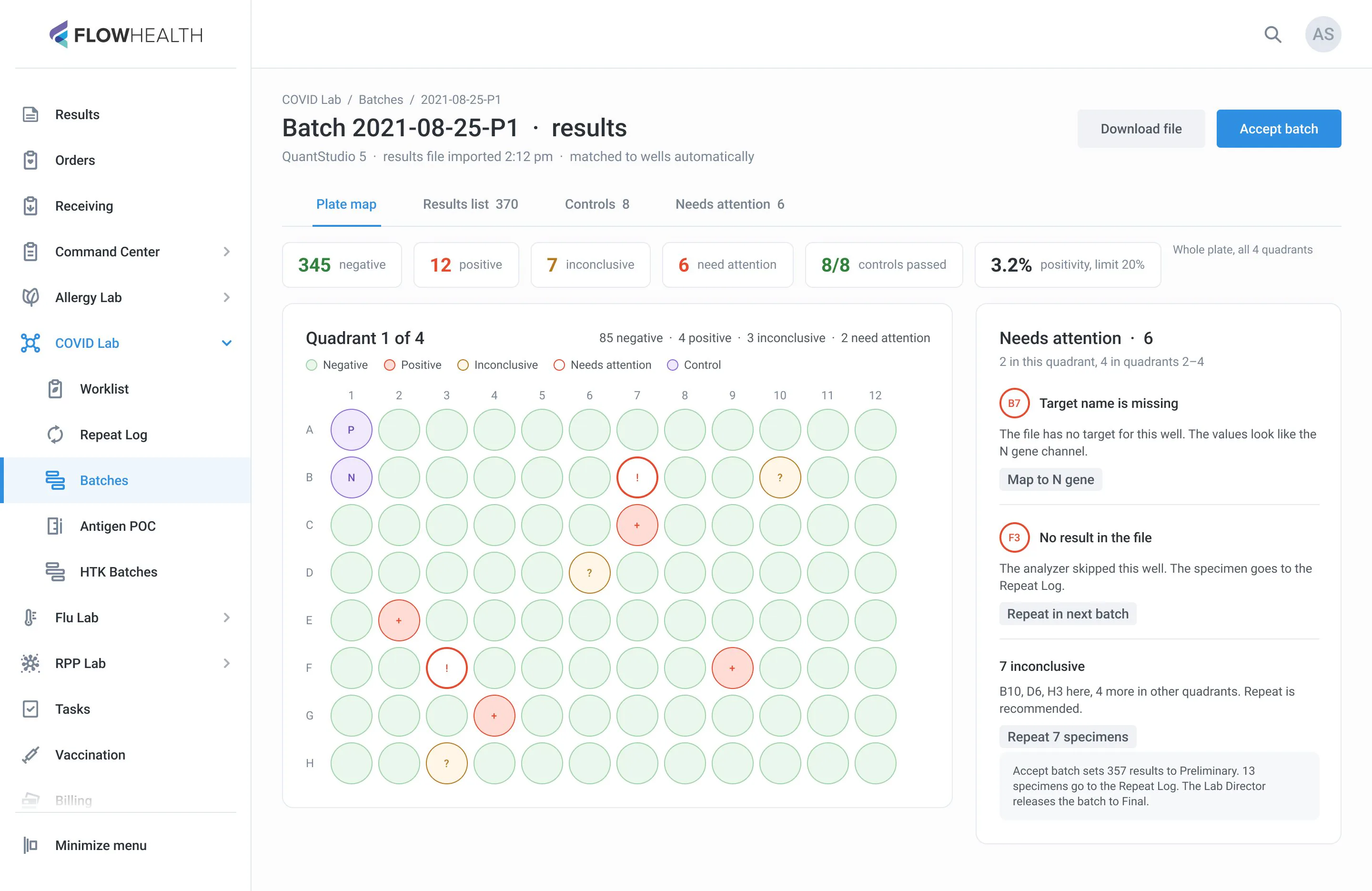
- A results summary for the whole plate, positivity and its limit always in view
- Needs attention lists each problem well in plain words with one action
- Select several wells on the map and repeat them with one reason
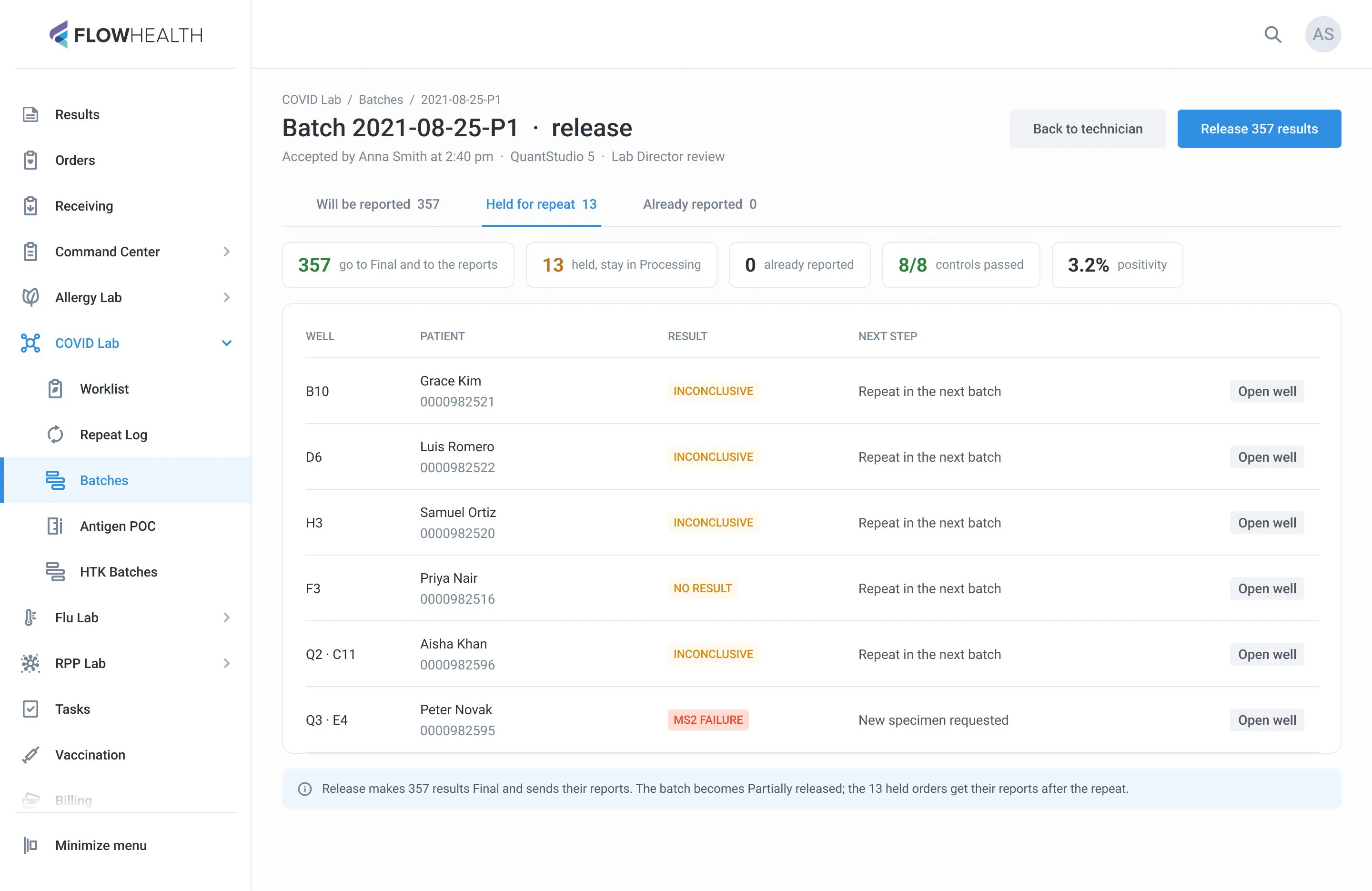
- Release as a table for the Lab Director: what goes to Final, what is held and why
How it works
How a batch works: from received tubes to a released result.
Worklist
Received COVID-19 tubes wait for a batch, STAT first.
Load the plate
384 wells, 4 quadrants of 96. Each quadrant holds 94 specimens, a negative and a positive control.
Risk. A tube in the wrong well is a wrong result for two patients
Run the analyzer
The plate and its map go to the QuantStudio 5.
Read the results
The file comes back well by well: negative, positive, inconclusive, failed.
Risk. Errors came back as raw text without the tube
Accept, then release
The technician accepts the batch, results become Preliminary. The Lab Director releases them to Final.
Old path: 15–25 actions plus a scan per tube, more with errors and repeats
New path: ~5 actions on a clean plate
Before: a line of text and a counter instead of a plate, raw error templates, and a release as a line of names to copy.
 12
12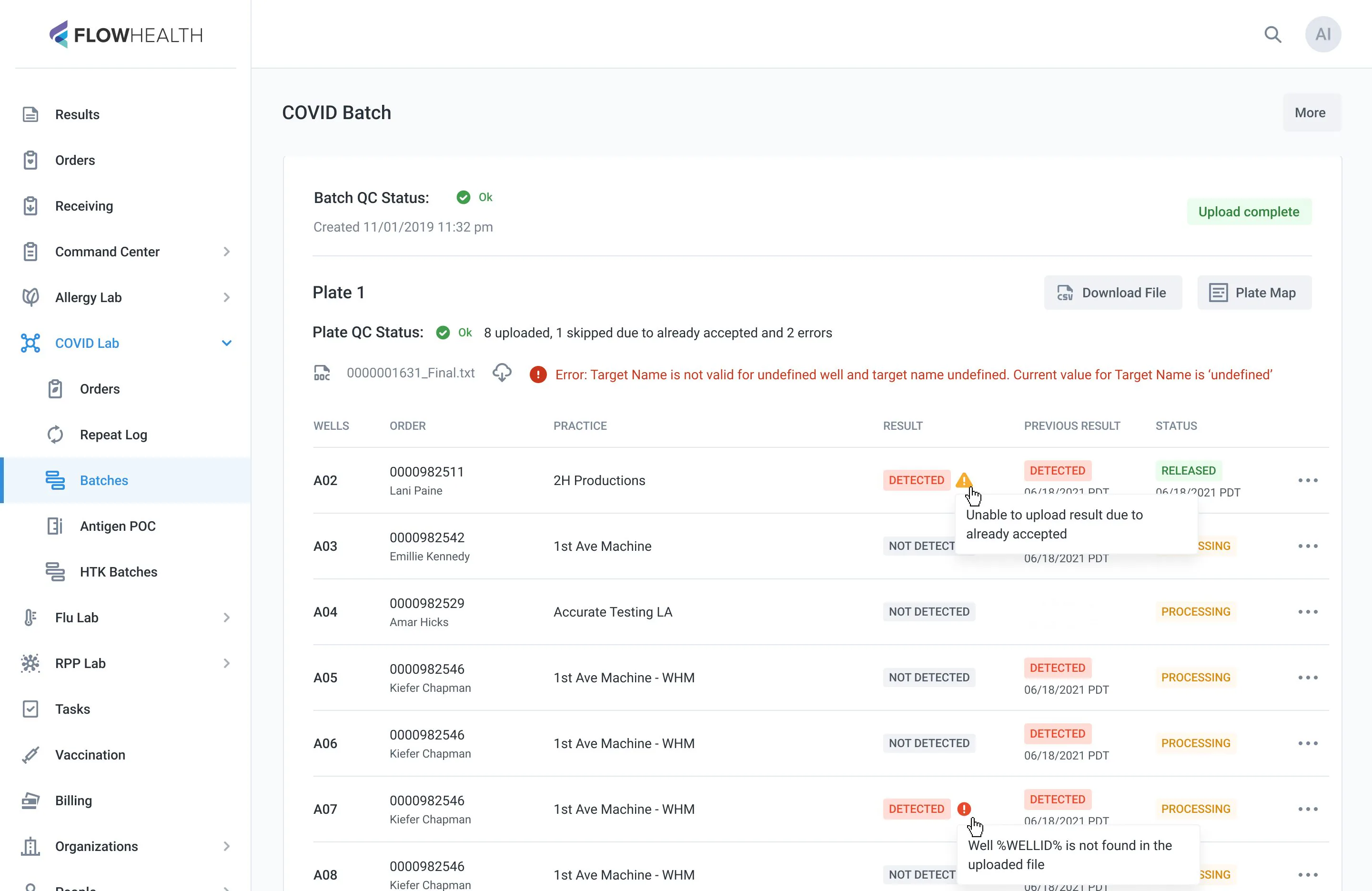 12
12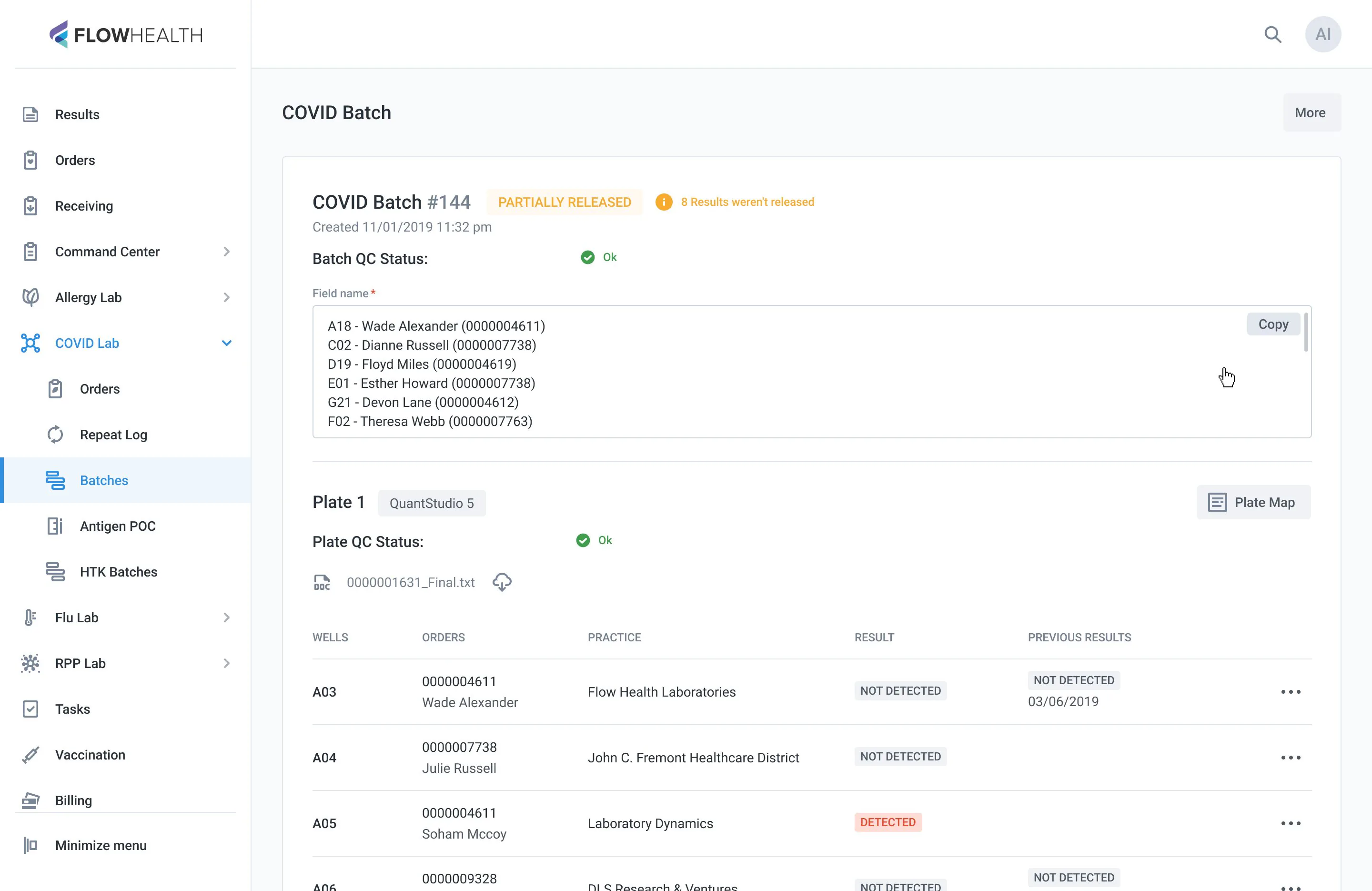 1
1- 1A bare counter of what is loaded
- 2The next well is one line of text, with no plate to look at
- 1Raw error templates instead of the tube
- 2Each error is fixed by hand, one well at a time
- 1A partial release is a line of names to copy and check by eye
After: one plate, loading by scan with the next well on the plate, a results summary, repeats in one go and a release table.
Orders
Where each order is, and what is holding it up.
Read the case
Problem
Orders is where a lab manager answers “where is this order and what’s blocking it”. The old list paged 15 rows at a time, hid filters behind a button, and made you open each order to see its status history.
What I saw
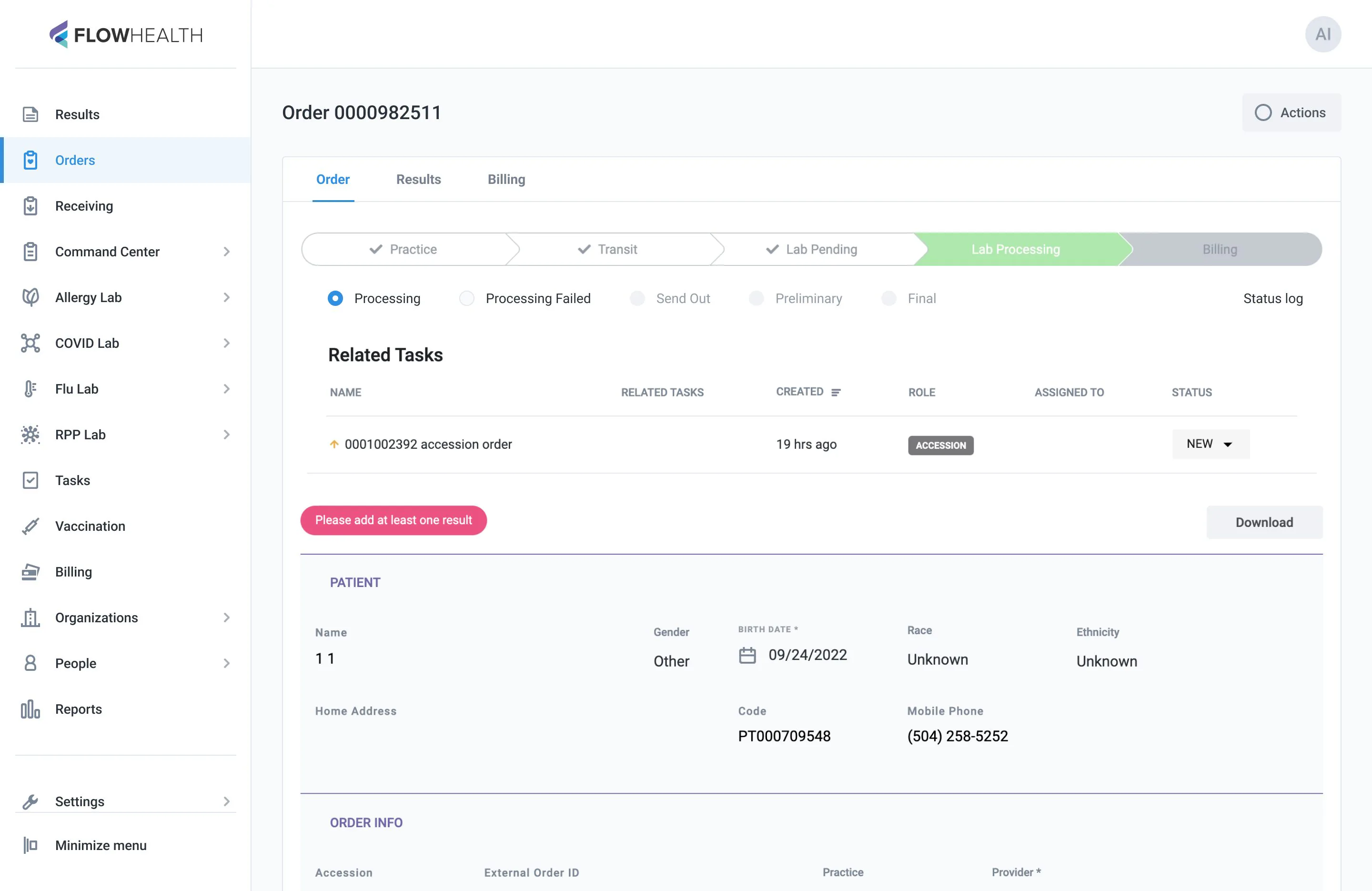
The answer existed but was scattered: the practice status on one tab, the lab status on another, a third step bar above both, a stuck order that showed up only as an empty cell in the list, and history behind another link. Receiving and Results each have their own queues; Orders is the registry above them, so its job is one status per order and one place for everything that’s stuck.
What changed
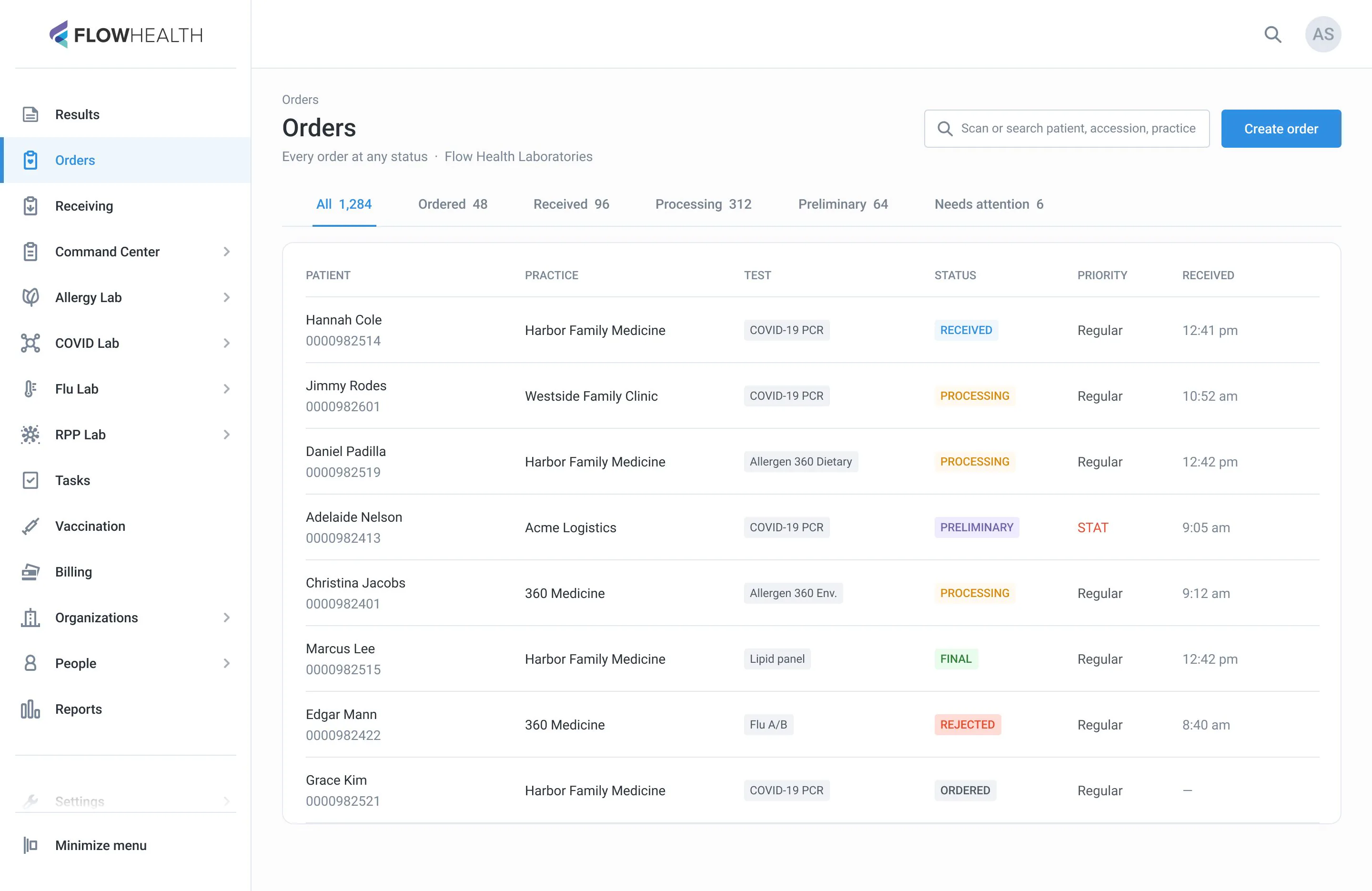
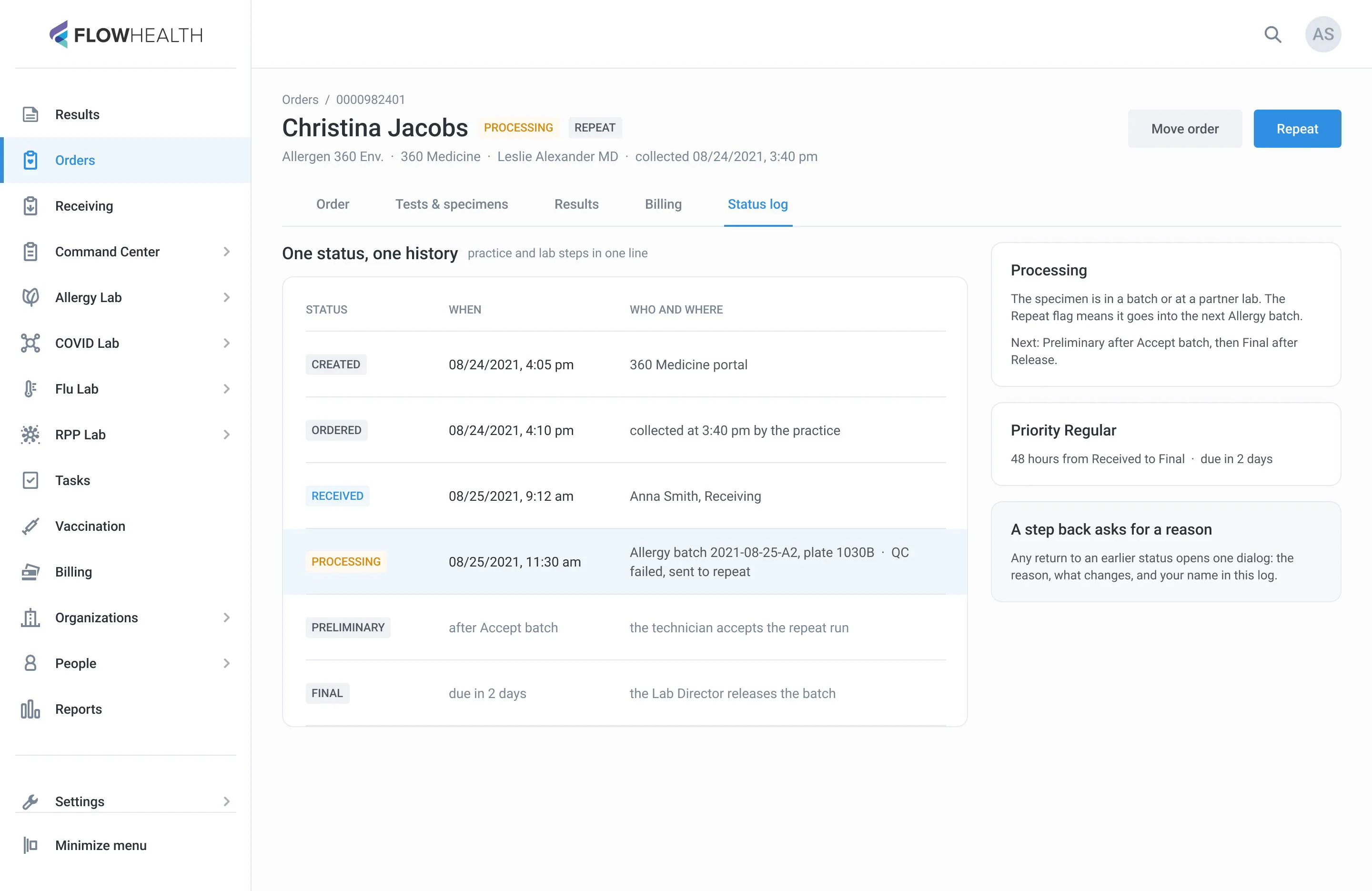
- One status chip per order and one history: practice and lab steps in one line
- Views by status: Ordered, Received, Processing, Preliminary, plus a Needs attention queue
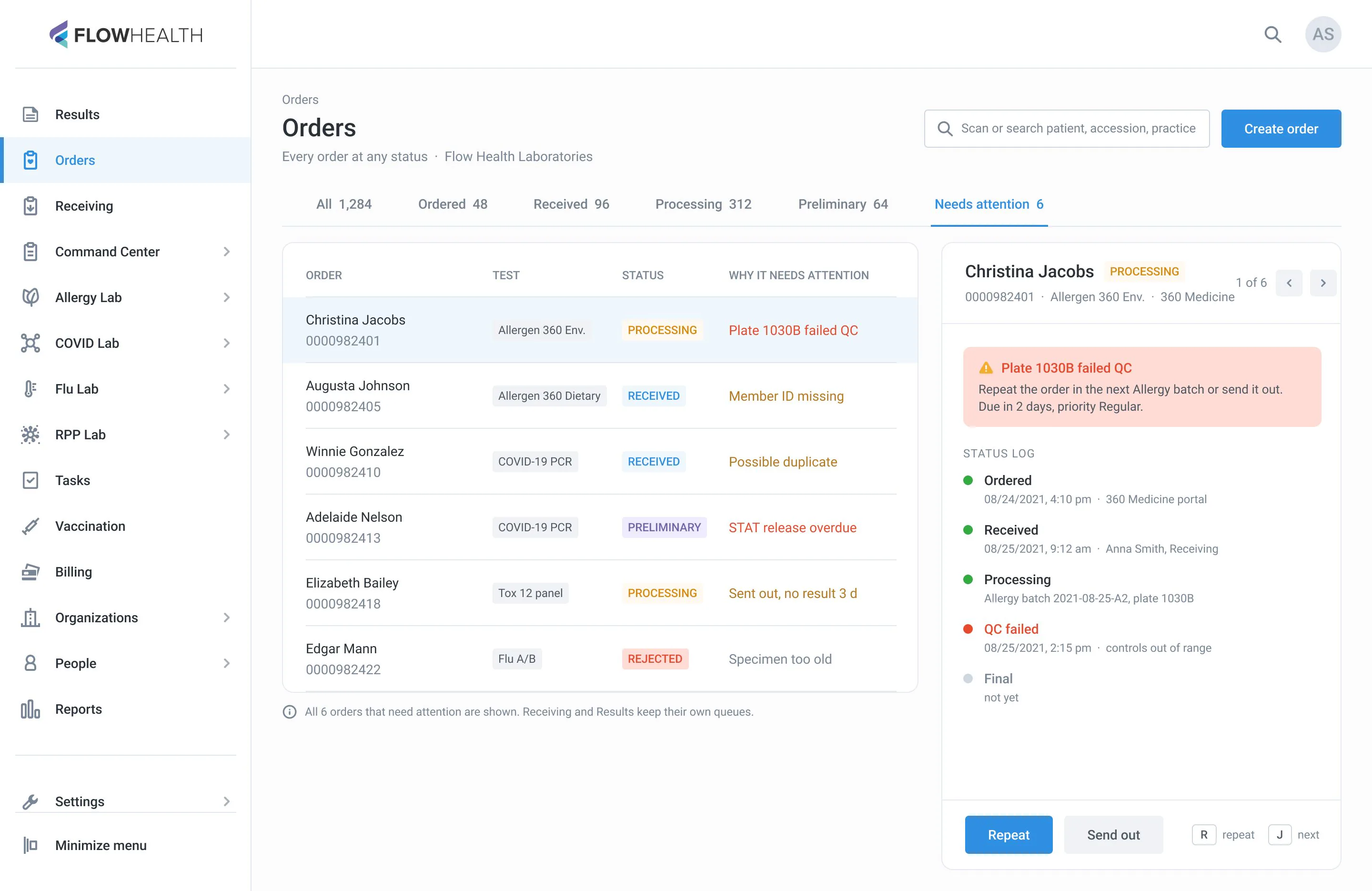
- The reason sits in the row: failed QC, missing member ID, overdue release
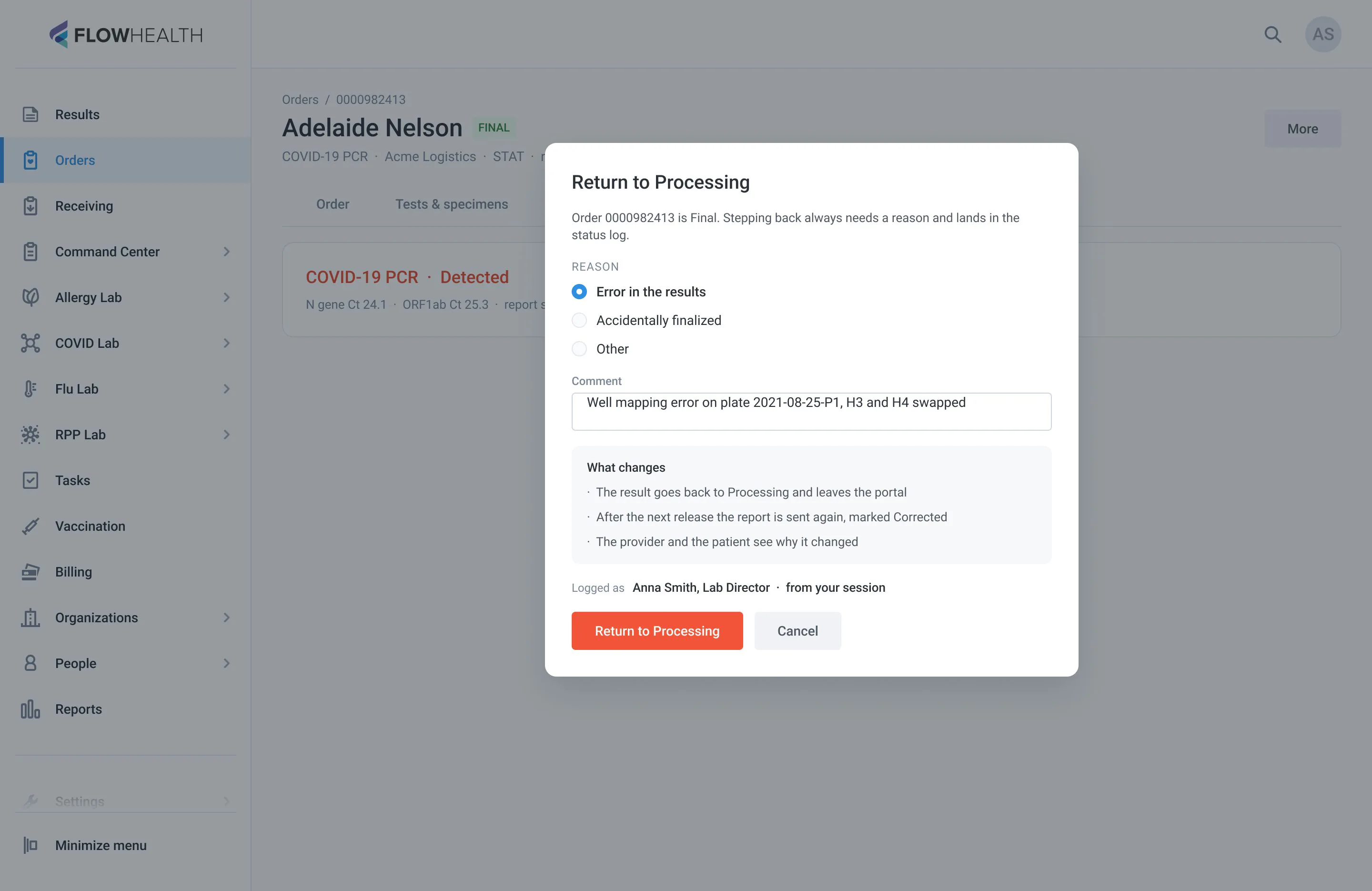
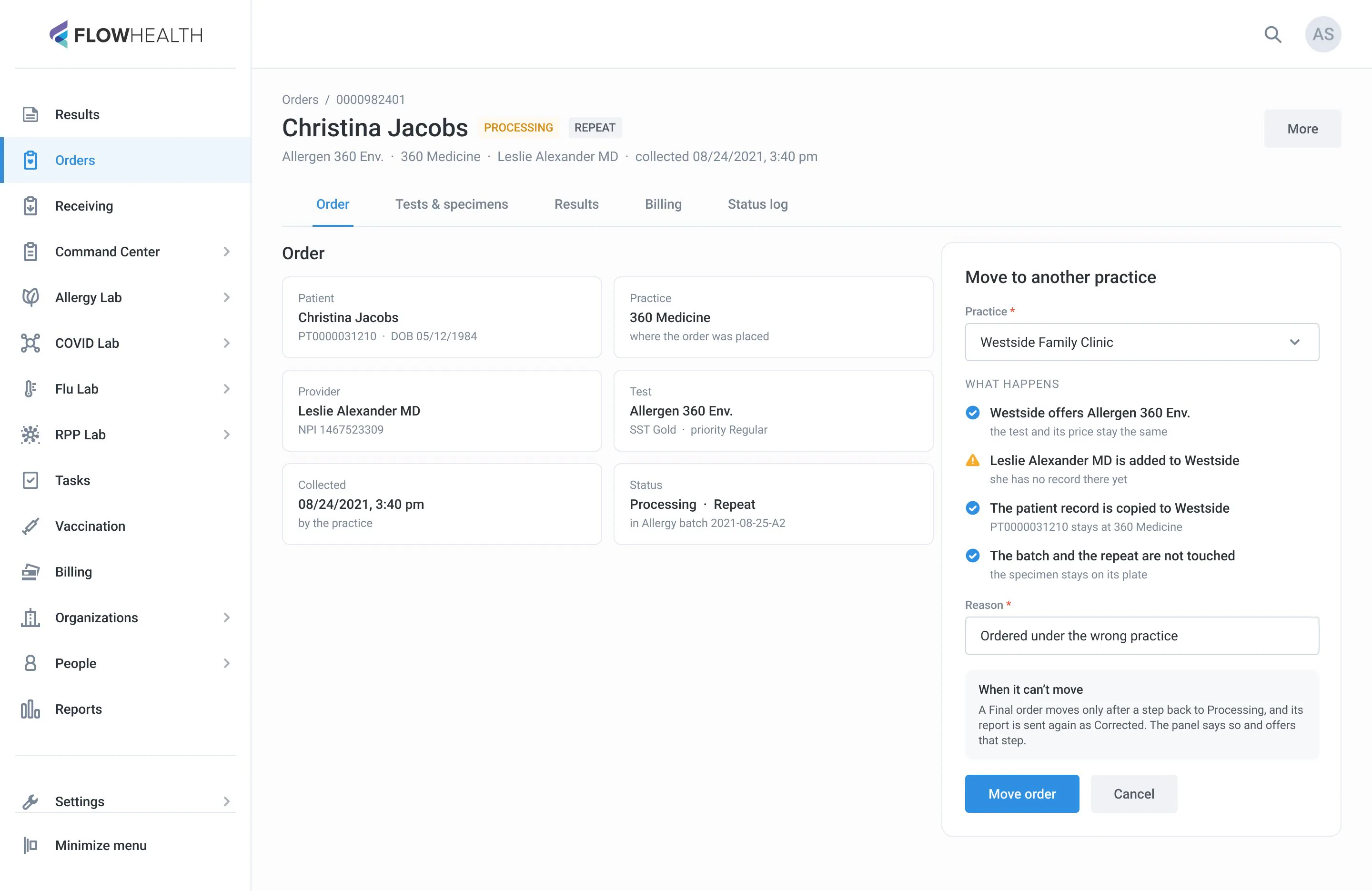
- Move order shows what will happen before it happens, and why it can’t when it can’t
- Every step back asks for a reason and lands in the status log
- J and K through the list, R to repeat
Old path: ~4 clicks and 3 status vocabularies to answer “why is it stuck”
New path: the reason is in the row
Before: two status strips on two tabs, a list that hides why an order is stuck, and a dead end.
 1
1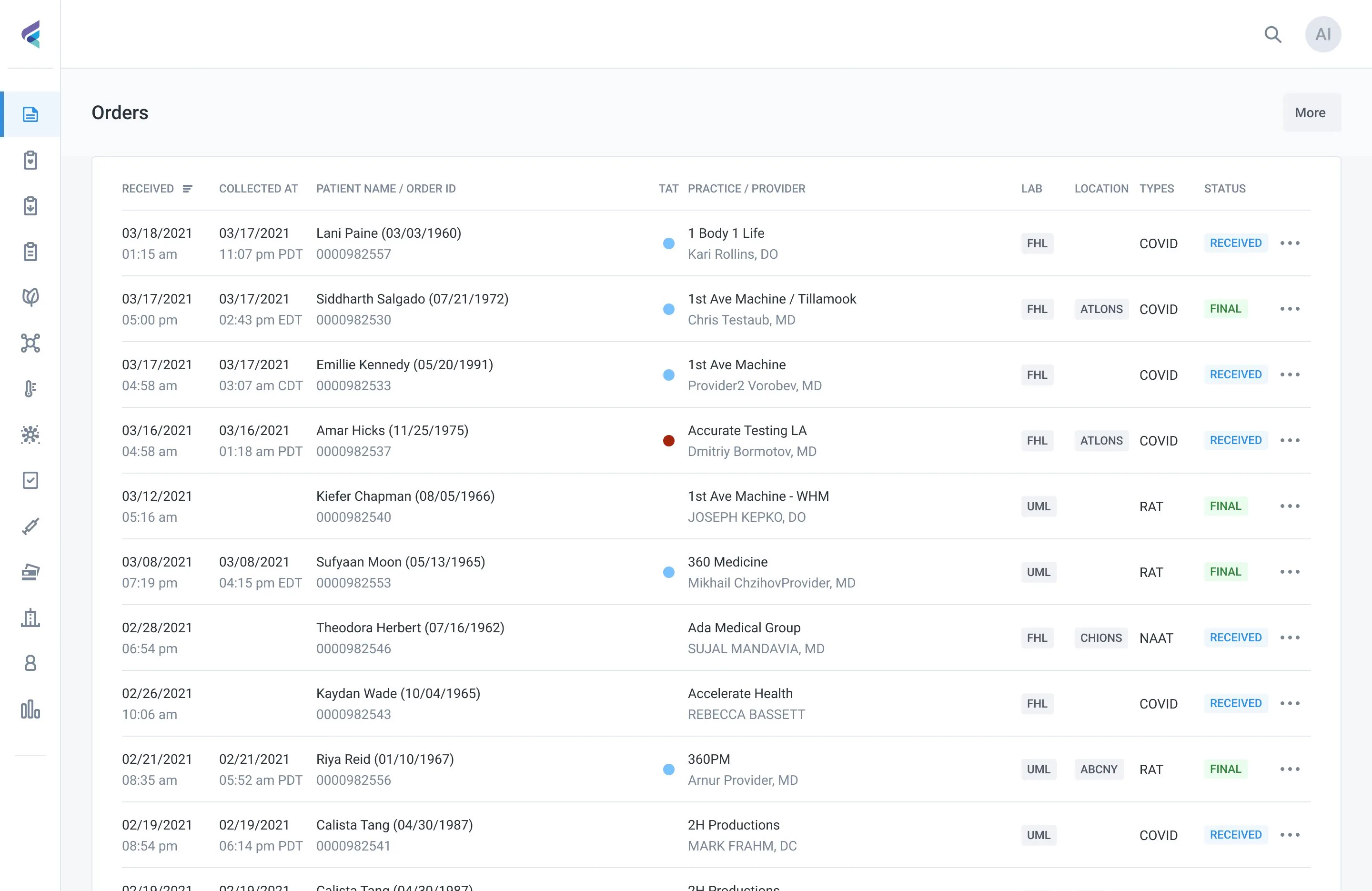 12
12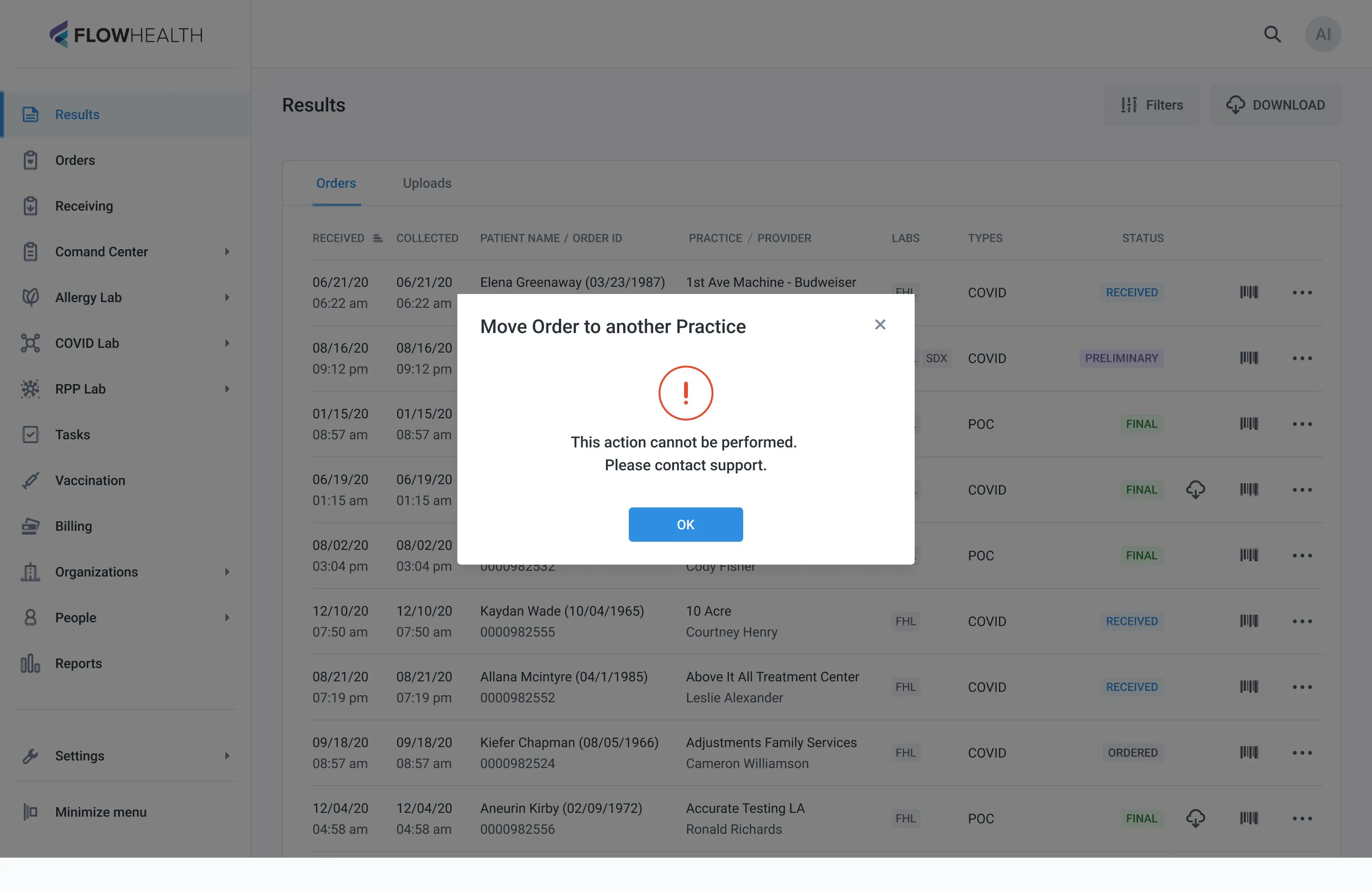 1
1- 1One of two status strips on two tabs of the same order, with a step bar above both
- 1No collection time, and nothing in the row says the order is stuck
- 2TAT is a coloured dot with no time and no legend
- 1A dead end: “This action cannot be performed”, no reason, no way out
After: all orders by status, the reason in each row, one status and one history, a step back with a reason, and a move that explains itself.
Patients
One record per person, everything a caller asks about.
Read the case
Problem
Client Services takes the calls: “where is my result”, “the report didn’t arrive”, “why do I have two accounts”. The old patient page was a long form with one passport field and no history, and duplicates went to support tickets.
What I saw
A caller needs three answers fast: what was ordered, what came back, and whether it reached the provider. Duplicates were born at the door – in clinic files and paper requisitions; cases 01 and 03 now ask before a second record is created, and this page merges the old ones.
What changed
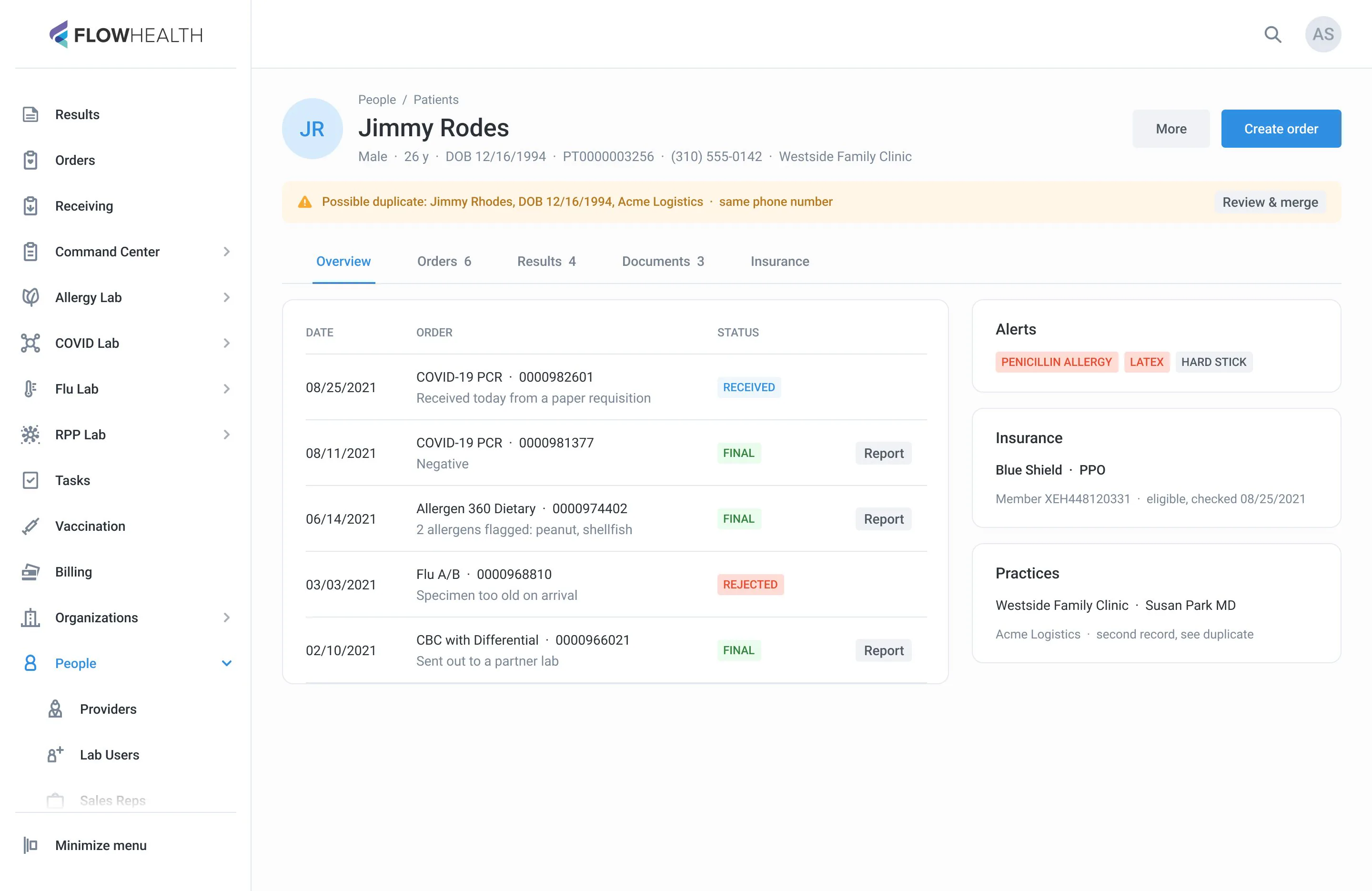
- A header with ID, date of birth, practice and a duplicate warning
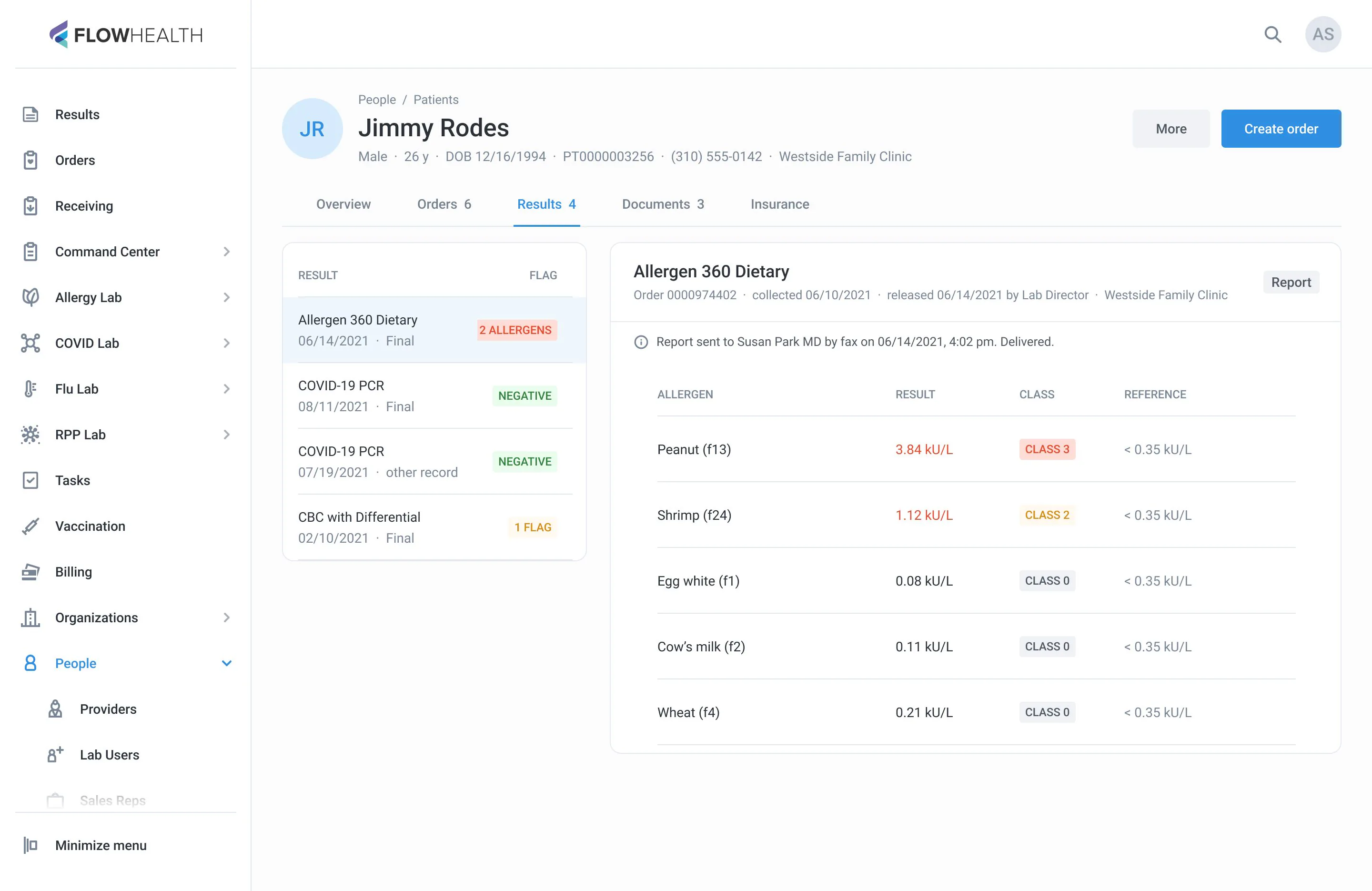
- History with statuses and a small Report button per result
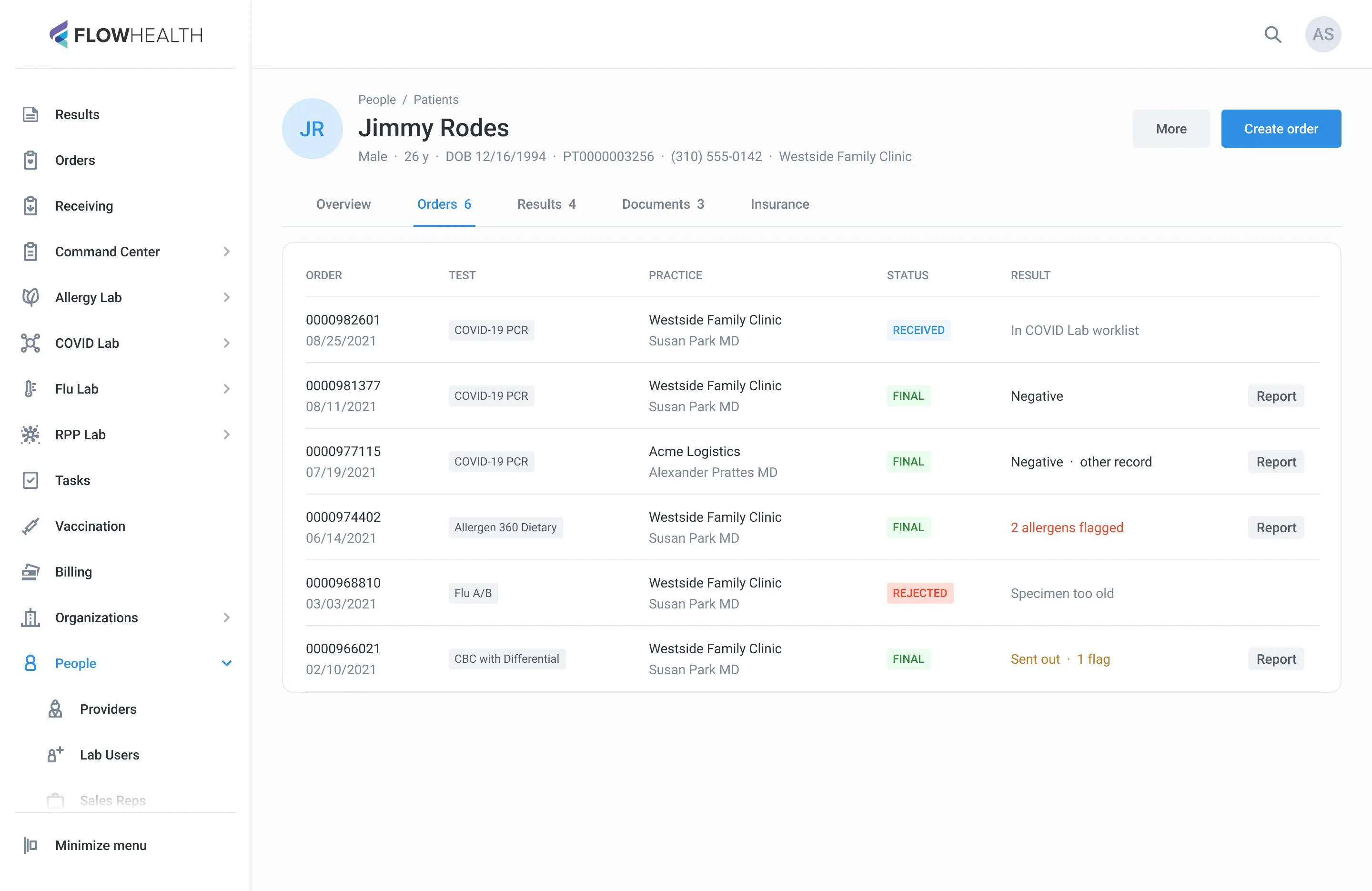
- Orders and Results tabs on the design system’s table cells
- The result shows whether its report reached the provider
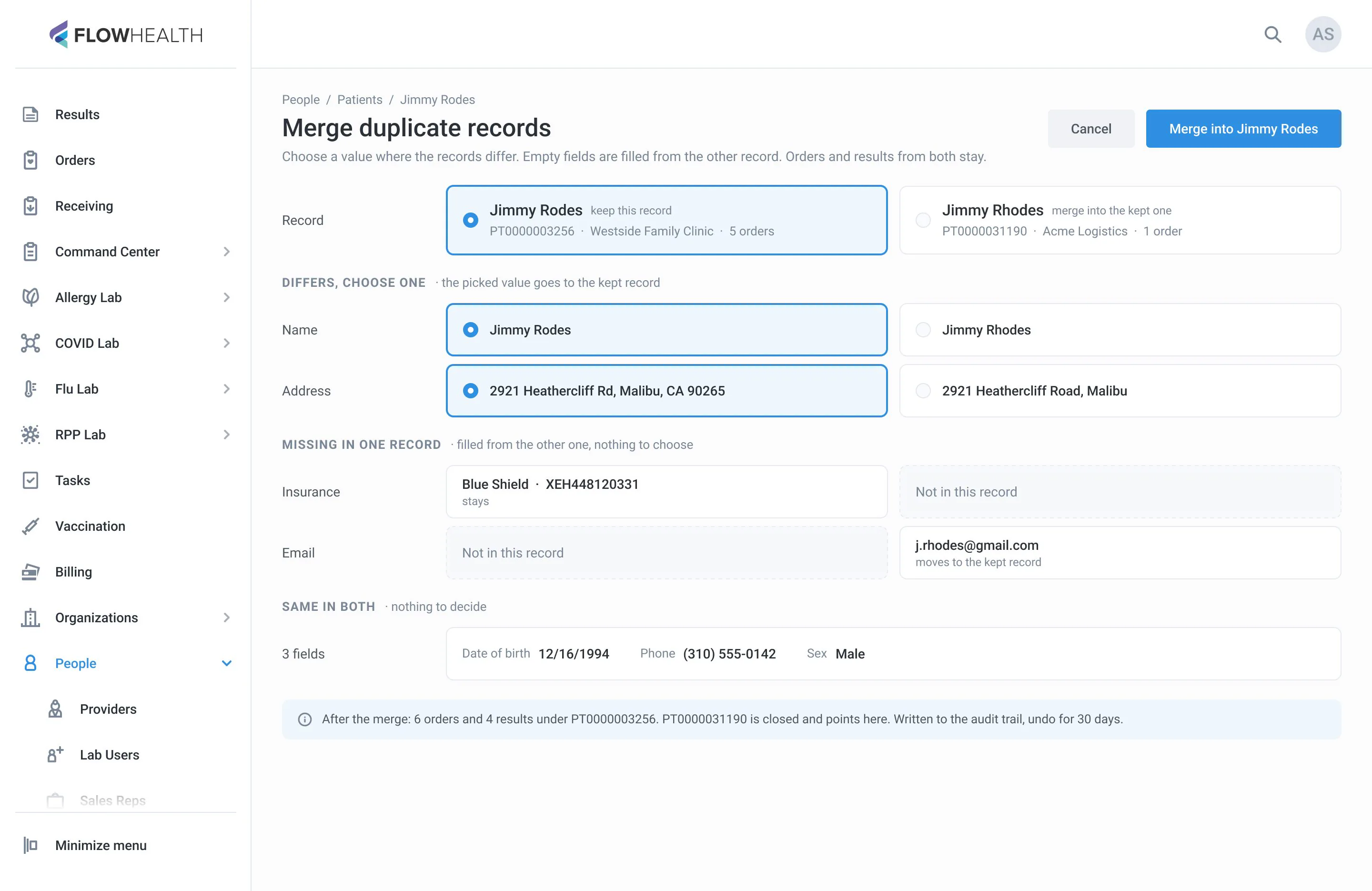
- Merge compares two records field by field and keeps every order
Before: the patient page with a single passport field, and the duplicates list.
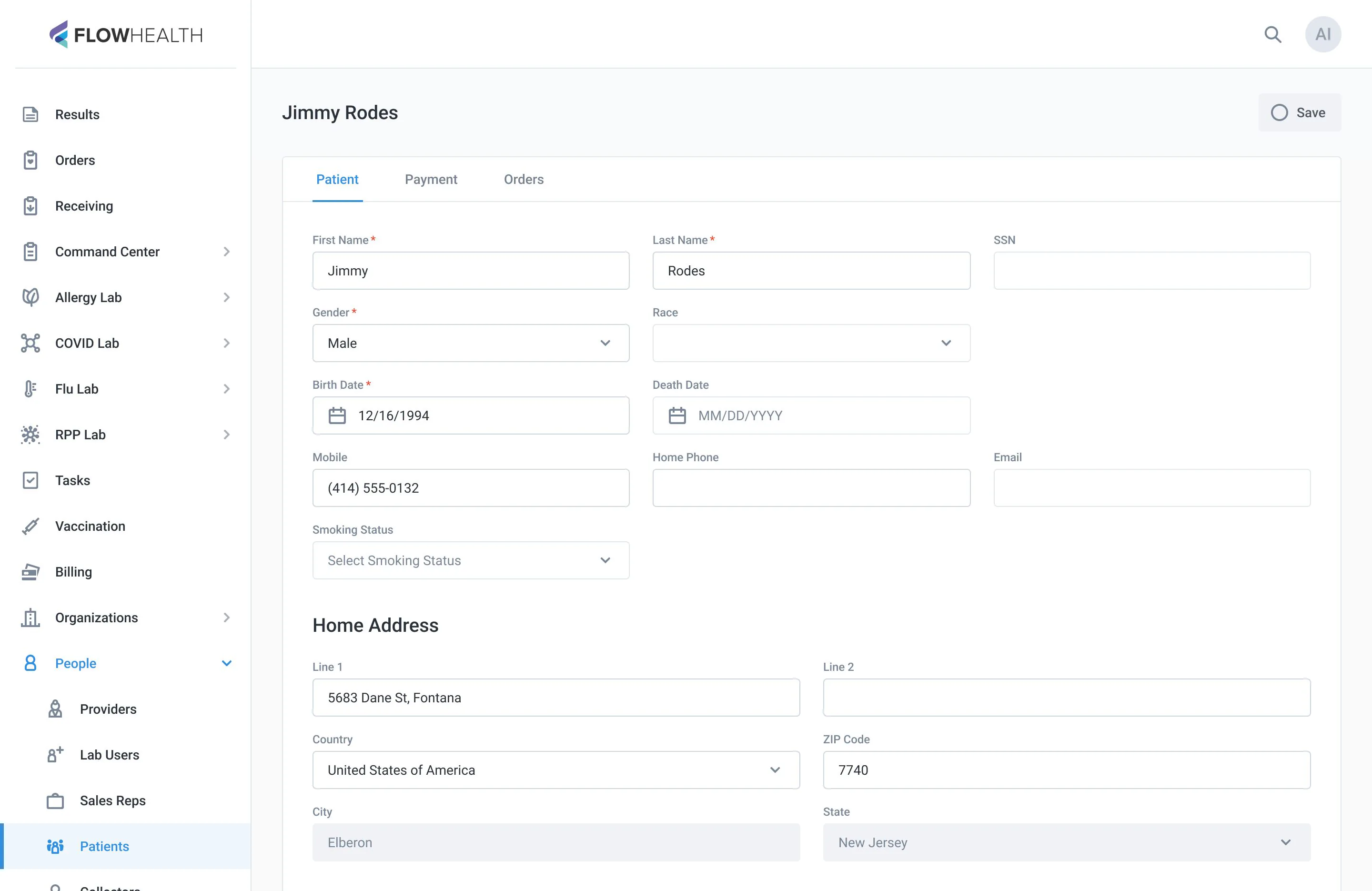
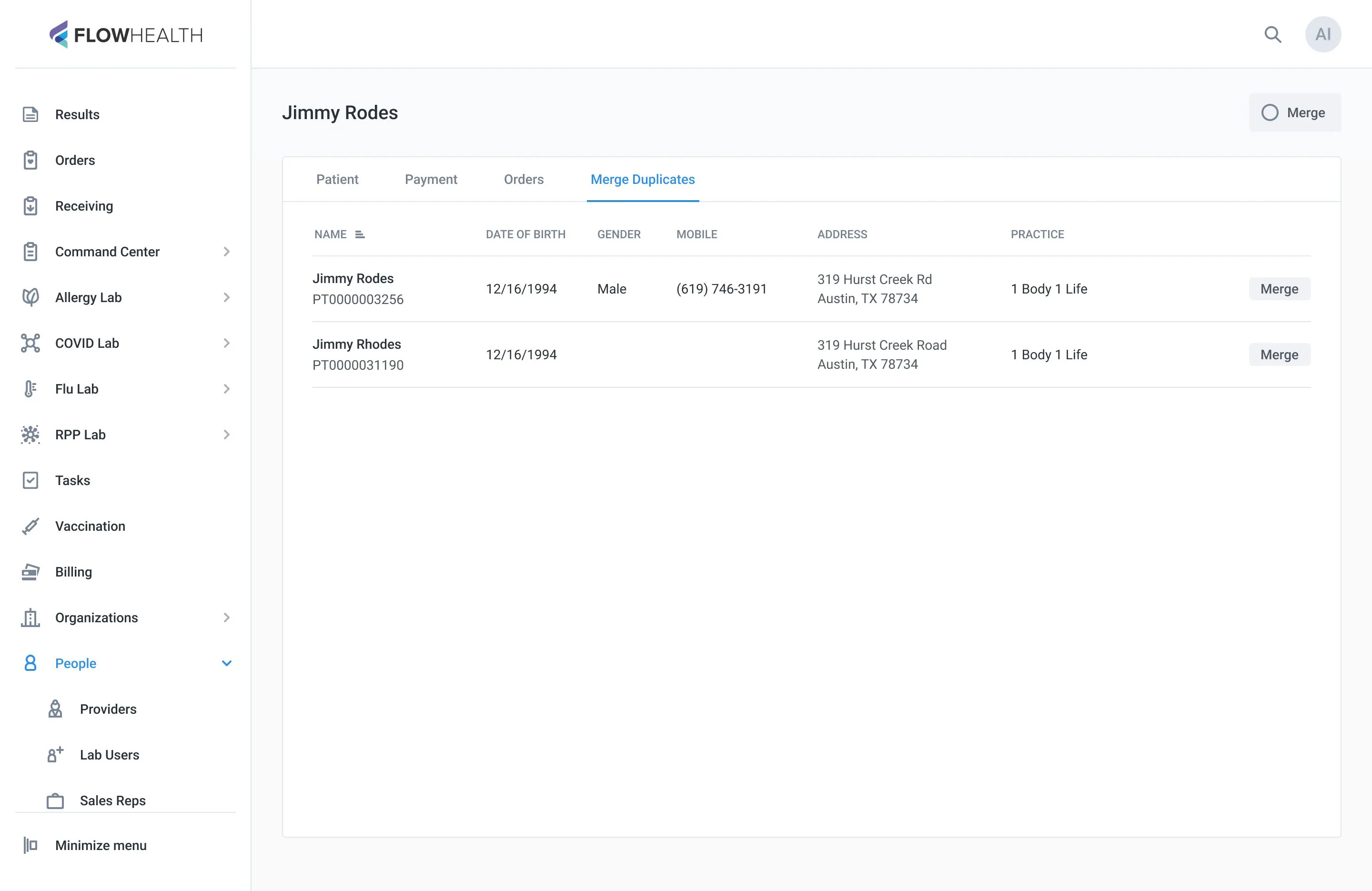
After: overview, orders, results and a field-by-field merge.
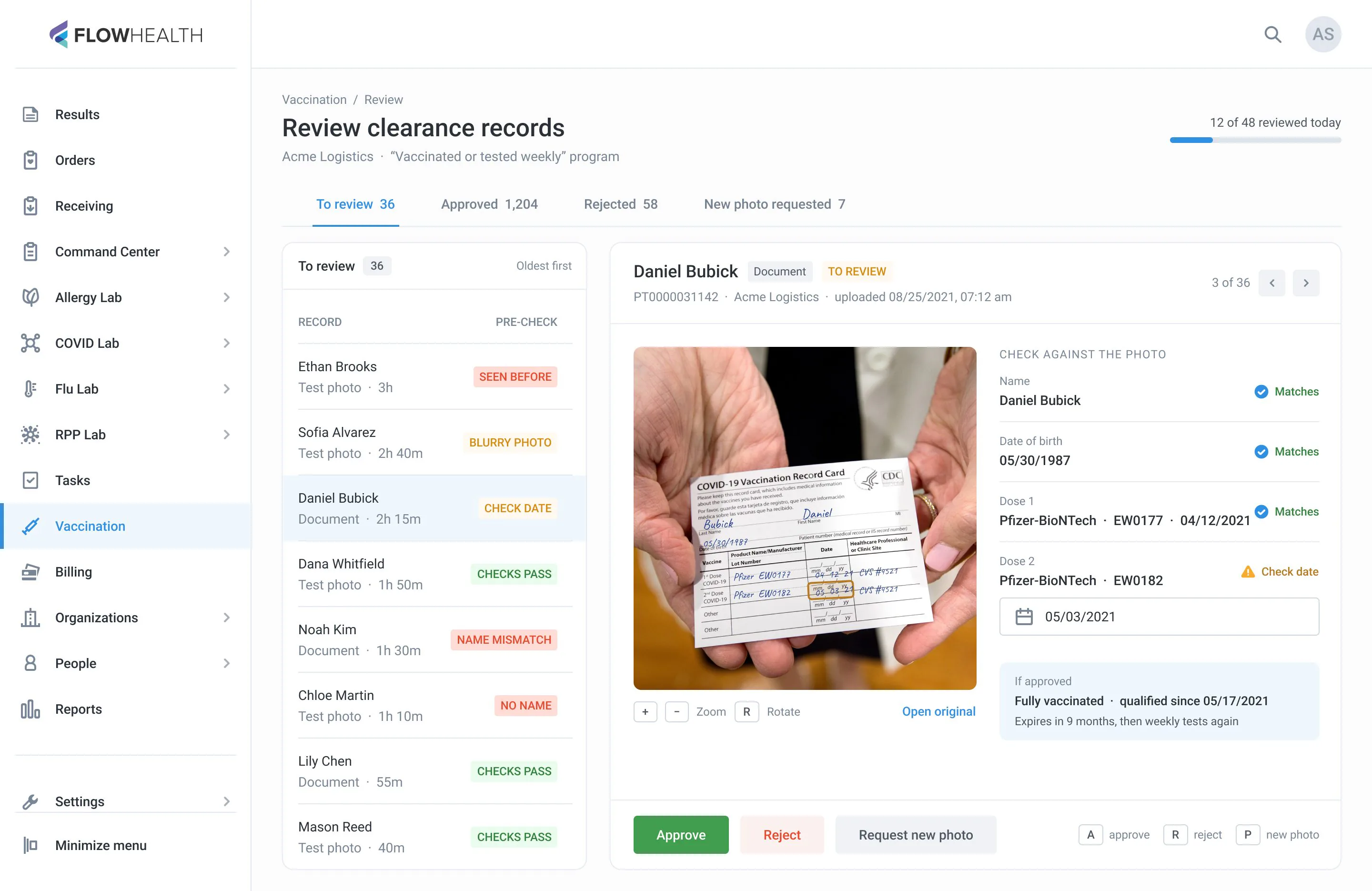
Clearance review
A reviewer checks a vaccination card or home test photo.
Read the case
Problem
In 2021 employers ran “vaccinated or tested weekly” programs. Employees uploaded a photo of a vaccination card, a certificate, or a home COVID test, and someone at the lab confirmed each one before the person counted as cleared. There was no screen for it – reviewers opened files one by one.
How manual review works
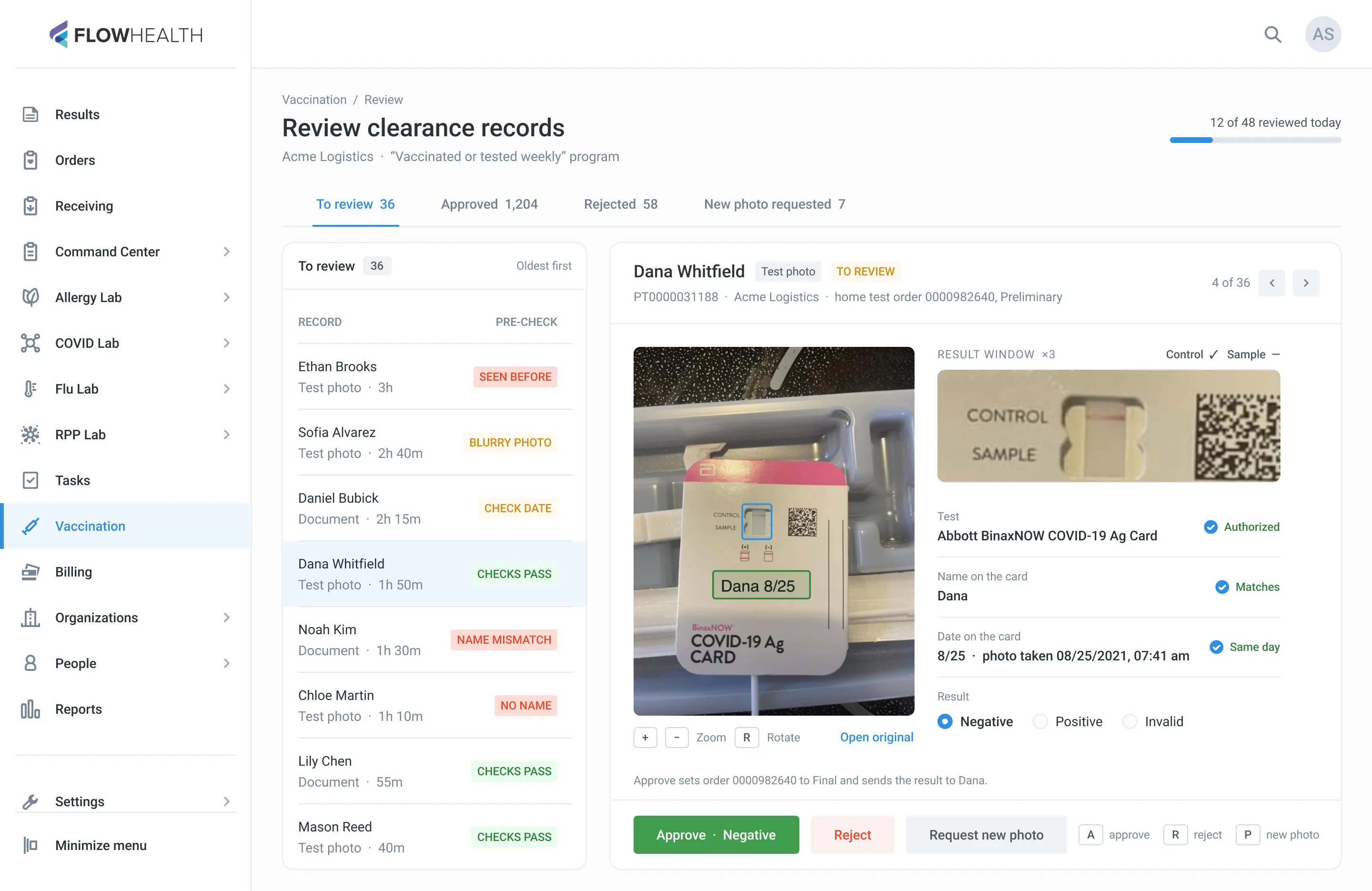
Manual review is reading evidence. For a document the reviewer compares the photo with the fields: name, date of birth, each dose. For a test photo they check that the brand is authorized, the name and date are written on the card, the photo was taken in the read window, and which lines show. Most records are fine; the work is the one field that isn’t, and the reply when a photo can’t be accepted.
What changed
- A queue that shows each record’s type (document or test photo), its waiting time, and a pre-check status
- The photo stays on screen next to the checks, never under a modal
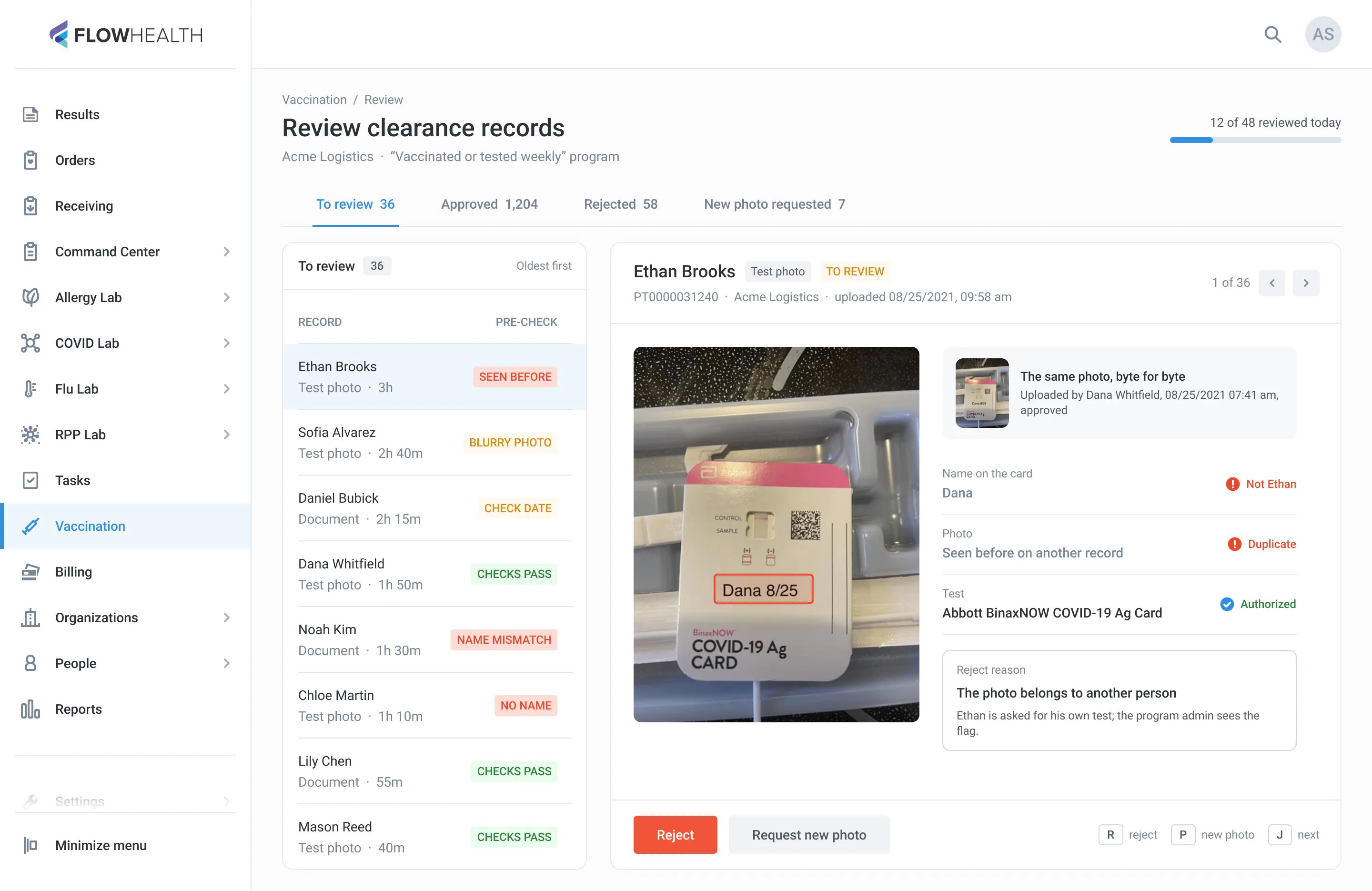
- Only the field that needs a look is highlighted, on the photo and in the form
- Test photos get a zoomed result window and a Negative / Positive / Invalid choice
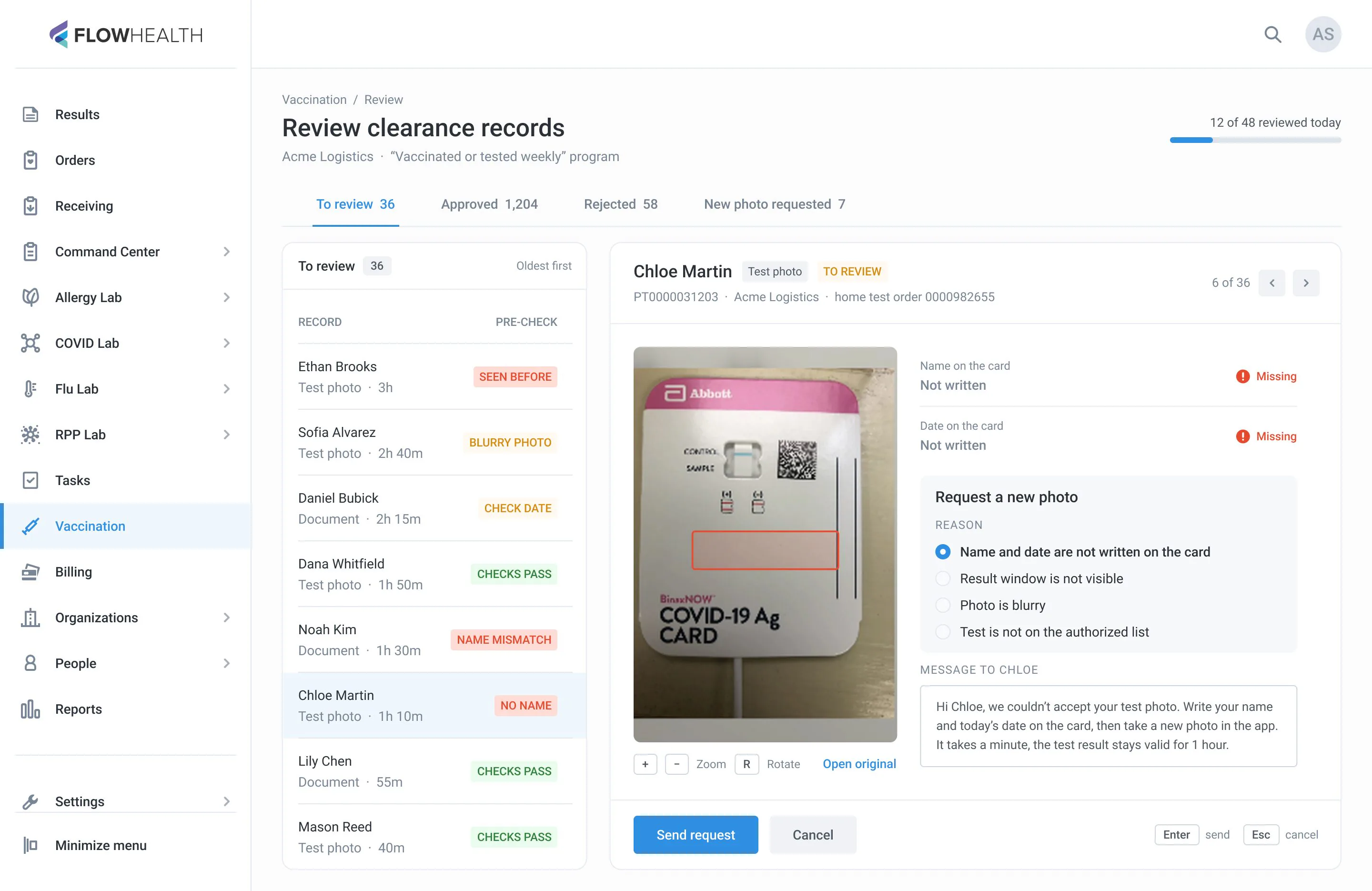
- Reject or Request new photo opens inline with a reason and a ready message
- A photo seen before on another record is caught before approval; A, R and P from the keyboard
Iterations: three layouts tried with reviewers, from a list with modals to a queue with one record.
 123
123Dropped
Iteration 1 · List and a modal
- 1The photo opened in a modal at 110 px, too small to read a handwritten date.
- 2Reject asked for a reason in a second modal on top of the photo, so the reviewer decided without seeing it.
- 3After every record the modal closed back to the list, three clicks to reach the next one.
 123
123Kept
Iteration 2 · Photo next to the fields
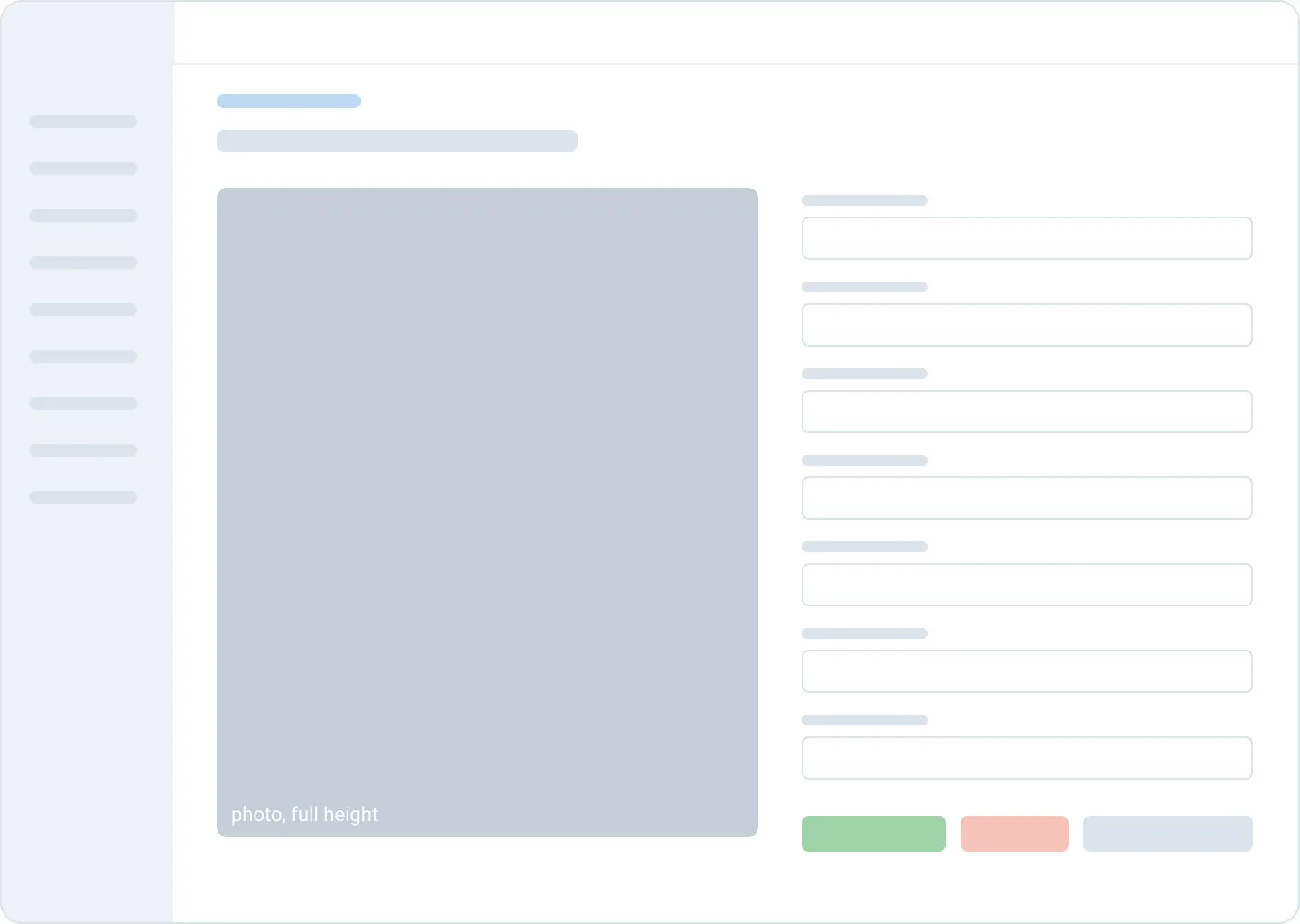
- 1Photo and fields side by side, at full height. This part went into the final design.
- 2Still “Back to list” after each decision, and no sense of how many records were left.
- 3All seven fields looked equally important, the one that needed a check got lost.
 1234
1234Shipped
Iteration 3 · Queue and one record
- 1The queue stays on screen, the next record opens by itself after a decision.
- 2Only the field that needs a look is highlighted, on the photo and in the form at once.
- 3Reasons for reject or a new photo open inline, the photo is never covered.
- 4A, R and P from the keyboard, J for the next record.
After: a document, a test photo, a photo seen before on another person, and a request for a new photo.
What I’d measure next
The time figures on this page come from measurements after launch; the action counts are counted from the flows. Several changes are not about speed at all: one status for every order, a question before a second patient record. Next I’d track what the launch measurements didn’t cover: how many “new” patients from clinic files turn out to be duplicates, how many orders still need a manual fix to place their tests, and how often a Needs attention row is resolved on the first try.
All patient data is fictional.